
The Anchorage
Personal website of Gregory K. Maxey, Commander USN (Retired)
The Anchorage
Personal website of Gregory K. Maxey, Commander USN (Retired)
The information, illustrations and code contained in my "Microsoft Word Tips" are provided free and without risk or obligation.

However, the work is mine. If you use it for commercial purposes or benefit from my efforts through income earned or time saved then a donation, however small, will help to ensure the continued availability of this resource.
If you would like to donate, please use the appropriate donate button to access PayPal. Thank you!



The purpose of this Microsoft Word Tips & Microsoft Word Help page is to provide an introduction to mapped content controls and their usefulness in creating a rich document user experience.
My Repeating Data Word Help & Tips page describes several methods that enable a document user to type data in one place and have it repeated (or populated) in one or more other places in the document. One of the most powerful and versatile methods is the Content Control introduced in Word 2007. The key to this power and versatility is the content controls ability to be mapped (or bound) to an XML data node stored in a document customXMLPart.
The designers of Word 2007 obviously saw the benefit of this method because they were nice enough to incorporate fifteen built-in, mapped controls into every new document. These controls correspond to the fifteen built-in "document properties" from previous versions of Word. In fact they are still called "document properties."
To view and use one of these controls you simply click the Insert tab>QuickParts>Document Property, and select the property you want to insert. In the example shown below, I inserted the "Author" document property.
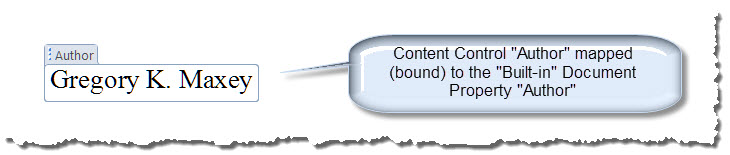
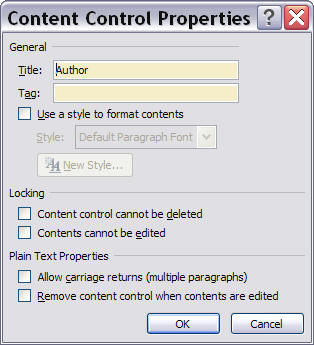
You can confirm that this "document property" is displayed to the user in a Content Control by selecting the the control then clicking the Developer Tab>Controls>Properties. The dialog displayed shows the control properties including the title "Author."
The fifteen (15) built-in document properties are mapped to one of three built-in customXMLParts of the document Office Open XML File format. As explained in "Repeating Data," if you copy and paste one of the controls to a different location in the document then the copy is also mapped to the same XML data. Changes made to in the XML data, the original control, or to one or more copies are automatically reflected in all the other mapped locations.
For many users, as alternate titles can be assigned to the controls as explained in "Repeating Data," these fifteen controls may meet every need. Where it won't, "Repeating Data" provides several workarounds including the basic procedure to create and map your own controls.
Returning visitors to this page may find the content seriously diminished. At one time, this tips page contained some relatively complex VBA procedures for mapping a small collection of content controls, and a rudimentary add-in for performing that process. That has all been replaced with a Word Template Add-in that contains several tools you can use to simplify content control mapping: Content Control Tools.
That's it! I hope you have found this tips page useful and informative.
The information, illustrations and code contained in my "Microsoft Word Tips" are provided free and without risk or obligation.
However, the work is mine. If you use it for commercial purposes or benefit from my efforts through income earned or time saved then a donation, however small, will help to ensure the continued availability of this resource.
If you would like to donate, please use the appropriate donate button to access PayPal. Thank you!
This page was last updated on
March 09, 2021
Website
Privacy Statement
Back to top  Back to
Word Tips
Back to
Word Tips