
The Anchorage
Personal website of Gregory K. Maxey, Commander USN (Retired)
The Anchorage
Personal website of Gregory K. Maxey, Commander USN (Retired)
The information, illustrations and code contained in my "Microsoft Word Tips" are provided free and without risk or obligation.

However, the work is mine. If you use it for commercial purposes or benefit from my efforts through income earned or time saved then a donation, however small, will help to ensure the continued availability of this resource.
If you would like to donate, please use the appropriate donate button to access PayPal. Thank you!



This Microsoft Word Help & Microsoft Word Tips page provides advanced tips and techniques for filtering/validating Userform text entries.
If you are unfamiliar with Userforms then this page probably isn't the best place for you to start. If this is the case, I suggest you review my Custom VBA\Userform Message Box and Create and Employ a Userform tutorials. If you have looked at Create and Employ a Userform, you are already aware of the benefits of a Userform.
In Create and Emply a Userform, I demonstrated some basic validation techniques. Here I am going to demonstrate validation techniques that could be considered Draconian. In this demonstration the user has little choice other than to complete the form as instructed or quit!
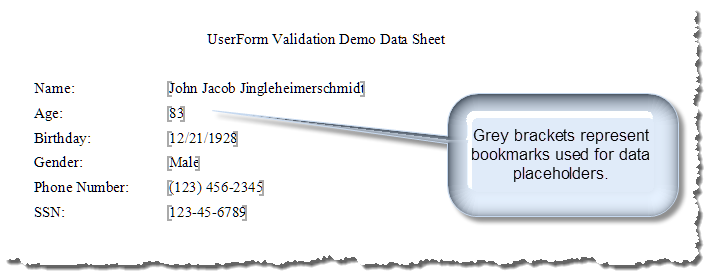
The end result of the exercise is a simple data sheet with six data fields displaying the information entered by the user.
The Userform provides the label, text field and command button controls and processing code required to instruct the user and collect and validate specific information the user enters in the from. The Userform, as it is initially displayed to the user, appears below:
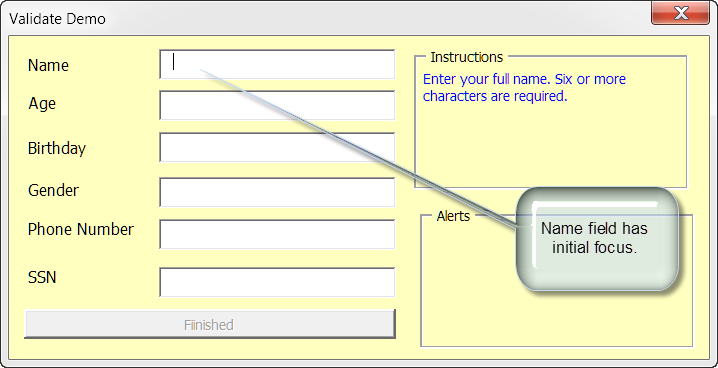
As the user enters each data field in the Userform the form provide data requirement instructions to the user. For example the name field instructs the user to enter their full name and indicates that an entry of six or more characters is required.
 Notes:
1. Bubble text added for emphasis the the graphics depicted on this page.
2. God tells us his name is "I am." I knew a guy in the Navy named A B Im. That is "A" and "B" with no periods. Without looking at an ID, it would be impossible to positively validate a full name. I suppose the validation used in this demonstration could be made more robust, but I hope you see the point. The user can't leave the field blank and Bob, Bill or Joe or John for that matter won't cut it.
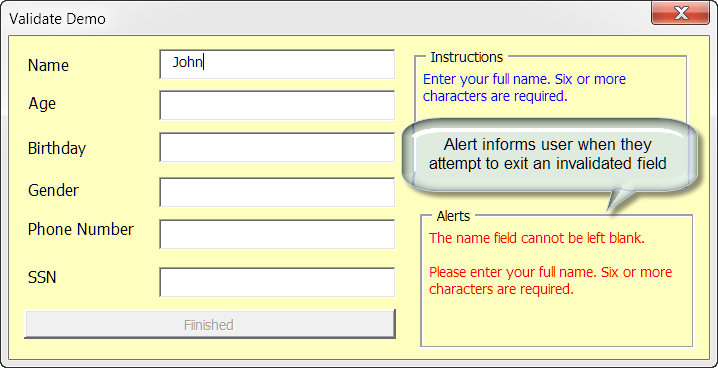
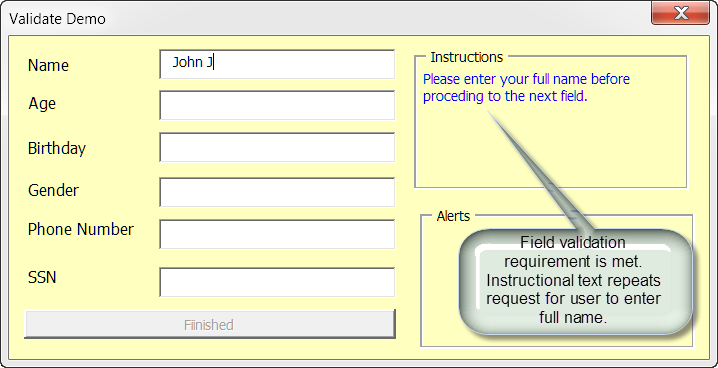
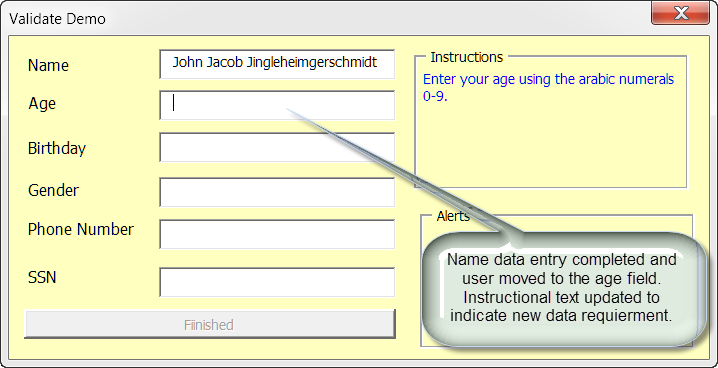
Each data field must be validated before the user is permitted to proceed to the next data field.
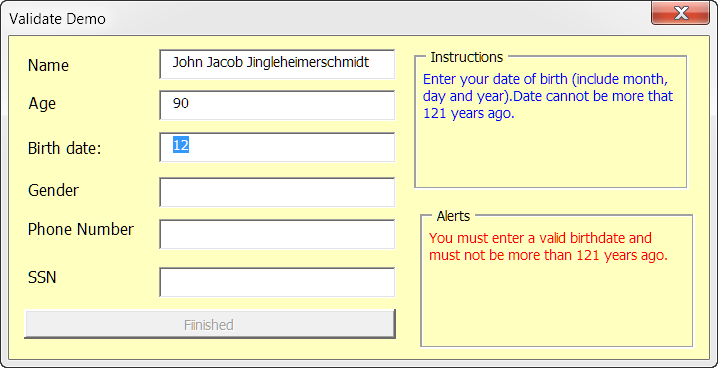
Note: I realized a labeling error in the form after taking some of the graphic captures. I've corrected "Birthday" to "Birth date."
All data fields must be completed and validated before the user is permitted to finish and process the form.
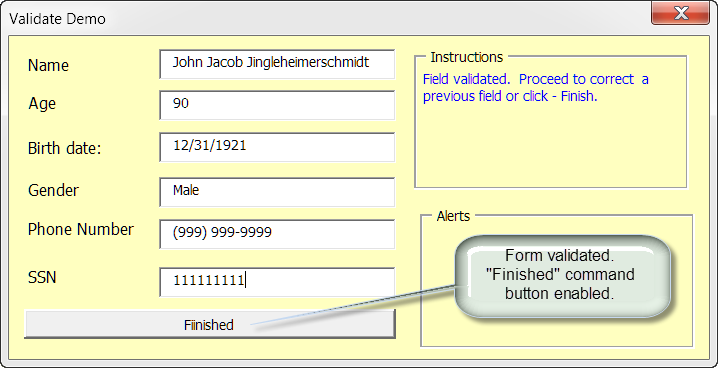
Each data field is presented and validated using the control's "_Enter, _Change and _Exit" events. In the "Age" and "SSN" controls, I've used the "_KeyPress" event to limit users to entering numerical value only. The complete Userform code is provided below. I think I have commented the code sufficiently to make it clear what each part does.
Option Explicit
'Declare module level variables
Dim bNormalProcess As Boolean
Dim bNameValid As Boolean
Dim bAgeValid As Boolean
Dim bBirthdayValid As Boolean
Dim bGenderValid As Boolean
Dim bPhoneValid As Boolean
Dim bSSNValid As Boolean
Private Sub cmdBtnOK_Click()
Dim strReport As String
  'Hide the form.
  Me.Hide
  'Pass form to standard module for processing.
  strReport = modMain.ProcessForm(Me)
  'Was there a problem?
  If strReport <> "Passed" Then
    MsgBox strReport
  End If
lbl_Exit:
  Exit Sub
End Sub
Private Sub txtName_Enter()
  Call txtName_Change
lbl_Exit:
  Exit Sub
End Sub
Private Sub txtName_Change()
  'In all cases assume invalid on change.
  bNameValid = False
  With Me
    'Display instructional label text.
    .lbl_Inst.Caption = "Enter your full name. Six or more characters are required."
    'Clear alert text.
    .lbl_Alerts.Caption = ""
    'Does this change validate this field?
    If Len(.txtName) > 5 Then
      bNameValid = True
      .lbl_Inst.Caption = "Please enter your full name before proceeding to the next field."
    End If
  End With
  'Does this change validate or invalidate the form?
  ValidateForm
lbl_Exit:
  Exit Sub
End Sub
Private Sub txtName_Exit(ByVal Cancel As MSForms.ReturnBoolean)
  'Keep focus on invalid field.
  If Not bNameValid = True Then
    Cancel = True
    Me.lbl_Alerts.Caption = "The name field cannot be left blank." & vbCr + vbCr _
                           & "Please enter your full name. Six or more characters are required."
  End If
lbl_Exit:
  Exit Sub
End Sub
Private Sub txtAge_Enter()
  Call txtAge_Change
lbl_Exit:
  Exit Sub
End Sub
Private Sub txtAge_KeyPress(ByVal KeyAscii As MSForms.ReturnInteger)
  'Permit onnly numerical entries (key press is undone otherwise)
  If Not (KeyAscii > 47 And KeyAscii < 59) Then
    Beep
    Me.lbl_Alerts.Caption = "Whoa Pilgrim, numbers only!!"
    KeyAscii = 0
  Else
    Me.lbl_Alerts.Caption = ""
  End If
lbl_Exit:
  Exit Sub
End Sub
Private Sub txtAge_Change()
  'Was this a user initiated change?
  'txtAge is unique, it can automatically corrected by the user's valid  birthdate entry.
  If bNormalProcess Then
    bAgeValid = False
    With Me
      .lbl_Inst.Caption = "Enter your age using the Arabic numerals 0-9."
      .txtBirthdate = ""
      Select Case Val(.txtAge)
        Case Is > 121
           .lbl_Alerts.Caption = "Enter a value less than 122 or come back when you are listed in Guiness World Records!!"
           With .txtAge
             .SetFocus
             .SelStart = 0
             .SelLength = Len(.Text)
           End With
        Case Is > 0
            bAgeValid = True
            .lbl_Inst.Caption = "Field validated.  Proceed to next field."
            .lbl_Alerts.Caption = ""
        Case Else
          .lbl_Alerts.Caption = ""
      End Select
    End With
    ValidateForm
  Else
    'Ensure next user change is processed normally.
    bNormalProcess = True
  End If
lbl_Exit:
  Exit Sub
End Sub
Private Sub txtAge_Exit(ByVal Cancel As MSForms.ReturnBoolean)
  If Not bAgeValid = True Then
    Cancel = True
    Me.lbl_Alerts.Caption = "You must provide your current age."
  End If
lbl_Exit:
  Exit Sub
End Sub
Private Sub txtBirthdate_Enter()
  Call txtBirthdate_Change
lbl_Exit:
  Exit Sub
End Sub
Private Sub txtBirthdate_Change()
  bBirthdayValid = False
  With Me
    .lbl_Inst.Caption = "Enter your date of birth (include month, day and year).Date cannot be more that 121 years ago."
    .lbl_Alerts.Caption = ""
    'Did the user enter a valid date?
    If IsDate(.txtBirthdate) Then
      'Does the date return year, month and day part?
      If Year(.txtBirthdate) > 1 And Month(.txtBirthdate) > 0 And Day(.txtBirthdate) > 0 Then
        'Is the year within 121 years of today?
        If DateDiff("yyyy", .txtBirthdate, Now) < 121 Then
          bBirthdayValid = True
          .lbl_Inst.Caption = "Field validated.  Proceed to next field."
        End If
      End If
    End If
  End With
  ValidateForm
lbl_Exit:
  Exit Sub
End Sub
Private Sub txtBirthdate_Exit(ByVal Cancel As MSForms.ReturnBoolean)
Dim lngAge As Long
  With Me
    If bBirthdayValid = True Then
      'Does the user really know how old he/she is?
      lngAge = DateDiff("yyyy", .txtBirthdate, Now)
      If Date < DateSerial(Year(Now), Month(.txtAge), Day(.txtAge)) Then
        lngAge = lngAge - 1
      End If
      If lngAge < Val(.txtAge) Then
        .lbl_Alerts.Caption = "You are older or younger than you think" & vbCr + vbCr _
                            & "Your age entry has been changed to support your date of birth entry."
        'Fix user age.  Do not validate.
        bNormalProcess = False
        .txtAge = lngAge
      End If
    Else
      Cancel = True
      With .txtBirthdate
        .SetFocus
        .SelStart = 0
        .SelLength = Len(.Text)
      End With
     .lbl_Alerts.Caption = "You must enter a valid birthdate and must not be more than 121 years ago."
    End If
  End With
lbl_Exit:
  Exit Sub
End Sub
Private Sub txtGender_Enter()
  Call txtGender_Change
lbl_Exit:
 Exit Sub
End Sub
Private Sub txtGender_Change()
  bGenderValid = False
  With Me
    .lbl_Inst.Caption = "Indicate your gender using one of the following: M m MALE Male male F f FEMALE Female female"
    .lbl_Alerts.Caption = ""
    'Give the users lots of leeway provided they know the basic difference.
    Select Case Me.txtGender
      Case Is = "M", "m", "MALE", "Male", "male", "F", "f", "FEMALE", "Female", "female"
        bGenderValid = True
        .lbl_Inst.Caption = "Field validated.  You may Proceed to the next field."
    End Select
  End With
  ValidateForm
lbl_Exit:
  Exit Sub
End Sub
Private Sub txtGender_Exit(ByVal Cancel As MSForms.ReturnBoolean)
  If Not bGenderValid = True Then
    Cancel = True
    With Me
      .lbl_Alerts.Caption = "You either can't follow instructions or you are suffering from gender identity crisis.  Please try again."
      With .txtGender
        .SetFocus
        .SelStart = 0
        .SelLength = Len(.Text)
      End With
    End With
  End If
lbl_Exit:
  Exit Sub
End Sub
Private Sub txtPhone_Enter()
  Call txtPhone_Change
lbl_Exit:
  Exit Sub
End Sub
Private Sub txtPhone_Change()
Dim strTemp As String
  bPhoneValid = False
  strTemp = Me.txtPhone.Value
  Me.lbl_Inst.Caption = "Enter your telephone number including area code."
  Me.lbl_Alerts.Caption = ""
  'Validate\Reformat valid entries
  Select Case True
    Case strTemp Like "(###) ###-####"
      bPhoneValid = True
      ValidateForm
      Me.lbl_Inst.Caption = "Field validate.  Proceed to the next field."
    Case strTemp Like "##########"
      strTemp = "(" & Left(strTemp, 3) & ") " & Mid(strTemp, 4, 3) & "-" & Right(strTemp, 4)
      Me.txtPhone.Value = strTemp
    Case strTemp Like "###-###-####"
      strTemp = "(" & Left(strTemp, 3) & ") " & Right(strTemp, 8)
      Me.txtPhone.Value = strTemp
    Case strTemp Like "### ### ####"
      strTemp = Replace(strTemp, " ", "-")
      strTemp = "(" & Left(strTemp, 3) & ") " & Right(strTemp, 8)
      Me.txtPhone.Value = strTemp
    Case strTemp Like "(###)###-####"
      strTemp = Left(strTemp, 5) & " " & Right(strTemp, 8)
      Me.txtPhone.Value = strTemp
    Case Else
      ValidateForm
  End Select
lbl_Exit:
  Exit Sub
End Sub
Private Sub txtPhone_Exit(ByVal Cancel As MSForms.ReturnBoolean)
  If Not bPhoneValid = True Then
    'User may not have a US phone number and number may not match a standard U.S. format.
    If MsgBox("Your entry does not convert to a standard U.S. phone number format. " _
            & "Do you want to try again?", vbQuestion + vbYesNo, "Invalid Format") = vbYes Then
      With Me.txtPhone
        .SetFocus
        .SelStart = 0
        .SelLength = Len(.Text)
      End With
      Cancel = True
    Else
      bPhoneValid = True
      ValidateForm
    End If
  End If
lbl_Exit:
  Exit Sub
End Sub
Private Sub txtSSN_Enter()
 Call txtSSN_Change
lbl_Exit:
  Exit Sub
End Sub
Private Sub txtSSN_KeyPress(ByVal KeyAscii As MSForms.ReturnInteger)
  If Not (KeyAscii > 47 And KeyAscii < 59) Then
    Beep
    KeyAscii = 0
  End If
lbl_Exit:
  Exit Sub
End Sub
Private Sub txtSSN_Change()
  bSSNValid = False
  With Me
    .lbl_Inst.Caption = "Enter your SSN using exactly nine numbers with no dashes."
    .lbl_Alerts.Caption = ""
    Select Case Len(.txtSSN.Text)
      Case Is = 9
        bSSNValid = True
        .lbl_Inst.Caption = "Field validated.  Proceed to correct  a previous field or click - Finish."
        ValidateForm
      Case Is > 9
        .lbl_Alerts.Caption = "Wrong number of numerical digits in field. " _
                            & "Enter exactly nine numbers."
        With .txtSSN
          .SetFocus
          .SelStart = 0
          .SelLength = Len(.Text)
        End With
    End Select
  End With
lbl_Exit:
  Exit Sub
End Sub
Private Sub txtSSN_Exit(ByVal Cancel As MSForms.ReturnBoolean)
  If Not bSSNValid = True Then
    Me.lbl_Alerts.Caption = "Wrong number of numerical digits in field. " _
      & "Enter exactly nine numbers."
    Cancel = True
    With Me.txtSSN
      .SetFocus
      .SelStart = 0
      .SelLength = Len(.Text)
    End With
  End If
lbl_Exit:
  Exit Sub
End Sub
Private Sub Userform_Initialize()
  'Set initial states
  Me.CmdBtnOK.Enabled = False
  bNameValid = False
  bAgeValid = False
  bBirthdayValid = False
  bGenderValid = False
  bPhoneValid = False
  bSSNValid = False
  bNormalProcess = True
lbl_Exit:
  Exit Sub
End Sub
Sub ValidateForm()
Dim bValid As Boolean
  'True when all variable multiples are true
  bValid = bNameValid * bAgeValid * bBirthdayValid * bGenderValid * bPhoneValid * bSSNValid
  If bValid Then
    Me.CmdBtnOK.Enabled = True
  Else
    Me.CmdBtnOK.Enabled = False
  End If
lbl_Exit:
  Exit Sub
End Sub
As you should see, it takes a good bit of effort and careful planning to create robust validation. I'm not much more than a self taught novice, so I'm certainly open to suggestions for improving the process/code.
When the form is validated and the usesr clicks the "Finished" button, the Userform cmdBtnOK_Click procedure shown above passes the Userform as an object back to the standard VBA module for processing. The standard VBA project module contains the code to initiate and display the Userform and process the Userform data into the document. The standard module code is shown below:
Option Explicit
Sub Call_frmValidate()
'Initiates and displays the form.
'Suggested employment:  Call from a template AutoNew/AutoOpen procedure.
Dim oFrm As frmValidateDemo
  Set oFrm = New frmValidateDemo
  oFrm.Show
  Unload oFrm
  Set oFrm = Nothing
lbl_Exit:
  Exit Sub
End Sub
Function ProcessForm(ByRef oForm As frmValidateDemo) As String
  'Takes the userform as a parameter.
  On Error GoTo Err_Handler:
  'Use the form text field property values as the text value for inclusion in the documetn placeholder bookmarks.
  With oForm
    WriteTextToBookmark "bmName", .txtName
    WriteTextToBookmark "bmAge", .txtAge
    WriteTextToBookmark "bmBirthdate", .txtBirthdate
    'Reformat/standardize the gender entry.
    If UCase(Left(.txtGender, 1)) = "M" Then
      WriteTextToBookmark "bmGender", "Male"
    Else
      WriteTextToBookmark "bmGender", "Female"
    End If
    WriteTextToBookmark "bmPhone", .txtPhone
    'Format the SSN entry.
    WriteTextToBookmark "bmSSN", Format(.txtSSN.Text, "###-##-####")
  End With
  ProcessForm = "Passed"
Err_ReEntry:
  Set oForm = Nothing
  Exit Function
Err_Handler:
  ProcessForm = Err.Number & " " & Err.Description
  Resume Err_ReEntry
End Function
Function WriteTextToBookmark(ByRef strName As String, strText As String)
Dim oBMRange As Word.Range
  'This procedure preserve the bookmark after range data changes.
  Set oBMRange = ActiveDocument.Bookmarks(strName).Range
  oBMRange.Text = strText
  ActiveDocument.Bookmarks.Add strName, oBMRange
lbl_Exit:
  Exit Function
End Function
If it all works for you then you should see results similar to the first illustration at the beginning of this tips page.
That's it! I hope you have found this tips page useful and informative. You can download a template file containing the Userform and code used to create this demonstration here: Validate Userform Text Entries
The information, illustrations and code contained in my "Microsoft Word Tips" are provided free and without risk or obligation.
However, the work is mine. If you use it for commercial purposes or benefit from my efforts through income earned or time saved then a donation, however small, will help to ensure the continued availability of this resource.
If you would like to donate, please use the appropriate donate button to access PayPal. Thank you!
This page was last updated on
March 09, 2021
Website
Privacy Statement
Back to top  Back to
Word Tips
Back to
Word Tips