
The Anchorage
Personal website of Gregory K. Maxey, Commander USN (Retired)
The Anchorage
Personal website of Gregory K. Maxey, Commander USN (Retired)
The information, illustrations and code contained in my "Microsoft Word Tips" are provided free and without risk or obligation.

However, the work is mine. If you use it for commercial purposes or benefit from my efforts through income earned or time saved then a donation, however small, will help to ensure the continued availability of this resource.
If you would like to donate, please use the appropriate donate button to access PayPal. Thank you!



A frequent question in Microsoft Word user forums is, "How can I create a document so that the display of certain information can be expanded or collapsed?"
Applications for this type of document might include:
This Microsoft Word Help & Microsoft Word Tips page provides some methods and techniques to allow the document user to show/hide (or expand/collapse) document content.
The first method uses a combination of fields, a bookmark, VBA procedures, a document variable, and AutoText.
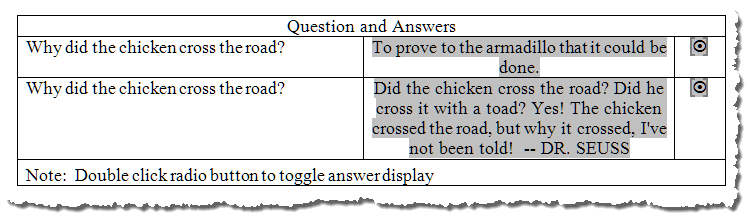
It sounds complex, but it really isn't. The following illustrates sample text using this method showing the data collapsed and expanded.

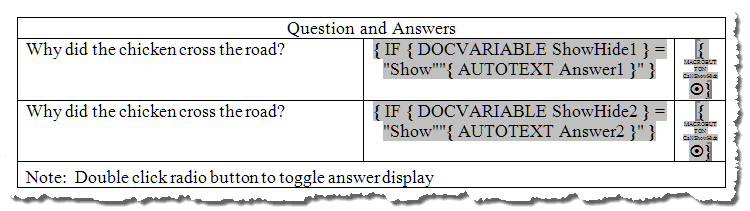
First let's look and the fields. The following depicts the document with field codes displayed.
 Note: The second illustration shows the field code of one of the two macrobutton fields expanded horizontally for clarity. I've applied 4 pt. font size to the actual macrobutton fields to keep the row height in check when displaying the field code.

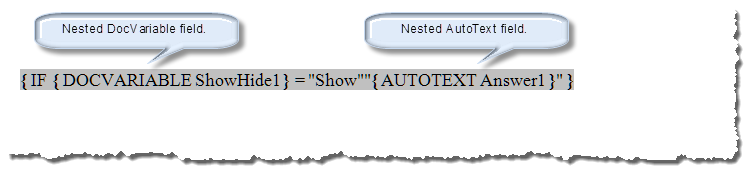
Note: For more on conditional IF fields see my: Conditional Headers and Footers.
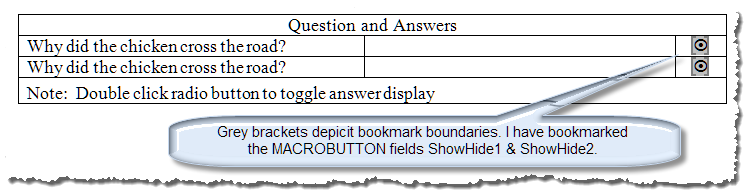
VBA procedures shown in the code pane below are used to set a value in the in a document variable. I have placed bookmarks around the MacroButton fields to create a named range. This simplifies the VBA procedures.
Option Explicit
Const strValue_1 = "Show"
Const strValue_2 = "Hide"
Sub CallShowHide()
  'This is the procedure defined in the MACROBUTTON.
  'It is the current selection and it is bound by a bookmark.
  'Call procedure and pass bookmark name as argument.
  ShowHide Selection.Bookmarks(1).Name
lbl_Exit:
  Exit Sub
End Sub

Sub ShowHide(ByRef strVarName As String)
Dim strValue As String
  'An error will occur if the document variable does not yet exist.
  On Error Resume Next
  'What is the value of the named document variable if it exists?
  strValue = ActiveDocument.Variables(strVarName)
  On Error GoTo 0
  'Set\toggle value
  If strValue = "" Or strValue = strValue_2 Then
    strValue = strValue_1
  Else
    strValue = strValue_2
  End If
  'Create/Redefine document variable value.
  ActiveDocument.Variables(strVarName).Value = strValue
  'Let the IF field do its deed.
  ActiveDocument.Fields.Update
lbl_Exit:
  Exit Sub
End Sub
See: Installing Macros for instructions on how to set up and use the macros provided in this Microsoft Word Help & Microsoft Word Tips page.
A table row can serve as an ideal defined range which can be expanded and collapsed to show or hide document data.
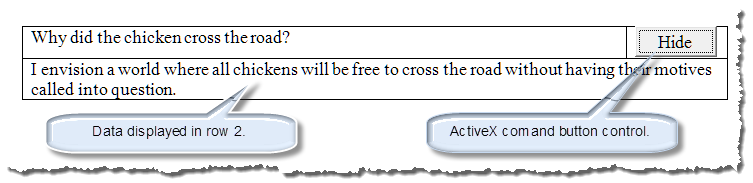
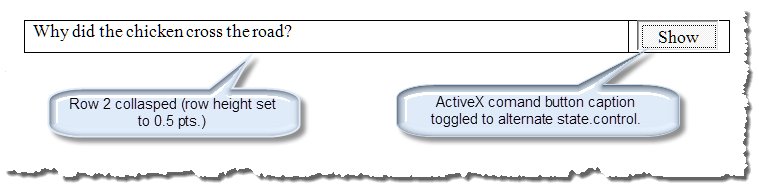
ActiveX controls carry some baggage (see: ActiveX Form Controls ), but they work well in this application. Since ActiveX controls are properties of the special ThisDocument class place the following code in the "ThisDocument" module of the VB project.
Private Sub ToggleButton1_Click()
  With ActiveDocument.Tables(2).Rows(2)
    If .HeightRule = wdRowHeightExactly Then
      .HeightRule = wdRowHeightAuto
      ToggleButton1.Caption = "Hide"
      .Borders(wdBorderBottom).LineStyle = wdLineStyleSingle
      .Borders(wdBorderLeft).LineStyle = wdLineStyleSingle
      .Borders(wdBorderRight).LineStyle = wdLineStyleSingle
    Else
      ToggleButton1.Caption = "Show"
      .HeightRule = wdRowHeightExactly
      .Height = ".5"
      .Borders(wdBorderBottom).LineStyle = wdLineStyleNone
      .Borders(wdBorderLeft).LineStyle = wdLineStyleNone
      .Borders(wdBorderRight).LineStyle = wdLineStyleNone
  End If
  End With
lbl_Exit:
  Exit Sub
End Sub
The methods demonstrated previously will work for users limited to Word 2003 and earlier. This method leverages content controls introduced with Word 2007 and their ability to be bound (or mapped) to a data node in a document CustomXML Part.
Notes:
1. Downloading and using my Content Control Tools Template Add-In makes this method very easy to set up and employ.
2. Unfortunately the checkbox content control was not introduced until Word 2010. The method illustrated below can be adapted to use a dropdown list (show/hide) control for use in Word 2007.
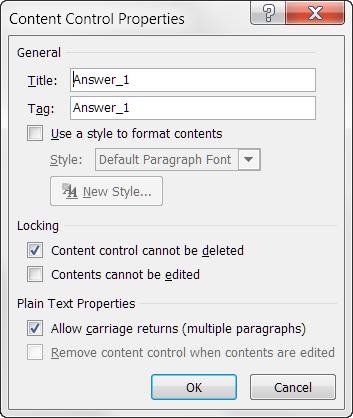
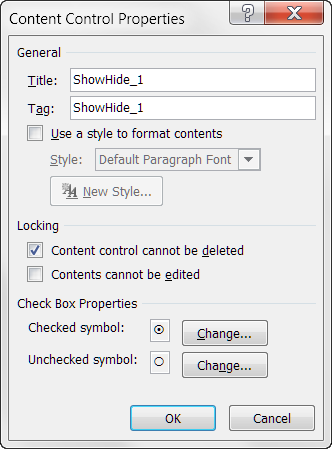
To demonstrate this method I have used Word 20010. It consists of a table containing five questions. The table contains five plain text content controls titled "Answer_1 through Answer_5" and five checkboxes content controls (configured to resemble radio buttons) titled "ShowHide_1 through ShowHide_5." The table is illustrated below:
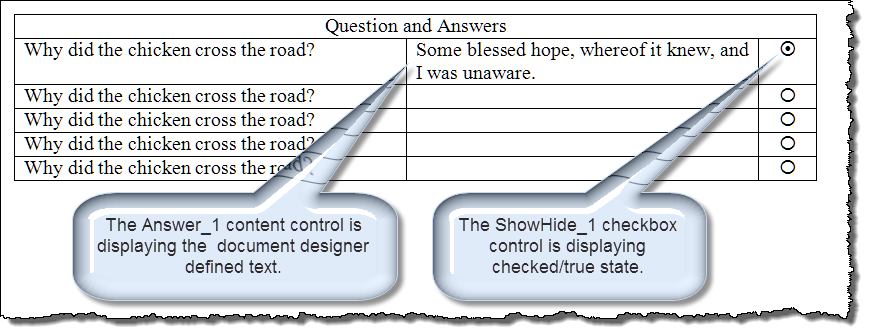
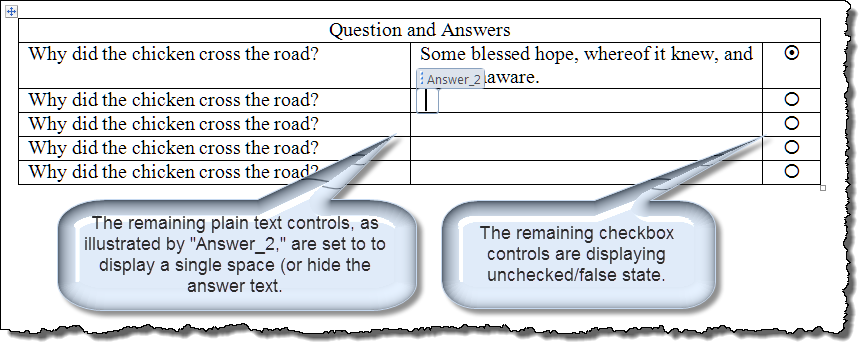
All content controls are locked (cannot be deleted). The checkbox controls has the checkbox symbol property set so the checkbox resembles a radio button.
 |
 |
After defining the content controls, all content controls are mapped to a CustomXMLPart using the "InstaMap" feature of my Content Control Tools Add-In. The resulting XML map nodes are shown below:
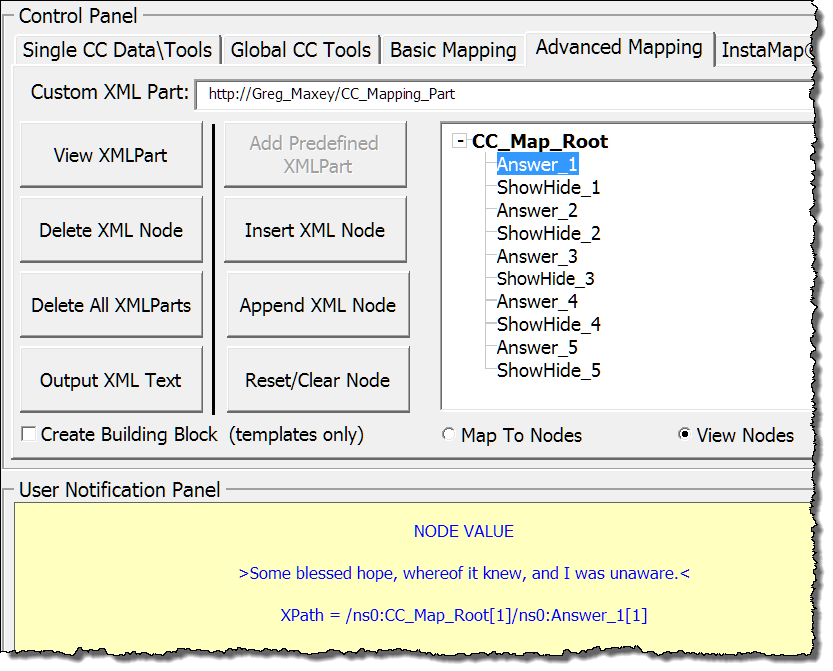
Since the content controls are mapped to a CustomXMLPart, the "Document_ContentControlBeforeContentUpdate" detects a state change when one of the checkbox controls are toggled. We can use this event to to call another procedure which defines the text displayed in the associated plain text control.
Note: Take note of the XPath displayed for the selected "Answer_1" customXMLnode. You will need the XPath for the Answer nodes in your processing code shown below.
Here is the code used in the VBA project ThisDocument class module:
Private Sub Document_ContentControlBeforeContentUpdate(ByVal CC As ContentControl, Content As String)
  Select Case CC.Tag
    Case "ShowHide_1", "ShowHide_2", "ShowHide_3", "ShowHide_4", "ShowHide_5"
      modMain.XMLUpdate CC, Content
  End Select
lbl_Exit:
  Exit Sub
End Sub
Here is the code for the called procedure "XMLUpdate" stored in standard module named "modMain:"
Sub XMLUpdate(oCC As ContentControl, Optional Content As String)
'Writes variable data to the CustomXMLNode bound to the dependent text content controls.
Dim oXMLPart As CustomXMLPart
Dim oNodeAnswer As CustomXMLNode
  Set oXMLPart = oCC.XMLMapping.CustomXMLPart
  Select Case oCC.Tag
    Case "ShowHide_1"
      Set oNodeAnswer = oXMLPart.SelectSingleNode("ns0:CC_Map_Root[1]/ns0:Answer_1[1]")
      If Content = "true" Then
        oNodeAnswer.Text = "Some blessed hope, whereof it knew, and I was unaware."
      Else
        oNodeAnswer.Text = " "
      End If
    Case "ShowHide_2"
      Set oNodeAnswer = oXMLPart.SelectSingleNode("ns0:CC_Map_Root[1]/ns0:Answer_2[1]")
      If Content = "true" Then
        oNodeAnswer.Text = "In my day, we didn't ask why the chicken crossed the road. " _
                          & "Someone told us that the chicken had crossed the road, " _
                          & "and that was good enough for us."
      Else
        oNodeAnswer.Text = " "
      End If
    Case "ShowHide_3"
      Set oNodeAnswer = oXMLPart.SelectSingleNode("ns0:CC_Map_Root[1]/ns0:Answer_3[1]")
      If Content = "true" Then
        oNodeAnswer.Text = "The traffic started getting rough; " _
            & "the chicken had to cross. " _
            & "If not for the plumage of its peerless tail, " _
            & "the chicken would be lost. " _
            & "The chicken would be lost!"
      Else
        oNodeAnswer.Text = " "
      End If
    Case "ShowHide_4"
      Set oNodeAnswer = oXMLPart.SelectSingleNode("ns0:CC_Map_Root[1]/ns0:Answer_4[1]")
      If Content = "true" Then
        oNodeAnswer.Text = "To come, to see, to conquer."
      Else
        oNodeAnswer.Text = " "
      End If
    Case "ShowHide_5"
      Set oNodeAnswer = oXMLPart.SelectSingleNode("ns0:CC_Map_Root[1]/ns0:Answer_5[1]")
      If Content = "true" Then
        oNodeAnswer.Text = "The chicken, sunlight coruscating off its radiant " _
             & "yellow-white coat of feathers, approached the dark, " _
             & "sullen asphalt road and scrutinized it intently with its " _
             & "obsidian-black eyes. " _
             & "Every detail of the thoroughfare leapt into blinding focus: " _
             & "the rough texture of the surface, " _
             & "over which countless tires had worked their relentless tread " _
             & "through the ages; " _
             & "the innumerable fragments of stone embedded within the lugubrious mass, " _
             & "perhaps quarried from the great pits where the Sons of Man " _
             & " labored not far from here; " _
             & "the dull black asphalt itself, exuding those waves of heat which " _
             & "distort the sight and bring weakness to the body; " _
             & "the other attributes of the great highway too numerous to give name. " _
             & " And then it crossed it."
      Else
        oNodeAnswer.Text = " "
      End If
  End Select
lbl_Exit:
  Set oXMLPart = Nothing
  Set oNodeAnswer = Nothing
  Exit Sub
End Sub
That's it! I hope you have found this tips page useful and informative. I'm including a demonstration package containing the documents used to create this tips page here: Toggle Data Display.
The information, illustrations and code contained in my "Microsoft Word Tips" are provided free and without risk or obligation.
However, the work is mine. If you use it for commercial purposes or benefit from my efforts through income earned or time saved then a donation, however small, will help to ensure the continued availability of this resource.
If you would like to donate, please use the appropriate donate button to access PayPal. Thank you!
This page was last updated on
March 09, 2021
Website
Privacy Statement
Back to top  Back to
Word Tips
Back to
Word Tips