Table Cell Data (Word 2007 Version)

Home Up Odds & Ends Photo Gallery Search Contact Me Privacy Notice


The information in this website is provided without risk or obligation and free of charge.  However, if you have benefitted from my efforts here and would like to make a contribution to help me continue and maintain this work then any donation will be greatly appreciated. Please click the adjacent button to access PayPal.  Thank you.
 

This Microsoft Word Help and Tips Page has two purposes.  First it provides an enhanced Table Cell Data template AddIn for use with Word2007.  Secondly it provides some advanced examples and uses for Ribbon customization.  The purpose, use, and limitations of my earlier Table Cell Data AddIn are provided in the Table Cell Data tips page.  An introduction to Ribbon customization is provided in the Customize the Ribbon tips page.

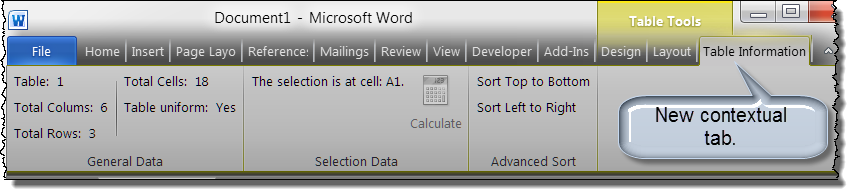
The following illustrates the user interface and display of the Table Cell Data AddIn. 

Perhaps my methods are unconventional, but in this version I used the Ribbon to display information about the selected table.  I used the Office 2007 Ribbon UI Editor to create RibbonX (XML) to add a tab "Table Information" to the Table Tools contextual tab.  The tab is divided into three groups.  The General Data group shows the sequence number of the table in the document, the total row, column, and cell count, and shows if the the table is uniform (i.e., no horizontal or vertical merged cells).  The Selection Data group indicates the location of the selection in the table and provides a utility for performing basic summation calculations on selected cells.  The Advanced Sort provides a utility for sorting the contents of an entire table from top to bottom down the columns or left to right across the rows.

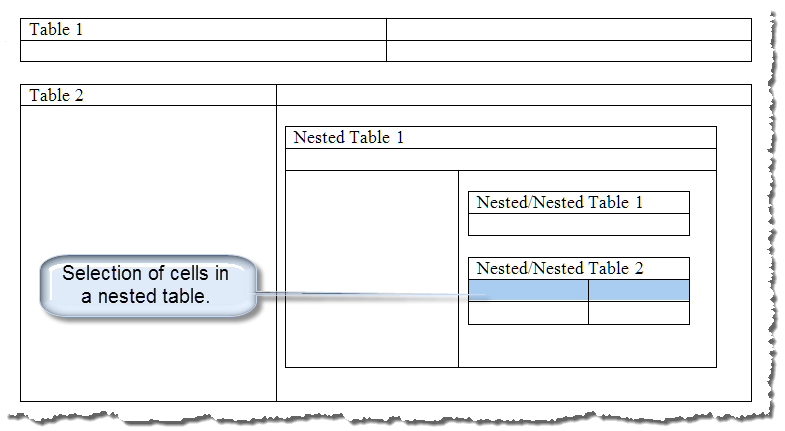
The AddIn indicates nested tables (tables within tables) up to two levels deep and reports the range when multiple cells are selected.  The following illustrates a selection of cells in a nested table: 

The AddIn display is shown below indicates the selection spans cells A2:B2 in the second table nested in the first table nested in table 1.

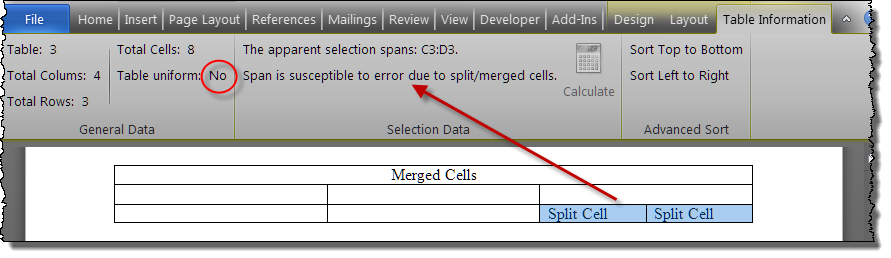
As discussed in detail in my Table Cell Data Addin page, the selection span data is suspect to error in tables that are not uniform.  The display for non-uniform tables is shown below:

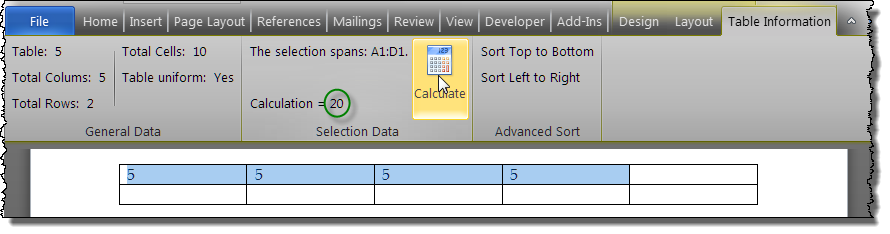
Basic calulations can be performed on selected cells by clicking the Calculate command button.  Results are displayed in the Ribbon:

As already stated, the secondary purpose of this tips page is to provide additional examples of Ribbon customization.  Here we have added a new tab to the Table Tools contextual tab which means the tab will only appear when the selection is in a Word table.  The RibbonX (XML) for the AddIn illustrates use of the the onLoad, getLabel, getSupertip, getEnabled, and onAction callbacks.  These callbacks interact with the VBA in the AddIn VBA project module to provide the dynamic displays discussed above.

 When the Ribbon is initially loaded all of the values of the various controls determined by the RibbonX values or callbacks and stored in a cache.  In order for the controls to be dynamic you must invalidate the data in the cache.  This causes Word to go back to RibbonX and callbacks to determine the new values.  We use an onLoad callback in the RibbonX to create a ribbon object in the VBA project.  Then we can invalidate the controls with the ribbon object.  The following illustrates a line of RibbonX that defines the onLoad callback and the code in the VBA project that uses that callback to create a ribbon object.

<customUI xmlns="http://schemas.microsoft.com/office/2006/01/customui" onLoad="Main.Onload">

Option Explicit
Private myDynamicMenu As myClass1
Public myRibbon As IRibbonUI 
'Declares myRibbon as a iRibbonUI object

Sub AutoExec()
Set myDynamicMenu = New myClass1
End Sub

Sub OnLoad(Ribbon As IRibbonUI)
Set myRibbon = Ribbon
'Sets myRibbon to the Ribbon defined by the RibbonX
End Sub

We want the Ribbon to "refresh" each time a table is selected or the selection is moved within the table.  This means that the current values must be invalidated.  Like in the original Table Cell Data AddIn, we will use a class module and the WindowSelectionChange event to invalidate the controls.  The VBA shown above declares a class object and creates an instance of that class.  The code in the class module that invalidates the Ribbon controls on a selection change is shown below.

Option Explicit
Private WithEvents mWordApp As Word.Application

Private Sub Class_Initialize()
Set mWordApp = Word.Application
End Sub

Private Sub mWordApp_WindowSelectionChange(ByVal oSel As Selection)
If oSel.Information(wdWithInTable) Then
    myRibbon.Invalidate
'This invalidates the cached values forcing Word to go back to the RibbonX and callbacks to get new values.
End If
End Sub
Several of the controls shown in the Ribbon use the getLable callback.  When the Ribbon is loaded and refreshed the RibbonX looks to the VBA (via the callback) for the new value.  An argument is passed to the VBA project representing the control.  The GetLabel procedures determines the control.ID and set the label value accordingly .  This value is stored in the cache and used in the Ribbon display.  This illustration shows the RibbonX for the "Table Uniform" button control and the VBA used to set the label value.  Note - You can use a single getLable procedure to define the label for multiple controls.  I used one getLabel procedure for all of the controls in my ribbon.
<button id="myBtn5" getLabel="getLabel" size="normal"/>

Private Sub getLabel(control As iRibbonControl, ByRef label)
Dim pSelData As SelData
pSelData = SelectionInfo
i = ActiveDocument.Range(0, Selection.Tables(1).Range.End).Tables.Count
Select Case control.ID
    Case Is = "myBtn1"
       'Code here would set the label value for the Table Number control.  I am only showing the code for the Table uniform control.
    Case Is = "myBtn5"
        If Selection.Tables(1).Uniform Then
            label = "Table uniform: Yes"
        Else
            label = "Table uniform: No"
        End If
    End Select
End Sub
The getEnabled callback works in a similar manner.  The "Calculate" button is disabled whenever the selection is collapsed or the selection spans alpha or alphanumeric characters.  The RibbonX and associated VBA code for the "Calculate" button control is shown below.  Here the label is always "Calculate" so we simply use the label attribute vice getLabel.  This control also has an image assigned.  I used the builtin imageMso "CalculateNow" that is part of the Excel application.   
<button id="myBtn10" label="Calculate" size="large" imageMso="CalculateNow" getEnabled="GetEnabled" getSupertip="GetSuperTip" onAction="Main.CalculateRange"/>

Private Sub getEnabled(control As iRibbonControl, ByRef enabled)
If control.ID = "myBtn10" Then
    If Selection.Type = wdSelectionIP Then
        enabled = 0
    Else
        enabled = ValidateSel
'Determine if selection spans alpha or alphnumeric characters.
    End If
End If
End Sub

Function ValidateSel() As Boolean
Dim oCell As Cell
For Each oCell In Selection.Cells
    If Not IsNumeric(Left(oCell.Range.Text, Len(oCell.Range.Text) - 2)) And Not Left(oCell.Range.Text, Len(oCell.Range.Text) - 2) = "" Then
        ValidateSel = False
        Set oCell = Nothing
        Exit Function
    End If
Next oCell
ValidateSel = True
End Function

The Add-In with the complete RibbonX and VBA code is provided here in a zip file format:  Table Cell Data(Word 2007 Version).  For more on Add-Ins and how to load them, see the heading "Organizing Global Templates" at:    Organizing Your Macros

Looking for something else?

Google