
The Anchorage
Personal website of Gregory K. Maxey, Commander USN (Retired)
The Anchorage
Personal website of Gregory K. Maxey, Commander USN (Retired)
The information, illustrations and code contained in my "Microsoft Word Tips" are provided free and without risk or obligation.

However, the work is mine. If you use it for commercial purposes or benefit from my efforts through income earned or time saved then a donation, however small, will help to ensure the continued availability of this resource.
If you would like to donate, please use the appropriate donate button to access PayPal. Thank you!



This Microsoft Word Tips & Microsoft Word Help page provides discussion and a few simple macros that you can use to sort a selected list of words or phrases.
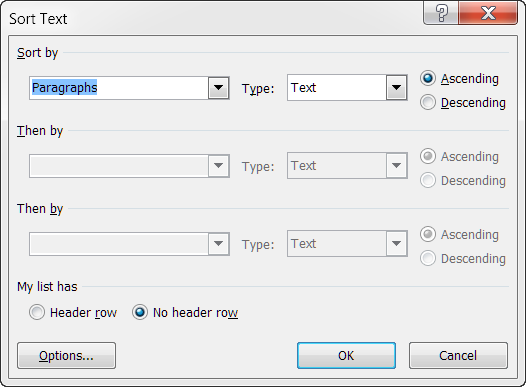
While fairly rudimentary, the sort method available on the user interface (UI) can be used to perform many basic sort operations. The method is accessed with Word 2007/2010 using Home>Paragraph>"AZ." In Word 2003 use Table>Sort. When selected the the "Sort Text" dialog is presented.
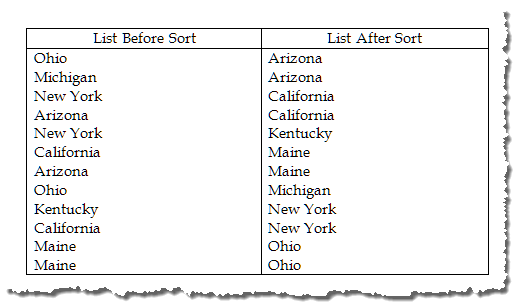
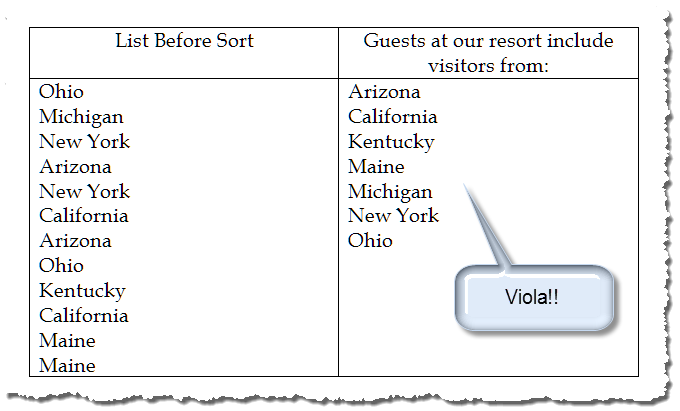
Consider the list of U.S. State names shown below. This list may have been extracted from a guest register. The left column is unsorted. The right column is sorted and retains the duplicated listings.
Using a macro sort you can sort the list and remove any duplicated entries. Simply select the list members and run the macro provided in the code window below. Since the macro processes the "selected" paragraphs, be sure to include the last paragraph mark in the list in your selection.
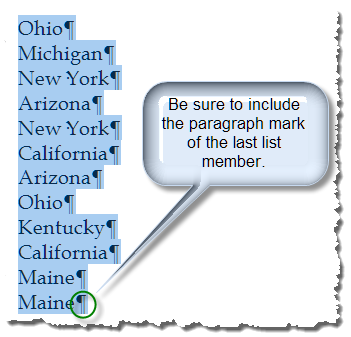
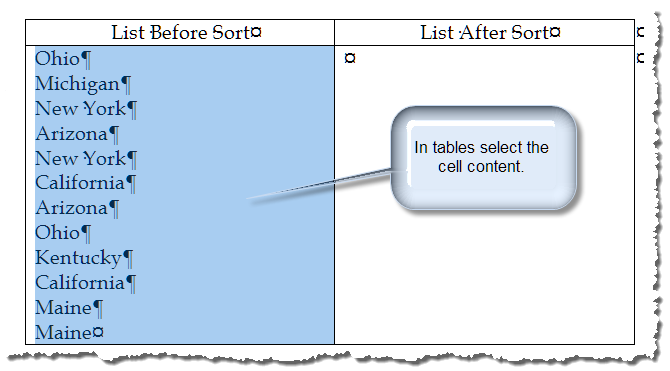
 Note: You may want to show non-printing characters before making the selection. For information on displaying and using non-printing characters such as the Pilcrow (paragraph mark) circled below, see the Suzanne Barnhills: Non-Printing Characters.
Sub SortAndRemoveDuplicatesFromList()
Dim oPars As Paragraphs
Dim oPar As Paragraph
Dim myCol As New Collection
Dim bView As Boolean
Dim bClip As Boolean
  bView = False
  bClip = False
  Set oPars = Selection.Paragraphs
  'Perform the sort
  If oPars.Count > 1 Then
    Selection.Sort SortOrder:=wdSortOrderAscending
  Else
    MsgBox "There is no valid selection to sort"
    Exit Sub
  End If
  'Handle end of cell marker if sorting cell content or selection in a cell.
  If Selection.Information(wdWithInTable) Then
    If Selection.End = Selection.Cells(1).Range.End - 1 Or Selection.Range = Selection.Cells(1).Range Then
      Selection.InsertAfter vbCr
      Selection.MoveEnd wdCharacter, 1
      bClip = True
    End If
  End If
  'Remove duplicates
  If MsgBox("Do you want to remove any duplicate entries from the list?", _
             vbQuestion + vbYesNo, "Remove Duplicates") = vbYes Then
    If MsgBox("Do you want to view duplicate entries before deleting", _
               vbQuestion + vbYesNo, "View Duplicates") = vbYes Then
      bView = True
    End If
    For Each oPar In Selection.Range.Paragraphs
      On Error Resume Next
      myCol.Add oPar.Range.Text, oPar.Range.Text
      If Err.Number = 457 Then
        If bView Then
          oPar.Range.Select
          If MsgBox("Do you want to delete this duplicate instance?", _
                     vbQuestion + vbYesNo, "Duplicate Item") = vbYes Then
            oPar.Range.Delete
          End If
        Else
          oPar.Range.Delete
        End If
      End If
    Next
  End If
  If bClip Then Selection.Cells(1).Range.Characters.Last.Previous.Delete
lbl_Exit:
  Exit Sub
End Sub
See: Installing Macros for instructions on how to set up and use the macros provided in this Microsoft Word Help & Microsoft Word Tips page.
After the macro executes the list is sorted with duplicate entries removed.
An interesting alternative is to sort, remove duplicates but indicate the number of original entries.
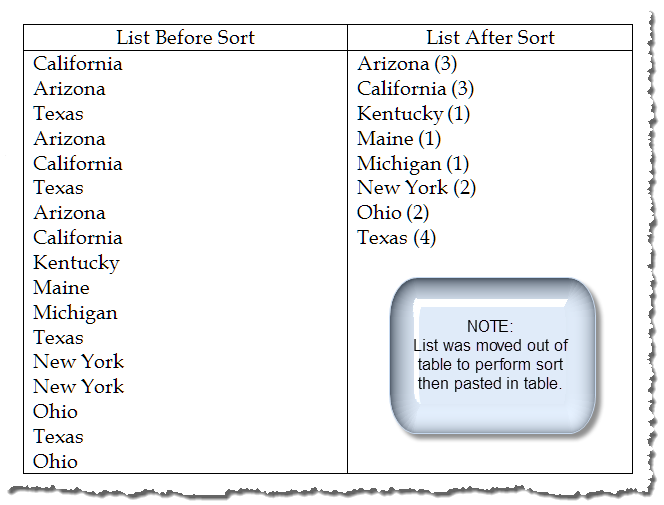
Note: Due to complexities dealing with ith table end of cell marks, the code is significantly simplified by sorting text outside of tables.
Sub SortRemoveAndTrackDuplicates()
Dim oPars As Paragraphs
Dim oPar1 As Paragraph
Dim oPar2 As Paragraph
Dim oRng As Range
Dim i As Long

  Set oPars = Selection.Range.Paragraphs
  'Perform the sort
  If oPars.Count > 1 Then
    Selection.Sort SortOrder:=wdSortOrderAscending
  Else
    MsgBox "There is no valid selection to sort"
    Exit Sub
  End If
  If Selection.Information(wdWithInTable) Then
    MsgBox "Please move items to sort from table.  You can move them back into" _
           & " a table after sorting."
    Exit Sub
  End If
  Set oPar1 = oPars.Item(1)
  Do
    i = 1
    Do
      Set oPar2 = oPar1.Next
      If Not oPar2 Is Nothing Then
        'Compare and index counter
        If oPar2.Range.Text = oPar1.Range.Text Then
          i = i + 1
          oPar2.Range.Delete
        Else
          'No more matches.
          Exit Do
        End If
      Else
        Exit Do
    Loop
    'Annotate list member count
    Set oRng = oPar1.Range
    oRng.End = oRng.End - 1
    oRng.InsertAfter " (" & CStr(i) & ")"
    'Exit criteria
    If oPar1.Range.End = oPars.Last.Range.End Then Exit Do
    'Start over with next list member.
    Set oPar1 = oPar2
  Loop
lbl_Exit:
  Exit Sub
End Sub
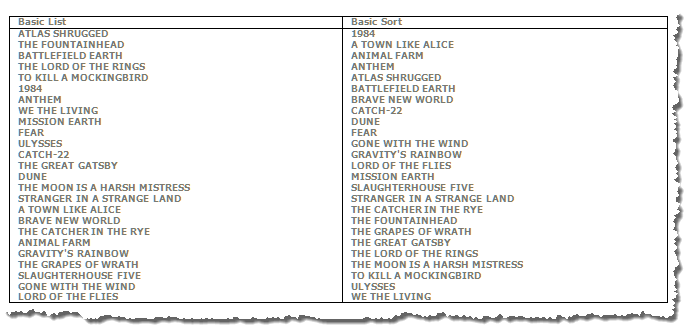
The next illustration shows a listing of the Modern Library Reader's Choice books. The basic list is on the left is sorted by popularity, the list on the right is sorted alphabetically using the user interface (UI).
Sometimes people prefer to exclude articles "A" and "The" from the sort criteria as shown on the left in the illustration below or append the articles to the end of the list member as shown on the right.
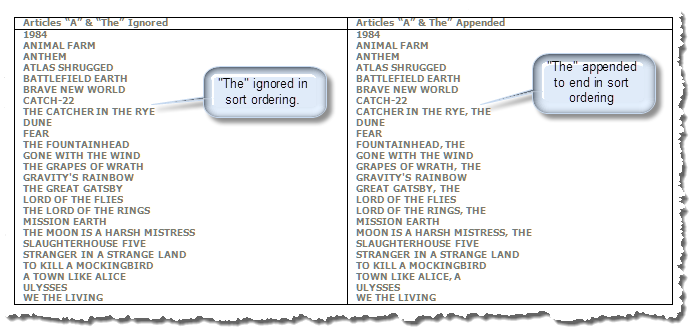
You can exclude the leading articles from the sort criteria as shown in the example on the left by first applying the "hidden" font attribute to the article, turning off display of hidden text and sorting the list with the UI, and then removing the hidden font attribute. A simple task for a short list, but a macro can handle short or long lists with relative ease:
Sub SortMacroI()
Dim bCurrentStateAll As Boolean, bCurrentStateSHT As Boolean
Dim oPar As Paragraph, strTemp As String
  If Selection.Range.Paragraphs.Count < 2 Then
    MsgBox "Select the list members and try again.", vbCritical, "Nothing selected!"
    Exit Sub
  End If
  'Apply hidden font attribute to leading articles
  For Each oPar In Selection.Range.Paragraphs
    Select Case UCase(oPar.Range.Words.First)
      Case "A ", "THE "
        oPar.Range.Words.First.Font.Hidden = True
      Case Else
        'Do Nothing
    End Select
  Next
  'Ensure hidden font is not displayed
  bCurrentStateSHT = ActiveWindow.ActivePane.View.ShowHiddenText
  bCurrentStateAll = ActiveWindow.ActivePane.View.ShowAll
  ActiveWindow.ActivePane.View.ShowHiddenText = False
  ActiveWindow.ActivePane.View.ShowAll = False
  'Perform the sort
  Selection.Sort
  ActiveWindow.ActivePane.View.ShowHiddenText = bCurrentStateSHT
  ActiveWindow.ActivePane.View.ShowAll = bCurrentStateAll
  'Remove hidden font attribute
  Selection.Range.Font.Hidden = False
lbl_Exit:
  Exit Sub
End Sub
Similarly, you can manually append the articles to the end of the list members and sort the list with the UI. Again, a macro makes short work of tedious, repetitious tasks:
Sub SortMacroII()
Dim oRng As Word.Range, oRngProcess As Word.Range
Dim oPar As Paragraph, strTemp As String
  Set oRng = Selection.Range
  If oRng.Paragraphs.Count < 2 Then
    MsgBox "Select the list members and try again.", vbCritical, "Nothing selected!"
    Exit Sub
  End If
  For Each oPar In oRng.Paragraphs
    Set oRngProcess = oPar.Range
    With oRngProcess
      Select Case UCase(.Words.First)
        Case "A ", "THE "
          'Store article in a variable string
          strTemp = ", " & Trim(.Words.First)
          'Delete the article
          .Words.First.Delete
          'Insert variable string before the ending paragraph mark
          .End = .End - 1
          .Words.Last.InsertAfter strTemp
        Case Else
          'Do nothing
      End Select
    End With
  Next
  oRng.Sort
lbl_Exit:
  Exit Sub
End Sub
I prefer the second method with the articles moved to the end of the list member. Simple enough in the example above, but consider a more complicated list. The basic list on the right now includes the books author.
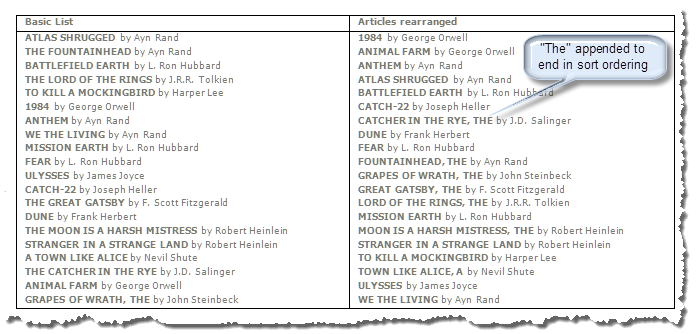
Here we need to relocate the article in the text string vice simply moving it to the end. The key is to leverage off of the separator word "by" as shown:
Sub SortMacoIII()
Dim oRng As Word.Range, oRngProcess As Word.Range
Dim strTemp As String, pSep As String
Dim oPar As Paragraph, i As Long
  'Define the separator
  pSep = "by"
  Set oRng = Selection.Range
  If oRng.Paragraphs.Count < 2 Then
    MsgBox "Select the list members and try again.", vbCritical, "Nothing selected!"
    Exit Sub
  End If
  For Each oPar In oRng.Paragraphs
    'Set a processing range
    Set oRngProcess = oPar.Range
    With oRngProcess
      Select Case .Words.First
        Case "A ", "THE "
          'Store article in a variable string
          strTemp = ", " & Trim(.Words.First)
          'Delete the article
          .Words.First.Delete
          'Find separator in processing range
          i = InStr(.Text, pSep)
          'Redefine processing range and re-insert variable variable
          .Start = .Start + i - 2
          .InsertBefore strTemp
      End Select
    End With
  Next
  oRng.Sort
lbl_Exit:
  Exit Sub
End Sub
Now consider a sorting and rearranging a list of names. The list on the left is in random order and arranged first name, middle name/initial, followed by last name. We want to sort the list arranged Last, First, Middle as shown on the right.
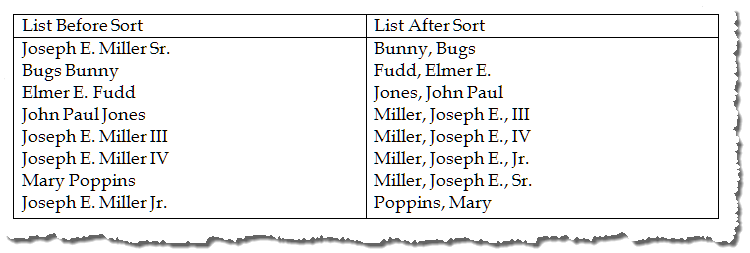
Once again, tedious work made easy with a macro:
Sub SortAndArrangeNames()
Dim oPar As Paragraph
Dim oRng As Word.Range
  If Selection.Paragraphs.Count < 2 Then
    MsgBox "There is no valid selection to sort"
    Exit Sub
  End If
  For Each oPar In Selection.Paragraphs
    Set oRng = oPar.Range
      Select Case UCase(oRng.Words(oRng.Words.Count - 1))
        Case "."
          Select Case UCase(oRng.Words(oRng.Words.Count - 2))
            Case "JR", "SR"
              With oRng
                .InsertBefore Trim(.Words(.Words.Count - 3)) & ", "
                .Start = .Words(.Words.Count - 3).Start - 1
                .End = .Words(.Words.Count - 2).Start - 1
                .Delete
                .InsertBefore ","
              End With
            End Select
        Case "III", "IV", "JR", "SR"
          With oRng
            .InsertBefore Trim(.Words(.Words.Count - 2)) & ", "
            .Start = .Words(.Words.Count - 2).Start - 1
            .End = .Words(.Words.Count - 1).Start - 1
            .Delete
            .InsertBefore ","
          End With
        Case Else
          With oRng
            .InsertBefore .Words(.Words.Count - 1) & ", "
            .Start = .Words(.Words.Count - 1).Start - 1
            .End = .End - 1
            .Delete
          End With
      End Select
    Next
    With Selection
      .Sort SortOrder:=wdSortOrderAscending
      .Collapse wdCollapseStart
    End With
lbl_Exit:
  Exit Sub
End Sub
That's it! I hope you have found this tips page useful and informative. If I find or develop other interesting techniques for sorting lists with macros, I'll publish them here. You can download a document containing the VB project used to create this tips page: Sorting Lists
The information, illustrations and code contained in my "Microsoft Word Tips" are provided free and without risk or obligation.
However, the work is mine. If you use it for commercial purposes or benefit from my efforts through income earned or time saved then a donation, however small, will help to ensure the continued availability of this resource.
If you would like to donate, please use the appropriate donate button to access PayPal. Thank you!
This page was last updated on
March 09, 2021
Website
Privacy Statement
Back to top  Back to
Word Tips
Back to
Word Tips