
The Anchorage
Personal website of Gregory K. Maxey, Commander USN (Retired)
The Anchorage
Personal website of Gregory K. Maxey, Commander USN (Retired)
The information, illustrations and code contained in my "Microsoft Word Tips" are provided free and without risk or obligation.

However, the work is mine. If you use it for commercial purposes or benefit from my efforts through income earned or time saved then a donation, however small, will help to ensure the continued availability of this resource.
If you would like to donate, please use the appropriate donate button to access PayPal. Thank you!



Reluctant to accept that things have gotten any better, I loathe the Microsoft Word automatic list numbering scheme! The process is like a riddle wrapped in a mystery inside an enigma.
Word MVP John McGhee treats the subject in considerable detail and highlights the pros and cons of the various methods in his skull cracking treatise Word's Numbering Explained. Thanks John!
I find that one of the most frustrating aspects of list numbering is "How do I start again with number 1?!!" Believe me, it is no small feat. MVP Margaret Aldis helps scale that peak by presenting us with several methods in her How to Restart Style-Based Numbering.
Despite its difficulties and drawbacks Word's automatic numbering can be harnessed. The best method I have seen for doing that is with outline numbering as explained by MVP Shauna Kelly in: Outline numbering in Microsoft Word. This takes a good bit of work to get it set-up, but if you get it set up in a template it is well worth the effort and most of your automatic paragraph numbering issues will be resolved.
If you are still reading this then perhaps you are looking for a simple and reliable way to number a couple of lists in a Word document. If you read John's article then you have already been informed that field numbering is simple and robust. If you are like 9 out of 10 Word users in my office then anything more than 1. space space Blah, blah "enter" 2. space space Blah, blah ... defies simple! If that applies to you, then the "SeqField Numbering" Add-In presented later in this page is for you.
A "SEQ" field is one of many useful field methods in Microsoft Word. A single "SEQ" field returns a number. A couple of like "SEQ" fields of the same sequence name returns a sequence of numbers (e.g., 1, 2, 3, etc.) . To create a numbered sequence suing "SEQ" fields:
As John said, "SEQ numbering is simple and robust."
"Ok, so I can number a list with SEQ fields. How do I restart the list?" Good question. You can restart SEQ field numbering by:
Rather than provide the steps I am going to show you a picture.
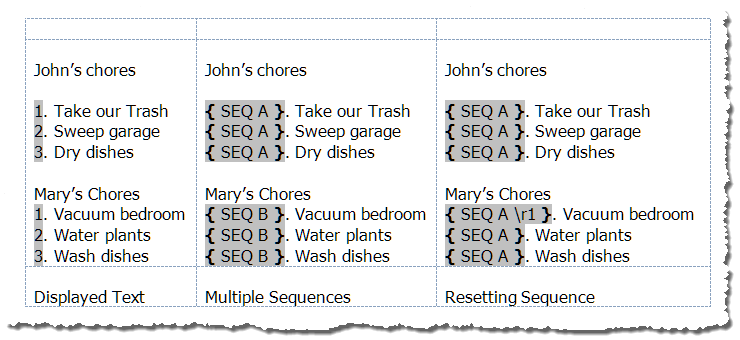
As you can see, the sequence name can be most anything (e.g. mySeq, A, B, or Bob's_your_uncle). If you start a sequence with a new sequence name the numbering restarts with 1. Look at Mary's first chore in the right hand column. Here you see the reset switch \r1 was used. This switch directs Word to restart the sequence named "A" with "1" at this point.
"All of this is fascinating, but terribly laborious. There has to be a better way!" Yes, it is laborious and yes there are better ways.
First let's look at AUTOTEXT methods. AUTOTEXT (or now Building Blocks) are Crown Jewels of Word that many people never use. Here is a quick primer. I hope by now that your interest is piqued and you have already reproduced the example fields shown above.
Let's work with the right hand example using the reset number method. First with field codes displayed (ALT+F9) select the one of the { SEQ A } fields. With the field selected, press ALT+F3. When the "Create AutoText" dialog opens, type "next" and press "OK."
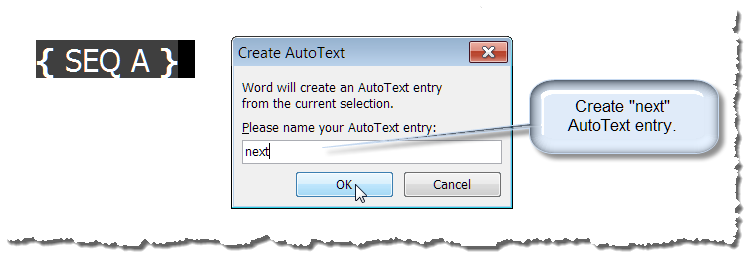
Now select the {SEQ A \r1} field, press ALT+F3, type in "newlist" and press "OK."
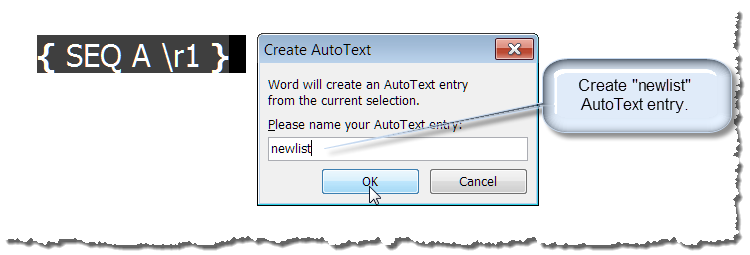
Toggle field codes again and with your AutoText entries defined you can easily start new lists or continue with your next number in the sequence by typing the keywords newlist or next and invoking the AutoText entry using F3.
 Note: In Word 2003 and 2010 you can take advantage of the Autocomplete Suggestion popup. Simply type the keyword and when the tip appears hit enter.
The AutoText method is a handy, very robust method of creating a sequenced numbered list. The AutoText entries are stored in the document template and available in any new document created from the template.
"But what if I already have a long list of items that I want numbered." OK, thanks to the power of Word macros, Word MVP Graham Mayor and I have put together a Word add-in that makes SEQ field list numbering as simple as ABC.
The SeqField List Numbering Add-In provides a toolbar and keyboard shortcut to quickly create, expand, or refresh numbered list using SEQ fields. The following paragraphs and illustrations provide an introduction to using the SeqField List Numbering add-in.

The toolbar shown above provides the majority of user interface.
Note: The add-in and illustrations shown in this tips page are created using Word 2003. The add-in is fully functional using Word 2007 through 2016. The toolbar shown below propogates on the ribbon Add-Ins tab.
Use the Start/Extend/Addin List command to apply numbering to a selection of text.
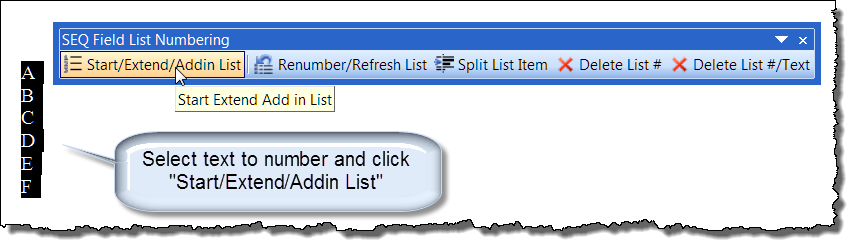
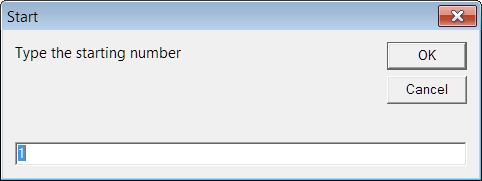
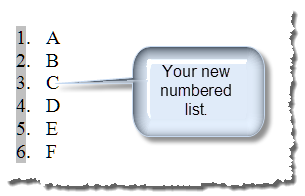
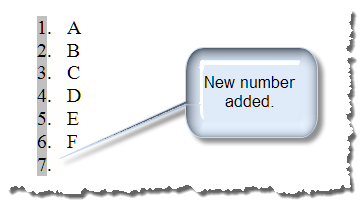
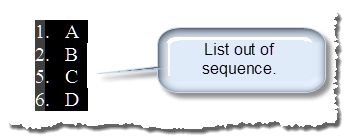
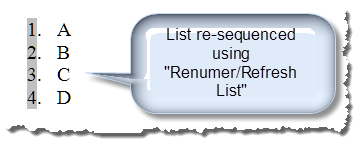
The Renumber/Refresh List toolbar command is used to renumber an existing numbered list or to refresh a list after editing. For example if item 3. is deleted from a list by editing then you can use this tool to refresh the list. You can also use the Renumber/Refresh command to number or renumber a selection of list paragraphs with any chosen starting number.
 |
 |
The Split List Item command splits an individual line of numbered text at the insertion point into two numbered lines.
 |
 Users cleans up text as required. |
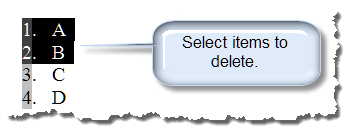
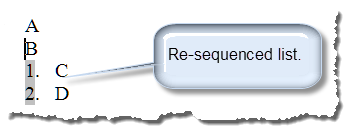
The Delete List # command deletes the numbering from the selected paragraphs.
 |
 |
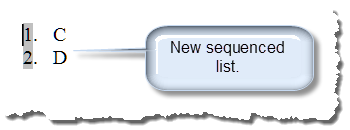
The Delete List # and Text deletes both the list numbering and the selected paragraph text.
|
 |
That's it! I hope you have found this tips page useful and informative. Your can download the template add-in here: SEQ Numbering Add-In
For more on template add-ins and how to load them, see: Organizing Your Macros/Template Add-ins at: Installing Macros
The information, illustrations and code contained in my "Microsoft Word Tips" are provided free and without risk or obligation.
However, the work is mine. If you use it for commercial purposes or benefit from my efforts through income earned or time saved then a donation, however small, will help to ensure the continued availability of this resource.
If you would like to donate, please use the appropriate donate button to access PayPal. Thank you!
This page was last updated on
March 09, 2021
Website
Privacy Statement
Back to top  Back to
Word Tips
Back to
Word Tips