
The Anchorage
Personal website of Gregory K. Maxey, Commander USN (Retired)
The Anchorage
Personal website of Gregory K. Maxey, Commander USN (Retired)
The information, illustrations and code contained in my "Microsoft Word Tips" are provided free and without risk or obligation.

However, the work is mine. If you use it for commercial purposes or benefit from my efforts through income earned or time saved then a donation, however small, will help to ensure the continued availability of this resource.
If you would like to donate, please use the appropriate donate button to access PayPal. Thank you!



This Microsoft Word Tips & Microsoft Word Help page provides a VBA method to globally name/rename and sequence all online (protected) form fields in a document.
Whenever you create a new online (protected) form field, Word automatically assigns a default bookmark designation and sequence number to the field. The default designation is alphanumeric and determined by the type of form field and the number of pre-existing form fields of the same type in the document.
For example, if you open and new blank document and insert a text input form field, a checkbox form field, and a dropdown form field, the document will automatically contain three bookmarks as shown below:
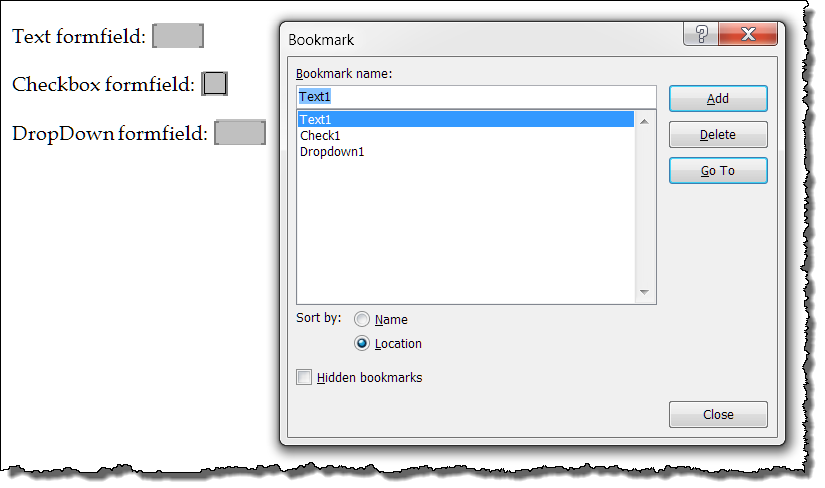
If you then insert a second text input form field after the first text input form field, Word will automatically bookmark and designate the new field as Text2. Similar results occur if you insert additional checkboxes or dropdowns after existing fields in the document.
A problem arises when you insert new form fields before or in between" existing form fields.
Word will get the “alpha” portion of the designator correct, but the numeric part is strictly sequential and therefore can appear out of sequence.
For example, if you insert a third textinput formfield between the two previously mentioned it will be designated Text3 (i.e., Word does not re-sequence the existing form fields so that the fields appear sequential in the document).
A second problem occurs when you copy and paste existing form fields in a document. Regardless of where form fields are pasted these “cloned” fields have no bookmark designation at all!!
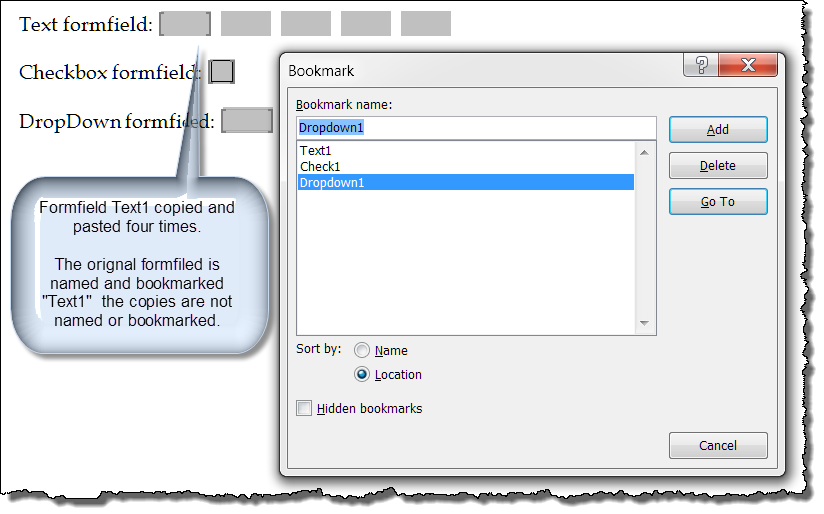
If you have ever created a form contains lots of form fields, then you know that nothing is faster than copying and pasting the form fields. You will also know that it is then a slow and laborious process to manually select and bookmark each one.
The following macro will do this task for you automatically and as it cycles through each form field in a document it will automatically reassign the proper default bookmark designation:
Option Explicit
Sub GlobalRenameFormFields()
Dim oFrmFlds As FormFields
Dim pIndex As Long
Dim i As Long
Dim j As Long
Dim k As Long
Dim oVar As Variant
  pIndex = 0
  i = 0
  j = 0
  k = 0
  If ActiveDocument.ProtectionType <> wdNoProtection Then
    ActiveDocument.Unprotect
  End If
  Set oFrmFlds = ActiveDocument.FormFields
  For pIndex = 1 To oFrmFlds.Count
    oFrmFlds(pIndex).Select
    Select Case oFrmFlds(pIndex).Type
      Case wdFieldFormTextInput
        oVar = oFrmFlds(pIndex).Result
        i = i + 1
        With Dialogs(wdDialogFormFieldOptions)
          .Name = "Text" & i
          .Execute
        End With
        oFrmFlds(pIndex).Result = oVar
      Case wdFieldFormCheckBox
        oVar = oFrmFlds(pIndex).CheckBox.Value
        j = j + 1
        With Dialogs(wdDialogFormFieldOptions)
          .Name = "Check" & j
          .Execute
        End With
        oFrmFlds(pIndex).CheckBox.Value = oVar
      Case wdFieldFormDropDown
        oVar = oFrmFlds(pIndex).DropDown.Value
        k = k + 1
        With Dialogs(wdDialogFormFieldOptions)
          .Name = "DropDown" & k
          .Execute
        End With
        On Error Resume Next
        oFrmFlds(pIndex).DropDown.Value = oVar
        On Error GoTo 0
      Case Else
        'Do Nothing
    End Select
  Next pIndex
  ActiveDocument.Protect Type:=wdAllowOnlyFormFields, NoReset:=True
lbl_Exit:
  Exit Sub
End Sub
 See: Installing Macros for instructions on how to set up and use the macros provided in this Microsoft Word Help & Microsoft Word Tips page.
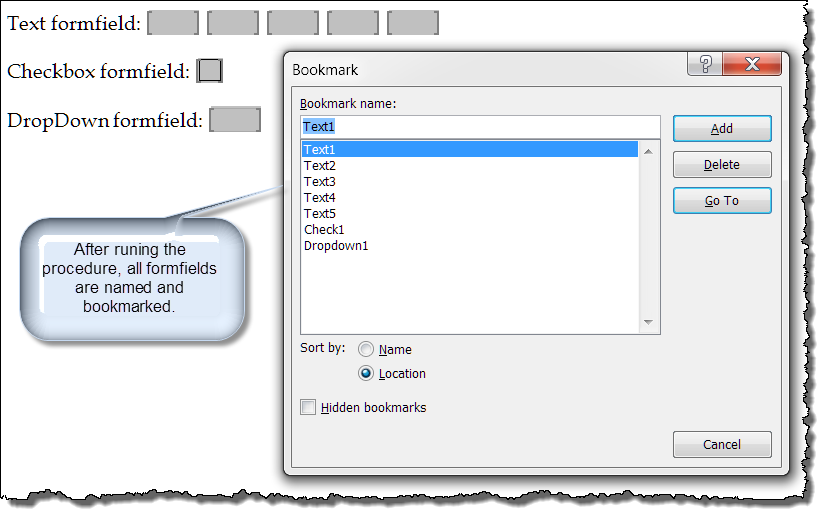
After running the macro, all existing formfields are named and indexed with default designations.
That's it! I hope you have found this tips page useful and informative.
The information, illustrations and code contained in my "Microsoft Word Tips" are provided free and without risk or obligation.
However, the work is mine. If you use it for commercial purposes or benefit from my efforts through income earned or time saved then a donation, however small, will help to ensure the continued availability of this resource.
If you would like to donate, please use the appropriate donate button to access PayPal. Thank you!
This page was last updated on
March 09, 2021
Website
Privacy Statement
Back to top  Back to
Word Tips
Back to
Word Tips