
The Anchorage
Personal website of Gregory K. Maxey, Commander USN (Retired)
The Anchorage
Personal website of Gregory K. Maxey, Commander USN (Retired)
The information, illustrations and code contained in my "Microsoft Word Tips" are provided free and without risk or obligation.

However, the work is mine. If you use it for commercial purposes or benefit from my efforts through income earned or time saved then a donation, however small, will help to ensure the continued availability of this resource.
If you would like to donate, please use the appropriate donate button to access PayPal. Thank you!



Microsoft Word does not offer a simple and direct method for clearing (removing) files from the "Recent Files" list that is located at the bottom of the File menu (versions prior to Word 2007) or displayed in the Office menu in Word 2007.
 Note: Microsoft has provided the ability to preform these tasks in Word 2010 which I will describe later is the page.
In Clear Recently Used Files, a Word tips page by MVP Graham Mayor, Graham describes the user interface that is available in Word's options, a VBA solution for sweeping files from the list, and he shows you how to use the "Destructive Cursor" for removing individual files from the list.
In this Microsoft Word Help & Microsoft Word Tips page I have tried to package Graham's methods in a convenient Word template add-in.
I was inspired to prepare and post this solution after reviewing a proposed method by the budding VBA enthusiast Patricia Shannon. Patricia's method got me to thinking about creating a userform for this task. This tips page is a result of those thoughts.
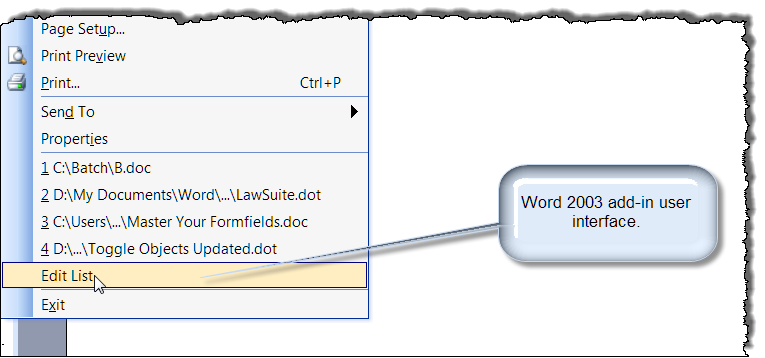
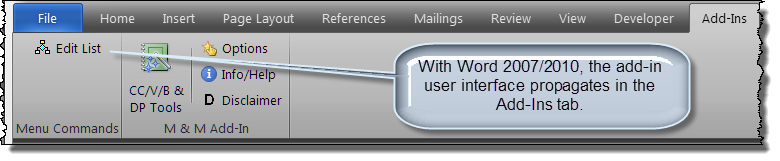
The add-in was prepared using Word 2003 and is updated and fully functional in Word 2007/2010. The add-in user interface is shown below:
When the add-in is called the user is presented with a userform that includes:
The userform configured to delete two selected recent files is shown below:
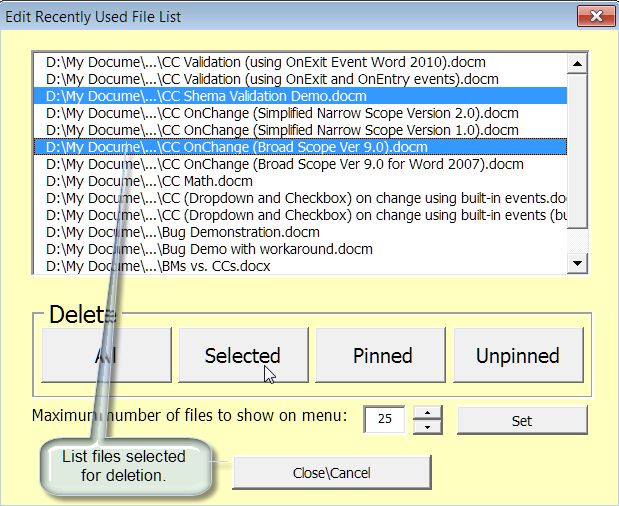
There is nothing deleted or altered in your file folders. Only the "Recent File" list is affected.
With the release of Word 2010, Microsoft has provided several tools in the built-in UI to manage/clear files from the recently used file list. If you select and right-click a listed file you are presented with the options shown below:
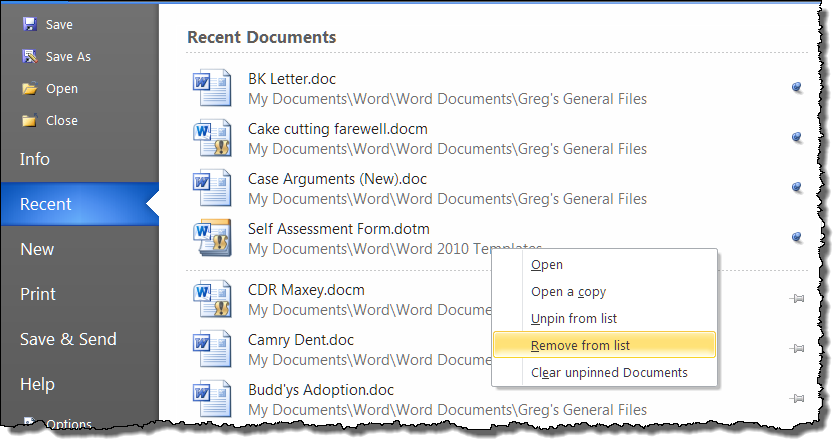
These tools supplant most of the functionality provided by the add-in. You can still use the add-in to globally remove "pinned" files and set the number of files to list.
You can download the template add-in here: Recent Files List Editor
For more on template add-ins and how to load them, see: Organizing Your Macros/Template Add-ins at: Installing Macros
That's it! I hope you have found this tips page useful and informative.
The information, illustrations and code contained in my "Microsoft Word Tips" are provided free and without risk or obligation.
However, the work is mine. If you use it for commercial purposes or benefit from my efforts through income earned or time saved then a donation, however small, will help to ensure the continued availability of this resource.
If you would like to donate, please use the appropriate donate button to access PayPal. Thank you!
This page was last updated on
March 09, 2021
Website
Privacy Statement
Back to top  Back to
Word Tips
Back to
Word Tips