
The Anchorage
Personal website of Gregory K. Maxey, Commander USN (Retired)
The Anchorage
Personal website of Gregory K. Maxey, Commander USN (Retired)
The information, illustrations and code contained in my "Microsoft Word Tips" are provided free and without risk or obligation.

However, the work is mine. If you use it for commercial purposes or benefit from my efforts through income earned or time saved then a donation, however small, will help to ensure the continued availability of this resource.
If you would like to donate, please use the appropriate donate button to access PayPal. Thank you!



My Rename a Batch of Files tips page provides some basic code and a practical example of using a VBA routine to process a batch of Word documents stored in a common folder.
This Microsoft Word Tips & Microsoft Word Help page is the result of a collaborative effort with Word MVP Doug Robbins and more recently Word MVP Graham Mayor to expand and enhance the method described in that article.
The add-in presented here was prepared by Graham and me, and it represents a major revision to the original add-in. You can use it to process a batch of files using several pre-defined processes or custom processes you can define yourself.
As with the other add-ins available from this site, it is presented as a Word template and is supplied in zipped format. You can download the template using the link at the end of this tips page.
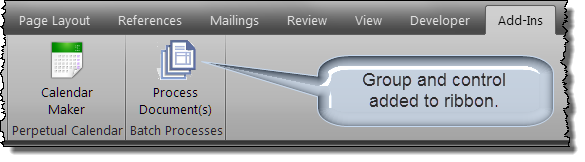
Installation instructions are available from a link in the template. When installed, the add-in displays a control button on the Word Ribbon Add-Ins tab as shown below:
 Notes:
1. Word 2010 was used to create the screen shots depicted in this tips page.
2. Support for Word 2003 was removed in version 2.0. The original add-in which functions with Word 2003 is still available in the zip package. It consists of two templates and both most be load for the add-in to function properly.
After downloading the template file, open it as you would any other template. When the template opens, you will see a link to detailed instructions for installing the add-in, and instructions for employing a pre-configured table used by the add-in pre-defined "Find and replace (with table defined pairs) process. This link and instructions is shown below.
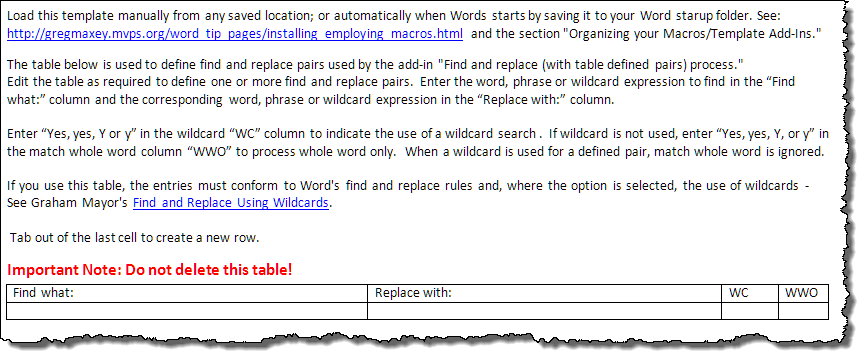
After opening and reviewing the template content, close the template and load the add-in manually or automatically when Word starts.
Launch the add-in by clicking the "Process Documents" control on the ribbon Add-Ins tab. On first use, the add-in disclaimer dialog is presented. After reviewing the disclaimer you can hide the dialog and the add-in user interface is displayed as shown below.
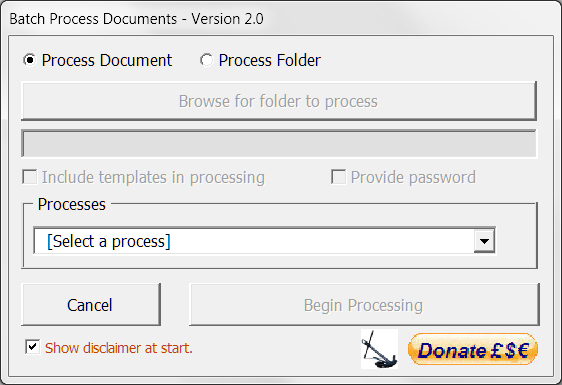
Version 2.0 provides the ability to process the active document with the add-in pre-defined or user defined processes. If a document is open as the active document when the add-in is launched, processing the active documents is the default mode.
Note: If no document is open as the active document when the add-in is launched, "Process folder" is the default mode and "Process document" is dimmed and unavailable.
To suppress the disclaimer dialog from displaying each time you launch the add-in, uncheck "Show disclaimer at start." You can view the disclaimer at any time the add-in is loaded by clicking the "Resting Anchor" logo. Clicking the "Resting "Anchor" logo located in the disclaimer dialog links you to this webpage.
Be sure to click the "Donate" link. Developing add-ins of this magnitude takes many hours and it is support from users like you that keep them posted and for the most part free.
For this discussion I am going to select "Process folder" and explain how to use the add-in to process the files in a user defined batch folder.
Note: The add-in is intended for use with Word compatible documents and templates and is error trapped against inappropriate use.
When the "Process folder" option is selected, the user interface is reconfigured to allow you to browse to and select a batch folder to process, or type the batch folder directly into the process folder text field, and select other folder options.
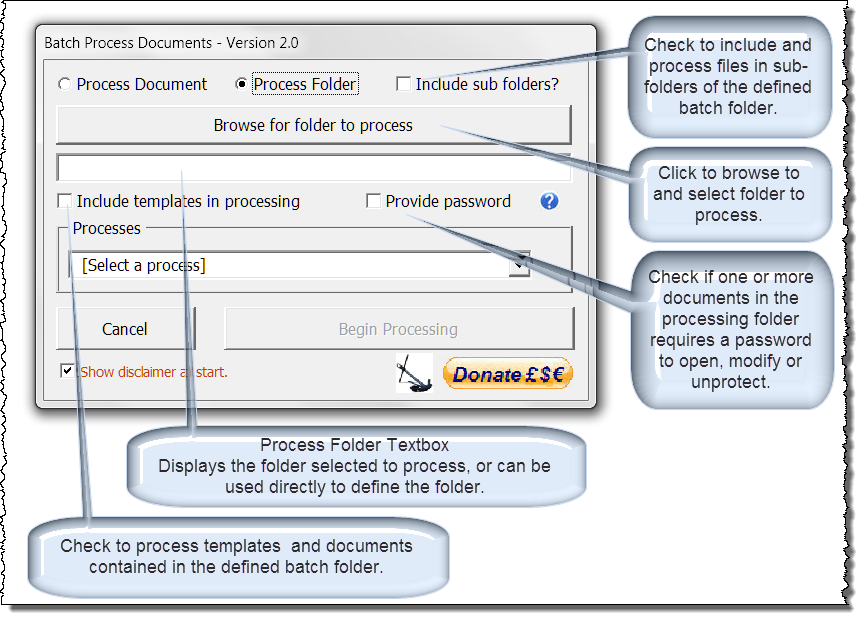
When batch processing, you have options to:
Notes:
1. Passwords and their use is discussed in detail later in this tips page.
2. Due to the potential for inadvertent "havoc" induced in user defined processes, root folders (e.g., C:\, D:\, etc.) cannot be processed. The main folder defined for processing must be a sub-folder of a root folder. Root folders and other invalid defined folders are flagged using background coloring in the process folder textbox.


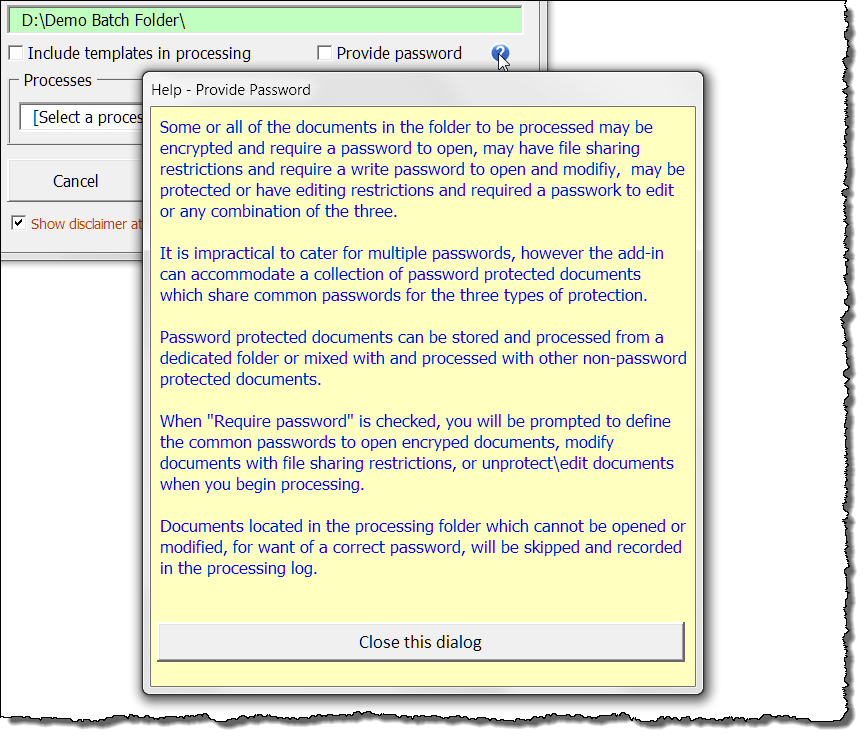
Context help is available by clicking on the  icon where displayed. The following illustrates the context help for passwords.
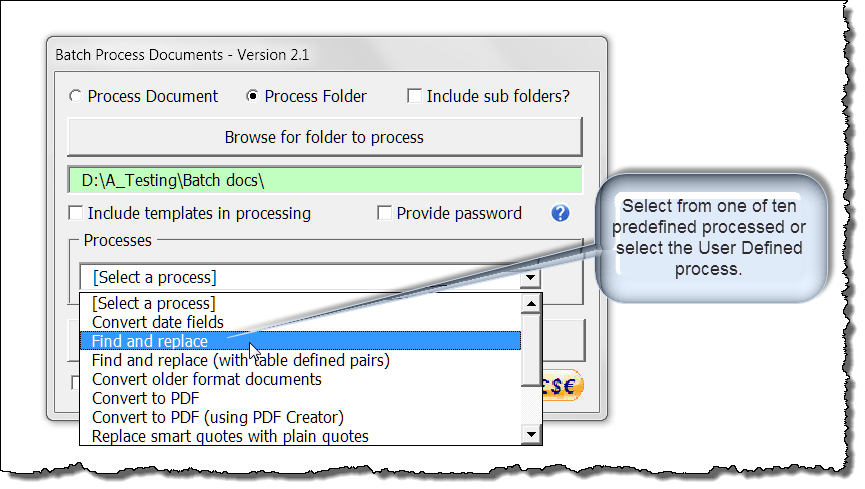
The version 2.1 of the add-in comes configured with ten (10) predefined processes or you can create and execute a user defined process.
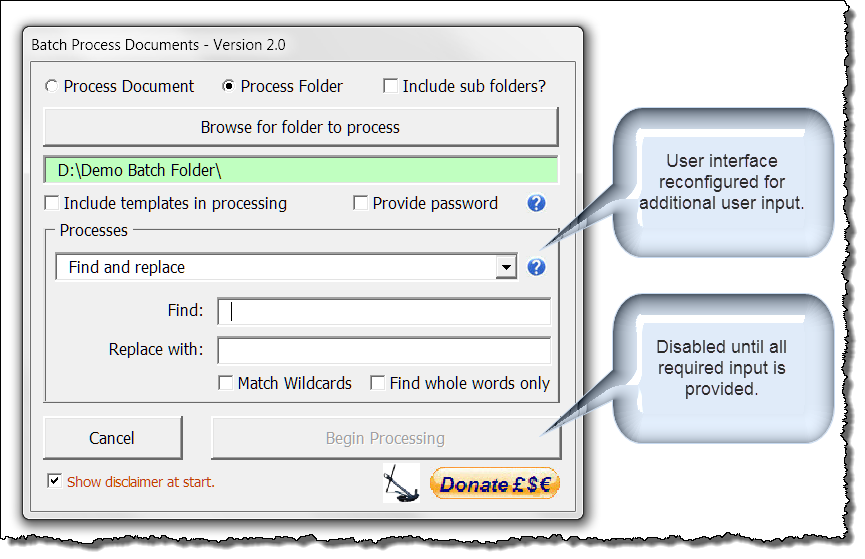
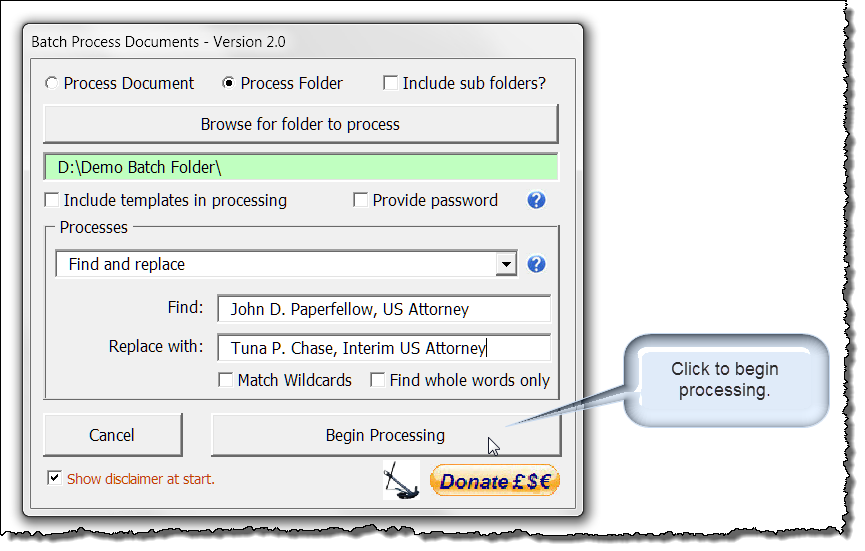
Selecting some of the processes (e.g., Find and replace) will reconfigure the add-in interface.
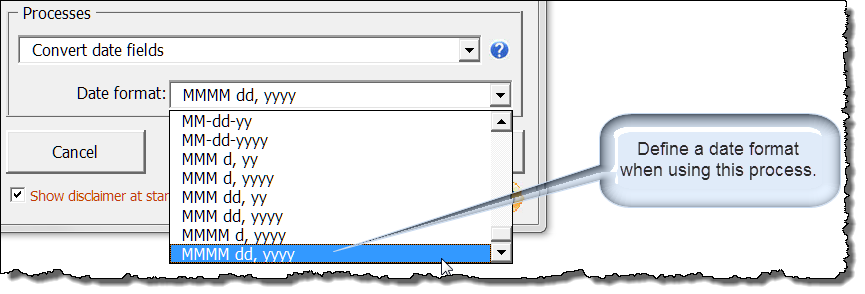
This process converts all unlocked { DATE } fields and all unlocked { TIME } fields, using a date format switch to display a date, to { CREATEDATE } fields wherever they appear in the document."
Formatting switches in the original fields are retained and only { Date } fields without formatting switches are appended with the selected field formatting switch."
Fields that are locked against updating are not converted.
When selecting this process, you must define a date format to apply to any simple { DATE } fields (i.e., date fields without an existing format switch) found in the document.
This process performs a basic VBA find and replace operation using find and replace strings that you define in the dialog.
Checkboxes are provided to match wildcards or find whole words only.
Notes:
1. The "Find whole words only" option is disabled when the "Match wildcards" option is applied.
2. To “match case” you can define a wildcard search (e.g., word, finds word but not WORD or Word). To "match case" and ensure whole words only are processed, use this construction: <word>.
For information relating to the use of wildcards in the Find what and Replace with fields, see:
Find and Replace Using Wildcards.
For a comprehensive VBA Find and Replace tool, see: VBA Find and Replace.
This process employs find and replace pairs defined in a table stored in the add-in template that enables you to perform multiple find and replace operations in a single process. To edit the table:
Notes:
1. The table is processed in order starting at the first row, below the header row, and subsequent replacements will be performed on the document as modified by preceding replacements.
2. Pairs defined in the table must conform with Word's find and replace rules. If wildcards are used they must conform to Word's wildcard pattern rules.
This process convert documents and templates in "DOC, DOT, RTF and WPS" format to their Office Open XML equivalent format: "DOCX, DOTX, DOCM and DOTM."
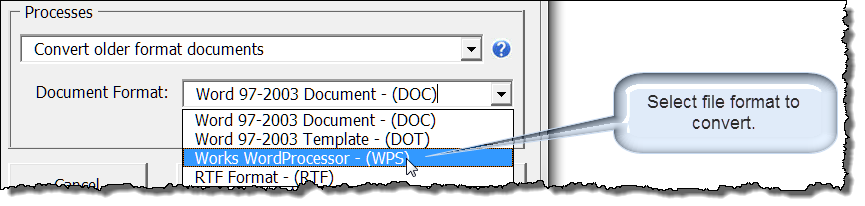
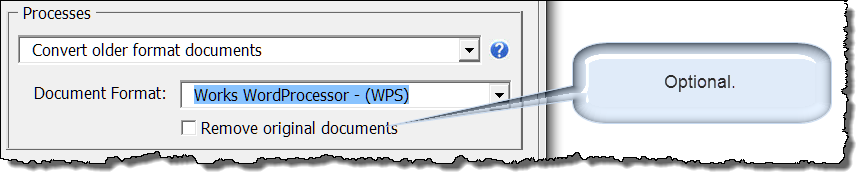
See the context help for more information on converting file formats and caution on using the "Remove original documents" option.
The "Convert to PDF" process uses the Office PDF function to create PDF versions of the documents. There are no user configurable settings associated with this process.
Where "PDF Creator" is available and selected as a process option, the "Security Options" dialog is presented and provides the means of including security options available to PDF.
To enable security options, enter a Master password where indicated.
There are four available options:
The options may be used in any combination, however if a Master password is entered and no security options are selected, the user will see a warning message, with the option to make a change to the settings. If that option is declined, the Master password is removed and the process moves on.
The security options, when employed, use the strongest encryption that PDF Creator offers."
These processes convert the format of quotation and apostrophe marks used in the document.
You can use these processes to convert all smart quotes to straight quotes or convert all straight quotes to straight quotes.
Provides a dialog to add a password to open and\or edit documents in the batch folder.
Provides a dialog to remove passwords required to open and\or edit documents in the batch folder.
The real power and utility of the add-in is the ability it provides users with beginner to intermediate VBA skills to process batch folders using their own defined procedures.
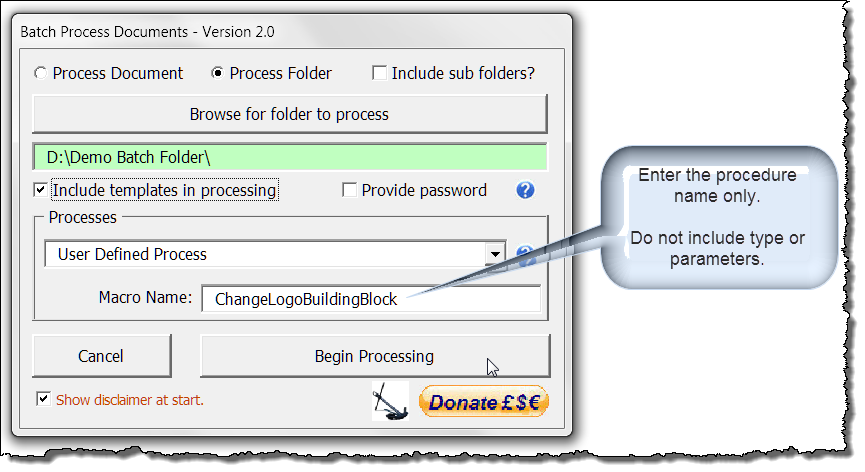
Note: When entering the macro name, enter the name only. Do not enter procedure type, parameters or data type.
User defined procedures must comply with the following criteria:
For example, you might want to run a procedure on all documents and templates in batch folder that replaces a company logo defined by an AutoText field in the first page header of section 1 with a new company logo defined in a new AutoText entry.
The following procedure complies with all of the criteria list above and could be used:
Function ChangeLogoBuildingBlock(ByRef oDoc As Word.Document) As Boolean
'This procedure is a function that returns a Boolean data type.
'It contains a document object variable as a single parameter.
Dim oHeader As HeaderFooter
Dim oRng As Range
Dim oFld As Field
  On Error GoTo Err_Handler
  'Process only the first page header of section 1.
  Set oHeader = oDoc.Sections(1).Headers(wdHeaderFooterFirstPage)
  Set oRng = oHeader.Range
  For Each oFld In oRng.Fields
    If oFld.Type = wdFieldAutoText Then
      If InStr(1, oFld.Code, "MyLogo") > 0 Then
        oFld.Code.Text = Replace(oFld.Code.Text, "MyLogo", "MyNewLogo")
        oFld.Update
        Exit For
      End If
    End If
  Next oFld
  oDoc.Saved = False
  ChangeLogoBuildingBlock = True
lbl_Exit:
  Exit Function
'It contains, as a minimum, a basic error handler.
'There is no code lines that attempt to save or close the document object.
Err_Handler:
  ChangeLogoBuildingBlock = False
  Resume lbl_Exit
End Function
Note: Your procedure may contain additional error handling required by your process. However, as a minimum, the error handling must ensure "True" is returned if your process executes properly and "False" if not. This is important to ensure accurate process tracking and ensure that documents not completely processed are closed without saving.
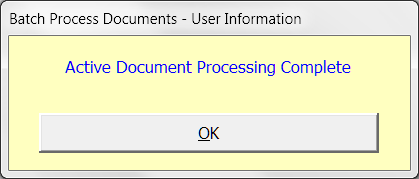
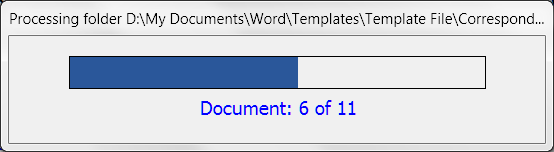
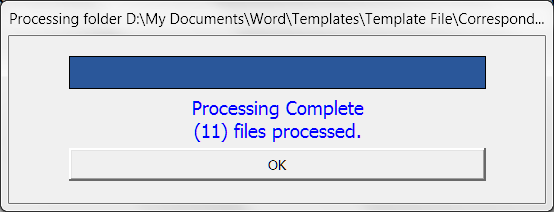
Several dialogs are displayed and updated during progressing depending on the processing options selected. A few examples are shown below.
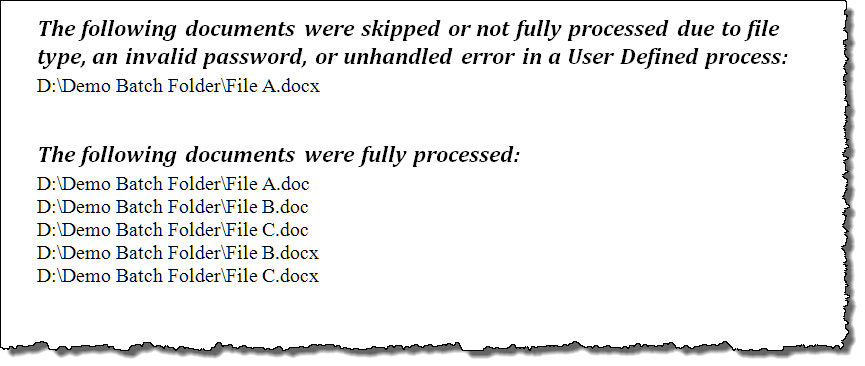
When batch processing is complete, a log of all files processed and any files skipped or not fully processed is presented.
This area has been like peeling back an onion and each step forward seems to present more complications.
There are several methods to protect a document with passwords such that any batch process is unable to access the document, modify the document, or save changes made to the document.
Graham and I have endeavored to persevere, however it is impractical to accommodate all possible combinations of multiple and differing passwords in the add-in. Therefore, we have compromised and have provide limited password support.
When you select the option "Provide password" and click "Begin Processing" you will be presented with the following dialog:
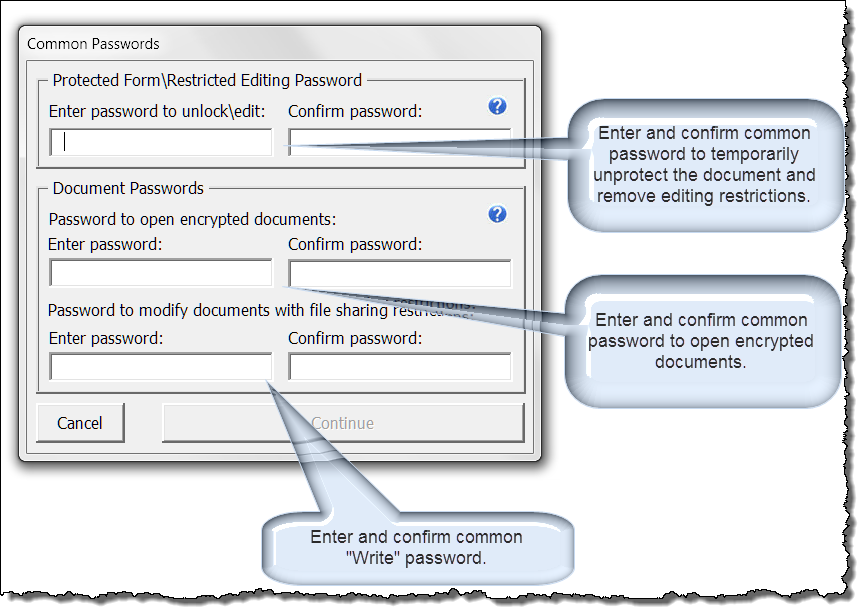
Using this dialog you can provide 1) a common password required to temporarily unprotect documents and remove editing restrictions. The password protected restrictions will be reapplied when processing is complete, 2) a common password required to open encrypted documents and 3) a common password required to open and allow modifications to documents with file sharing restrictions.
Enter only the passwords which are applicable to the type of protected documents in your batch folder. While it would be impractical and pointless to use all three, it can be done.
Note: Code in the add-in and inherent properties of the VBA Document.Open method used in the add-in ensures that passwords defined that are not required to open, modify (i.e., write) or unprotect documents are ignored and not applied to these documents when the process finishes.
Again while impractical, you can include all types of protected documents in a common folder and even mix protected documents with unprotected documents. The only requirement is that the if you provide a password to open, it must be a common password used to open all encrypted documents in the folder. The same applies to any "Write" or unprotect password you provide.
If you provide a correct common open, write, and\or unprotect password for all documents in the folder requiring a password then all files will be processed normally. If a password is required for any case and the correct password is not provide, one of the following events\consequences will occur:
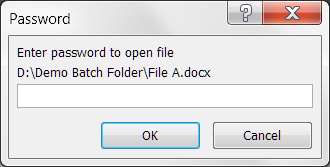 Prompt for open password |
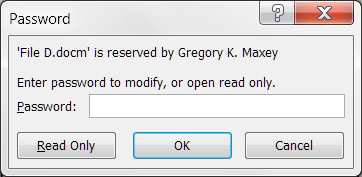 Prompt for write password |
Note: Because of the built-in prompt described above, automatic processing of a complete folder containing one or more files requiring a valid open or write password is not assured. If you look away and return later you may find the process has been waiting on you for a needed password.
Download the template add-in here: Batch Process Documents.
The zip file contains a single .dotm template which provides version 2.0 of the add-in for Word 2007/2010/2013. It also contains the older version 1.0 .dot templates. If you use Word 2003, you can still load these templates in tandem and perform batch processing.
Note: While the older .dot templates still function as designed in Word 2003, their design was not updated to match version 2.0. Therefore much of the content in this page is not applicable to those templates.
Graham Mayor and I have never fully agreed on style or content. While we come close in this case, Graham's version of the add-in is available here: Apply processes to a batch of Word documents.
That's it. I hope you have found this tips page informative and the add-in useful in your word processing.
The information, illustrations and code contained in my "Microsoft Word Tips" are provided free and without risk or obligation.
However, the work is mine. If you use it for commercial purposes or benefit from my efforts through income earned or time saved then a donation, however small, will help to ensure the continued availability of this resource.
If you would like to donate, please use the appropriate donate button to access PayPal. Thank you!
This page was last updated on
March 09, 2021
Website
Privacy Statement
Back to top  Back to
Word Tips
Back to
Word Tips