
The Anchorage
Personal website of Gregory K. Maxey, Commander USN (Retired)
The Anchorage
Personal website of Gregory K. Maxey, Commander USN (Retired)
The information, illustrations and code contained in my "Microsoft Word Tips" are provided free and without risk or obligation.

However, the work is mine. If you use it for commercial purposes or benefit from my efforts through income earned or time saved then a donation, however small, will help to ensure the continued availability of this resource.
If you would like to donate, please use the appropriate donate button to access PayPal. Thank you!



The purpose of this Microsoft Word Tips & Microsoft Word Help page will show you how you can quickly modify content control properties including the placeholder text.
I think that content controls are, without a doubt, the best enhancement in Word 2007. If you haven't used these yet then be sure to enable the Developer tab of your Word 2007 application and check them out. You won't be disappointed.
Using the "Controls" group on the Developer tab you can insert one of seven different content controls in your Word document. Six of the seven control types includes a default placeholder text (the Picture content control does not use placeholder text).
 Note: Word 2010 added an eight "Checkbox" content control. Like the picture content control, the checkbox does not use placeholder text.
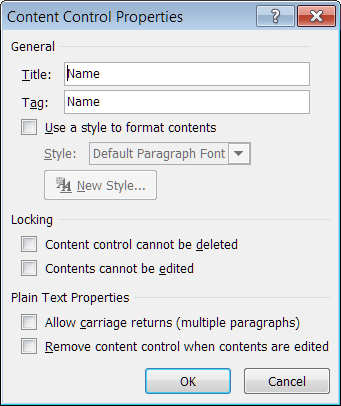
With the "Properties" command in the Controls group you can set the properties for the various control types. For reasons unknown to me, Microsoft left out the option in this dialog to modify the placeholder text.
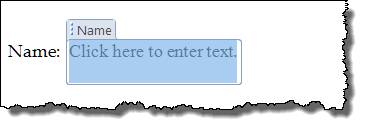
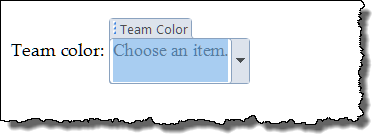
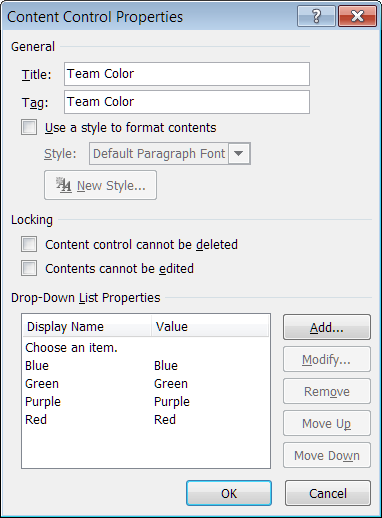
The following illustrations show the default placeholder text for a plain text (left) and dropdown content control (right) and the corresponding properties dialog. There is no method in the properties dialog to modify the placeholder text.
 |
 |
 |
 |
Perhaps it's just a nit, but I think the document would look much more polished and professional if the placeholder text reflected exactly what we want the user to to do (e.g., enter their name and pick their team color)
Fortunately we can do this by clicking the 'Design Mode" command and editing the placeholder text directly
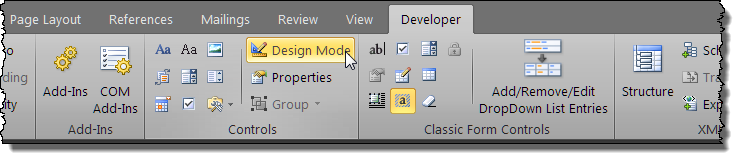
Bonus Tip: To add the "Classic Form Controls" group to your Developer tab as shown above, see my: Add Classic Form Controls
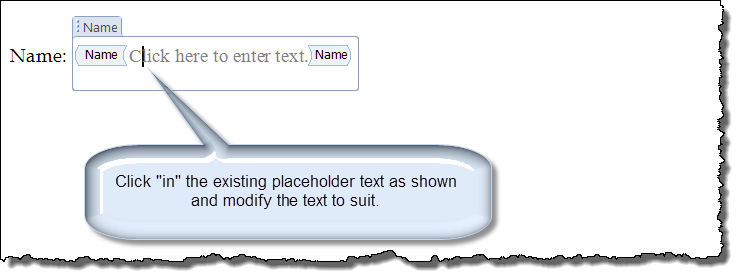
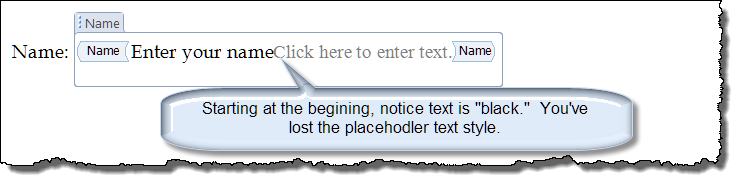
Note: Clicking "in" the placeholder text ensures that you preserve the applied placeholder text style. If you delete the placeholder text or start editing at the beginning of the placeholder text will lose the placeholder text style. I always start after the "C" and if needed go back and delete the "C."
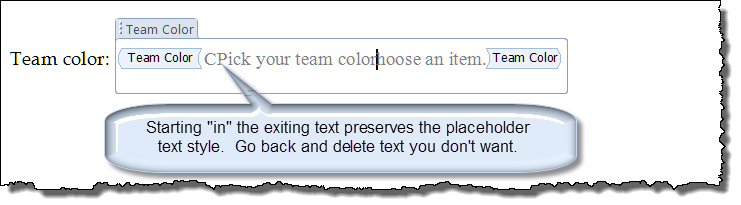

For the final touch, I use the properties dialog to ensure the first list member in the dropdown list matches the placeholder text.
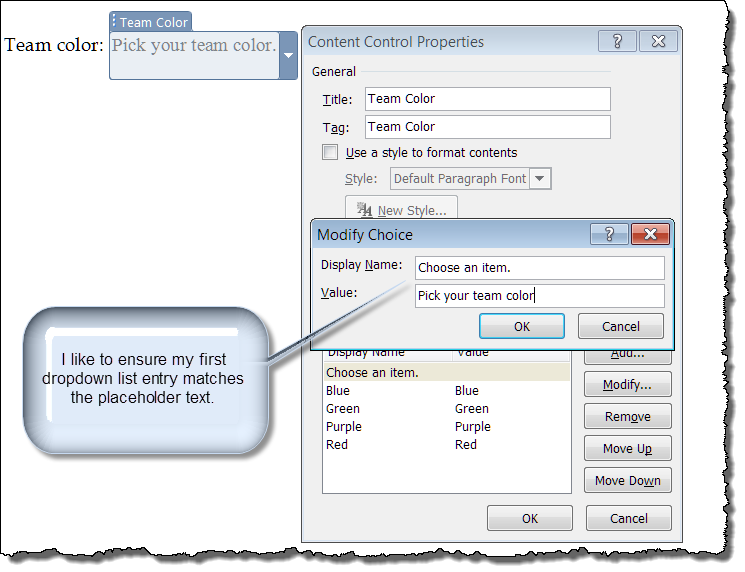
In addition to using the built-in dialogs and "Design" mode, you can use VBA to set content control placeholder text.
Sub SetPlaceHolderText()
Dim strText As String
  If Selection.Range.ContentControls.Count = 1 Then
    On Error GoTo Err_Handler
    With Selection.Range.ContentControls(1)
      strText = .PlaceholderText.Value
      .SetPlaceHolderText , , InputBox("Type your new placeholder text below.", _
                              "Define Placeholder Text", strText)
    End With
  Else
    MsgBox "You must select a single ContentControl." & vbCr + vbCr _
           & "Click the ""empty"" or ""title"" tag of the" _
           & " ContentControl you want to modify."
  End If
Exit Sub
Err_Handler:
End Sub
If you are familiar with the Word object module you may notice from the code above that the ContentControl object has a property ".PlaceholderText." and that property itself is an object and not a string!!
Note: For an interesting summary of content control placeholder text oddities, see: 5 Curiosities about Placeholders in Word Content Controls (for developers).
See: Installing Macros for instructions on how to set up and use the macros provided in this Microsoft Word Help & Microsoft Word Tips page.
When you create a new template or document using lots of content controls all of the mouse work involved in setting properties and custom placeholder text can become quite laborious. To ease this workload, I have created simple template add-in that contains a macro procedure which will loop through each content control in your document, display the properties dialog, and provides a custom dialog for setting the placeholder text.
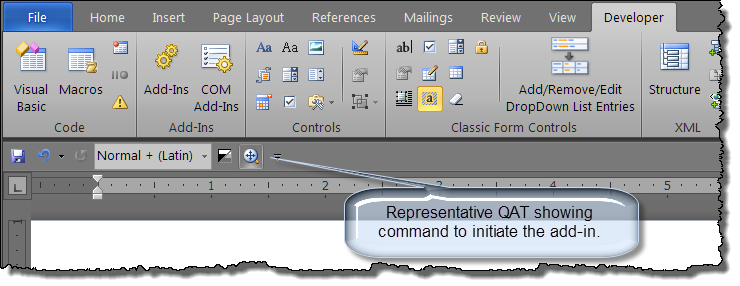
Download the add-in here: Modify CC Properties & Placeholder Text Add-In
For more on template add-ins and how to load them, see: Organizing Your Macros/Template Add-ins at: Installing Macros
That's it! I hope you have found this tips page useful and informative.
The information, illustrations and code contained in my "Microsoft Word Tips" are provided free and without risk or obligation.
However, the work is mine. If you use it for commercial purposes or benefit from my efforts through income earned or time saved then a donation, however small, will help to ensure the continued availability of this resource.
If you would like to donate, please use the appropriate donate button to access PayPal. Thank you!
This page was last updated on
March 09, 2021
Website
Privacy Statement
Back to top  Back to
Word Tips
Back to
Word Tips