
The Anchorage
Personal website of Gregory K. Maxey, Commander USN (Retired)
The Anchorage
Personal website of Gregory K. Maxey, Commander USN (Retired)
The information, illustrations and code contained in my "Microsoft Word Tips" are provided free and without risk or obligation.

However, the work is mine. If you use it for commercial purposes or benefit from my efforts through income earned or time saved then a donation, however small, will help to ensure the continued availability of this resource.
If you would like to donate, please use the appropriate donate button to access PayPal. Thank you!



The purpose of this Microsoft Word Tips & Microsoft Word Help page is to publish my custom Highlighter Tool template add-in for Word.
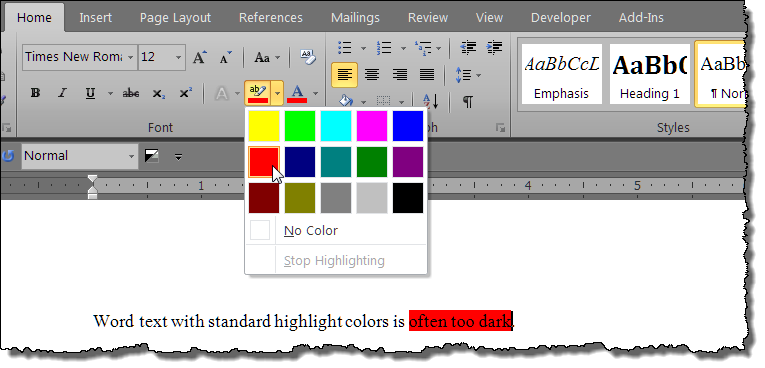
The add-in will hopefully offer a solution to the problem of odd and often too dark highlighter colors available with the standard Word highlighter tool.
Highlighter Tool add-in employs a Userform to provide a simple interface you can use to apply a range of "subdued" font shading to your text.
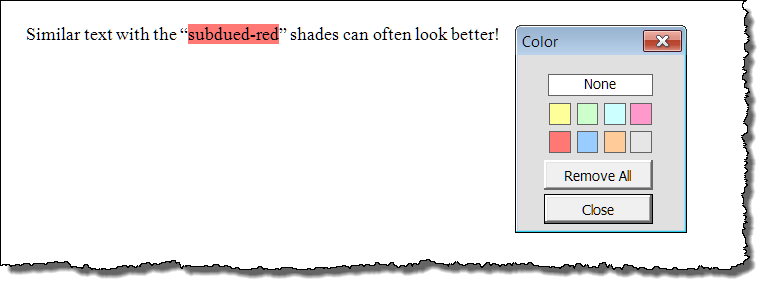
Unfortunately the add-in does not act as a painter like the built-in highlighter tool.
 Note: It is important to remember that Highlighter Tool applies "shading" to text. While it may be more pleasing to the eye and easier to read, it is not "highlighting" in the sense that Word uses that term. It will not react as expected in a "find and replace" operation or be recognized as highlighting in a VBA procedure.
I have provided eight subdued colors in the basic add-in. If you know a little about VBA you can easily change these colors or add your own. The range of actual shades that you can create and apply to your text is practically endless. The colored "buttons" on the Userform are simply label controls with a .backcolor property applied that matches the font shading .backcolor applied in the document. You can add new controls (and associated code) or modify the exiting controls and code.
The back color of the label controls are set in the Userform_Initalize event:
Private Sub Userform_Initialize()
Me.Label1.BackColor = 10092543 'Or wdColorLightYellow or RGB(255, 255, 153)
Me.Label2.BackColor = wdColorLightGreen
'Add any remaining labels. The color value can be a constant value if exits (e.g., wdColorRed,
'a long value, or a RGB {red, green, blue) value as shown in above.
End Sub
The shading is applied to the selected text with a Label_Click event. The BackgroundPattern color is simply set to the same value as the control back color. Again constants, longs, or RGB values can be used.
Private Sub yourLabelName_Click()
Selection.Font.Shading.BackgroundPatternColor = RGB(163, 209, 255)
End Sub
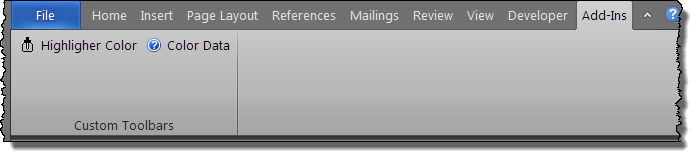
Highlighter Tool was developed using Word 2003 and includes a simply toolbar interface. The add-in is fully functional in Word 2007/2010 and the toolbar commands propogate in the Add-Ins tab custom toolbar group.
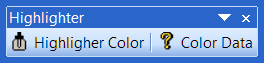
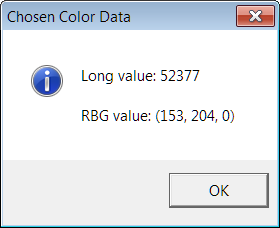
An auxiliary macro is provided to help you determine the long or RGB value of any custom color. Simply click the "Color Data" command to determine information on any constant or custom color you wish to identify. Color data information is returned via VBA msgbox as shown below:
Download: Highlighter Tool
For more on template add-ins and how to load them, see: Organizing Your Macros/Template Add-ins at: Installing Macros
That's it! I hope you have found this tips page useful and informative.
The information, illustrations and code contained in my "Microsoft Word Tips" are provided free and without risk or obligation.
However, the work is mine. If you use it for commercial purposes or benefit from my efforts through income earned or time saved then a donation, however small, will help to ensure the continued availability of this resource.
If you would like to donate, please use the appropriate donate button to access PayPal. Thank you!
This page was last updated on
March 09, 2021
Website
Privacy Statement
Back to top  Back to
Word Tips
Back to
Word Tips