
The Anchorage
Personal website of Gregory K. Maxey, Commander USN (Retired)
The Anchorage
Personal website of Gregory K. Maxey, Commander USN (Retired)
The information, illustrations and code contained in my "Microsoft Word Tips" are provided free and without risk or obligation.

However, the work is mine. If you use it for commercial purposes or benefit from my efforts through income earned or time saved then a donation, however small, will help to ensure the continued availability of this resource.
If you would like to donate, please use the appropriate donate button to access PayPal. Thank you!



The purpose of this Microsoft Word Tips & Microsoft Word Help page is to document and explain a VBA process for extracting individual numbers from a string of continuous, discontinuous, or grouped continuous numbers. For example, take the string "2, 6, 8-12, 15." This string contains the individual numbers 2, 6, 8, 9, 10, 11, 12 and 15.
Not long ago I came across a post in a Microsoft Word VBA support forum which asked how to identify and process information in certain rows in a Word table.
The process for a fixed set of rows is not very difficult. The following example illustrates a basic generic VBA procedure to process the set of rows indexed 2, 6, 8-12, or 15 in a selected Word table.
Sub Demo1()
Dim i As Long
Dim oRow As Row
  For i = 1 To Selection.Tables(1).Rows.Count
    Select Case i
      Case 1, 6, 8 To 12, 15
        Set oRow = Selection.Tables(1).Rows(i)
        'Add your code to process row.
    End Select
  Next i
  Set oRow = Nothing
lbl_Exit:
  Exit Sub
End Sub
 See: Installing Macros for instructions on how to set up and use the macros provided in this Microsoft Word Help & Microsoft Word Tips page.
Unfortunately that code is a fixed solution. It processes rows 2, 6, 8-12, and 15 extremely efficiently. However, without constant changes to the written code a user can not change the set of rows to process.
A dynamic solution requires a means of extracting the numerical values from a user input string. It is not that difficult to extract continuous or discontinuous numbers from a user input string either (e.g., 2, 6, 8, 9, 10, 11, 12, 15). The following example illustrates one possible method:
Sub Demo2()
Dim arrNumbers() As String
Dim i As Long
Dim oRow As Row
  arrNumbers = Split(InputBox("Enter the rows to process separated by a comma", _
               "User Input"), ",")
  For i = 0 To UBound(arrNumbers)
    Set oRow = Selection.Tables(1).Rows(arrNumbers(i))
    'Add your code to process row.
  Next i
  Set oRow = Nothing
lnl_Exit:
  Exit Sub
End Sub
The input for the code above is a VBA InputBox. The user would provide the input shown below to process rows 2, 6, 8-12, and 15.
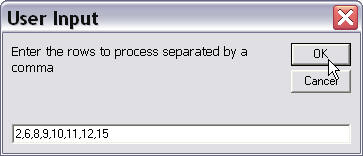
While this will certainly work, users may soon grow weary with the basic dynamic method if their requirements involved frequent or long strings of continuous numbers.
Consider the user input required to process rows 1, 5, 10 through 500 and 505!
That example will prove that extracting continuous, discontinuous, and "grouped continuous" numbers becomes very interesting and considerably more complex.
In looking for a solution I came across some code for manipulating string data for this purpose prepared by MVP Cindy Meister. With Cindy's permission I'll call this code a "jewel in the rough" and through collaboration Cindy and I have refined it to the state presented here.
As in the basic dynamic method, the process involves creating an array containing each of the individual numbers in the user input string as a subscript element. This includes each continuous and discontinuous number in the user input string as well as the individual numbers contained in the continuous groups. A static demonstration of this process using the user input string "2, 6, 8-12, 15" is shown below:
Sub Demo3()
Dim pInput As String
Dim arrNumbers() As String
Dim i As Long
Dim j As Long
  i = 0
  ReDim Preserve arrNumbers(i)
  pInput = "2, 6, 8-12, 15"
  arrNumbers(i) = "2"
  i = i + 1
  ReDim Preserve arrNumbers(i)
  arrNumbers(i) = "6"
  i = i + 1
  For j = 8 To 12
    ReDim Preserve arrNumbers(i)
    arrNumbers(i) = j
    i = i + 1
  Next j
  ReDim Preserve arrNumbers(i)
  arrNumbers(i) = "15"
  For i = 0 To UBound(arrNumbers)
    MsgBox "Processing row " & arrNumbers(i)
  Next i
End Sub
In the static example we know the numbers involved, the arrangement of those numbers individually and in groups, and the group starting and ending numbers. Writing the code to add those number to the array was elementary.
In a dynamic user input all of those things must be determined and processed at run-time. The user input string must be evaluated, broken down, and processed in a logical sequence using methods for string manipulation. A comprehensive solution involves both the logic process and a user interface. This solution with explanatory comments is provided below:
Sub ProcessRows()
Dim arrRowIndex() As Variant
Dim strInput As String, strSeparator As String, strCombiner As String
Dim oTbl As Word.Table
Dim i As Long
strSeparator = ","
strCombiner = "-"
  On Error GoTo Err_Handler
  'Ensure users has selected a table
  If Not Selection.Information(wdWithInTable) Then Err.Raise vbObjectError + 1
  'User input rows to process
  strInput = InputBox("Enter the row numbers of the rows to process" & vbCr + vbCr _
                    & "Example: 2" & strSeparator & " 6" & strSeparator & " 8" & strCombiner _
                    & "12" & strSeparator & " 15", "Rows to Process")
  If Len(strInput) = 0 Then
    Exit Sub 'User pressed Cancel or OK without an input
  End If
  'This loop is specifically for the example in the document.
  For i = 1 To Selection.Tables(1).Rows.Count
    Selection.Tables(1).Rows(i).Shading.BackgroundPatternColor = wdColorAutomatic
  Next i
  'Build array of each row index number to process
  arrRowIndex() = ExtractNumbersFromString(strInput, strSeparator, strCombiner)
  'Process each indexed item in the array
  For i = LBound(arrRowIndex()) To UBound(arrRowIndex())
    Selection.Tables(1).Rows(arrRowIndex(i)).Shading.BackgroundPatternColor = wdColorLightYellow
  Next i
  Exit Sub
Err_Handler:
  Select Case Err.Number
    Case 9
      MsgBox "The input string was invalid." & vbCr + vbCr _
      & "Use numbers only." & vbCr _
      & "Use """ & strSeparator & """ to separate individual digits." & vbCr _
      & "Use """ & strCombiner & """ to separate group digits." & vbCr + vbCr _
      & "Example: 2" & strSeparator & " 6" & strSeparator & " 8" & strCombiner & _
      "12" & strSeparator & " 15", vbInformation + vbOKOnly, "Invalid Input"
    Case vbObjectError + 1
      MsgBox "Please select the table containing the rows to process.", vbInformation + vbOKOnly, _
             "Selection Invalid"
    Case 5941
      MsgBox "Row " & arrRowIndex(i) & " does not exist in the selected table."
      If i < UBound(arrRowIndex()) Then Resume Next
  End Select
End Sub

Function ExtractNumbersFromString(strInput As String, strSingleSep As String, strGrpSep As String) As Variant
Dim lngSS As Long, lngGS As Long, lngIndex As Long, lngCounter As Long
Dim strInProgress As String, strNumber As String, strGrpStartNum As String, strGrpEndNum As String
Dim arrIndex() As Variant
  'Notes on variables used:
  'lngSS = numerical position in a string where a single unit separator "," is located
  'lngGS = numerical position in a string where a group separtator "-" is located
  'lngIndex = a long value representing the a position in the arrIndex
  'lngCounter = a long value used to step count through the group number inputs
  'strInProgress = represents the user's input string as it is reduced to a zero length string as processed
  'strNumber = a string value represtenting the numerical value of a single digit input
  'strGrpStartNum = a string value representing the numerical value of the number beginning a group number input
  '               e.g., "8" in the group input "8-12"
  'strGrpEndNum = a string value representing the numerical value of the number ending a group number input
  '             e.g., "12" in the group input "8-12"
  strInProgress = strInput
  lngIndex = 0
  Do
    lngSS = InStr(strInProgress, strSingleSep) 'Get numerical position of the first single separtator
    lngGS = InStr(strInProgress, strGrpSep)    'Get numerical position of the first group separtator
    Select Case True
      Case ((lngSS > 0 And lngGS > 0) And (lngSS < lngGS)) Or (lngSS > 0 And lngGS = 0)
        'strInProgress contains both a single and group separator and the single separator is first in the string
        'e.g., "6, 8-12"
        'Or strInProgress contains single separators with no group separators
        'e.g., "1, 5, 15"

        'Get the number
        strNumber = ExtractSingleNumber(strInProgress, lngSS)
        'Redefine pStrInProgress
        strInProgress = Mid(strInProgress, lngSS + 1)
        'Add number to the array
        If Len(strNumber) > 0 Then
          ReDim Preserve arrIndex(lngIndex)
          arrIndex(lngIndex) = strNumber
          lngIndex = lngIndex + 1
         End If
      Case (lngSS > lngGS) Or (lngSS = 0 And lngGS > 0)
        'strInProgress contains a group separator before the first single unit separator or contains only a single group
        'e.g., "8-12, 15" or "8-12"

        'Get the group starting number
        strGrpStartNum = Mid(strInProgress, 1, lngGS - 1)
        'Get the group ending number
        Select Case True
          Case (lngSS = 0 And lngGS > 0)
            'strInProgress contains a group separator and no single unit separator e.g., "8-12"
            strGrpEndNum = Mid(strInProgress, lngGS + 1)
            strInProgress = Mid(strInProgress, Len(strInProgress) + 1)
          Case Else
            'strInProgress contains a group separator before the first single unit separator e.g., "8-12, 15"
            strGrpEndNum = Mid(strInProgress, lngGS + 1, (lngSS) - (lngGS + 1))
            strInProgress = Mid(strInProgress, lngSS + 1)
         End Select
         'Add the numbers from start to end into the array
         If IsNumeric(strGrpStartNum) And IsNumeric(strGrpEndNum) Then
           For lngCounter = strGrpStartNum To strGrpEndNum
             ReDim Preserve arrIndex(lngIndex)
             arrIndex(lngIndex) = lngCounter
             lngIndex = lngIndex + 1
           Next lngCounter
         Else
           Err.Raise 9
         End If
       Case Else
         'There are no single or group separators in strInProgress. Whatever is there should be a number
         If IsNumeric(strInProgress) Then
           strNumber = strInProgress
           strInProgress = ""
           'Add the number to the array
           ReDim Preserve arrIndex(lngIndex)
           arrIndex(lngIndex) = Trim(strNumber)
           lngIndex = lngIndex + 1
         Else
           Err.Raise 9
           strInProgress = ""
         End If
    End Select
  Loop Until Len(strInProgress) = 0
  ExtractNumbersFromString = arrIndex
lbl_Exit:
  Exit Function
End Function

Function ExtractSingleNumber(ByRef strInProgress As String, i As Long) As String
Dim strProcess As String
  strProcess = Mid(strInProgress, 1, i - 1)
  If IsNumeric(strProcess) Then
    strProcess = Trim(strProcess)
  Else
    strProcess = ""
    Err.Raise 9
  End If
  ExtractSingleNumber = strProcess
lbl_Exit:
  Exit Function
End Function
Interesting yes, but very complex!! While I will forgo the above solution in favor of the simplified solution, I've left it as content of this page as it contains some interesting and valid string manipulation examples.
Thanks to feedback from a brilliant coder who calls himself snb, I've discovered the VBA "Filter" function and I've learned that the solution above can be greatly simplified!
snb's coding style is radically different than mine. He does not use "Option Explicit" in his project modules and relies almost solely on undeclared variant variables. While I've preserved his basic method, I've changed the code to be more in line with my style and objectives.
Option Explicit

Sub ProcessRows()
Dim strSeparator As String, strGroup As String
Dim oTbl As Word.Table
Dim lngIndex As Long
Dim VarNumber
  'Define the separators and grouping marks.
  strSeparator = ","
  strGroup = "-"
  With ActiveDocument
    If .Tables.Count = 0 Then
      Set oTbl = .Tables.Add(.Paragraphs.First.Range, 60, 1)
    Else
      Set oTbl = .Tables(1)
    End If
  End With
  With oTbl
    For lngIndex = 1 To .Rows.Count
      .Rows(lngIndex).Shading.BackgroundPatternColor = wdColorAutomatic
      .Cell(lngIndex, 1).Range.Text = "Inconsequential chaff"
    Next lngIndex
  End With
  On Error GoTo Err_Handler
  'The user input is passed to a funtion which returns a valid string of _
   individual numbers.
  For Each VarNumber In fcnExtractNumbersFromTrucatedString(InputBox( _
        "Enter the row numbers of the rows to process" & vbCr + vbCr _
      & "Example: 2" & strSeparator & " 6" & strSeparator & " 8" & strGroup _
      & "12" & strSeparator & " 15", "Rows to Process"), strSeparator, strGroup)
    With oTbl
      .Rows(VarNumber).Shading.BackgroundPatternColor = wdColorLightYellow
      .Cell(VarNumber, 1).Range.Text = "Important information"
    End With
   Next
lbl_Exit:
  Exit Sub
Err_Handler:
  Select Case Err.Number
    Case 13
      MsgBox "The input string was invalid." & vbCr + vbCr _
      & "Use numbers increase in value only." & vbCr _
      & "Use """ & strSeparator & """ to separate individual numbers." & vbCr _
      & "Use """ & strGroup & """ to truncate and separate the lower and" & vbCr _
      & "upper number in a group." & vbCr + vbCr _
      & "Example: 2" & strSeparator & " 6" & strSeparator & " 8" & strGroup & _
      "12" & strSeparator & " 15", vbInformation + vbOKOnly, "Invalid Input"
    Case 5941
      MsgBox "Row: " & VarNumber & " does not exist in the selected table."
      Resume Next
    Case Else
      MsgBox Err.Number & " " & Err.Description
  End Select
End Sub

Function fcnExtractNumbersFromTrucatedString(strProcess, strSS, strGS) As Variant
Dim arrGroups As Variant
Dim strNumbers As String
Dim lngGroup As Long
Dim lngNumber As Long
Dim arrNumbers() As String
  'Use the Filter function to return an array of the grouped numbers.
  arrGroups = Filter(Split(strProcess, strSS), strGS)
  For lngGroup = 0 To UBound(arrGroups)
    'Build a string of each number in the grouped numbers.
    strNumbers = ""
    'For the first number in the group to the last number in the group:
    For lngNumber = Left(arrGroups(lngGroup), InStr(arrGroups(lngGroup), strGS) - 1) _
                     To Mid(arrGroups(lngGroup), InStr(arrGroups(lngGroup), strGS) + 1)
      If lngNumber = 0 Then Err.Raise 13
      strNumbers = strNumbers & strSS & lngNumber
    Next
    'Replace the truncated group with the string of numbers.
    strProcess = Replace(strProcess, arrGroups(lngGroup), Mid(strNumbers, 2))
  Next
  arrNumbers = Split(strProcess, ",")
  Validate arrNumbers
  fcnExtractNumbersFromTrucatedString = arrNumbers
lbl_Exit:
  Exit Function
End Function

Sub Validate(varValidate As Variant)
Dim lngIndex As Long
  For lngIndex = 0 To UBound(varValidate)
    If lngIndex > 0 Then
      If CLng(varValidate(lngIndex)) <= CLng(varValidate(lngIndex - 1)) Then
        Err.Raise 13
      End If
    End If
    If Not IsNumeric(varValidate(lngIndex)) Or _
       InStr(varValidate(lngIndex), ".") > 0 Then
      Err.Raise 13
    End If
  Next
lbl_Exit:
  Exit Sub
End Sub
Bonus Tip: Be sure to review snb's original code which is provided in the download document and visit snb's website: www.snb-vba.eu
There you have it! With minor changes the procedure ProcessRows can be adapted to process almost any object. Process tables, process paragraphs, print specific pages, etc.
You can download a file containing the code shown above and snb's proposed solution here: Extract Numbers
A special thanks to Cindy Meister  and snb. This page would not have been possible without their assistance!
The information, illustrations and code contained in my "Microsoft Word Tips" are provided free and without risk or obligation.
However, the work is mine. If you use it for commercial purposes or benefit from my efforts through income earned or time saved then a donation, however small, will help to ensure the continued availability of this resource.
If you would like to donate, please use the appropriate donate button to access PayPal. Thank you!
This page was last updated on
March 09, 2021
Website
Privacy Statement
Back to top  Back to
Word Tips
Back to
Word Tips