
The Anchorage
Personal website of Gregory K. Maxey, Commander USN (Retired)
The Anchorage
Personal website of Gregory K. Maxey, Commander USN (Retired)
The information, illustrations and code contained in my "Microsoft Word Tips" are provided free and without risk or obligation.

However, the work is mine. If you use it for commercial purposes or benefit from my efforts through income earned or time saved then a donation, however small, will help to ensure the continued availability of this resource.
If you would like to donate, please use the appropriate donate button to access PayPal. Thank you!



This Microsoft Word Tips & Microsoft Word Help page a basic introduction to error handling and gives you some examples of error handling methods. A more detailed discussion of the material can be found in the VBA Help file under the topics "On Error Statement" and "Resume Statement."
Why use error handling? VBA help puts it like this:
What is a run-time error? A run-time error is an error that occurs when code is running. A run-time error results when a code statement attempts an invalid operation. There are lots of invalid operations. For a list of things that can cause a run-time error see: "Trappable Errors" in VBA Help.
Using the following example macros you can produce some rather obvious run-time errors and then use On Error and Resume statements to illustrate some of the error handling methods. To use these examples, start with a new blank document and copy the example macros to the document VBA project. Or download the demonstration file using the link a the end of this page.
 See: Installing Macros for instructions on how to set up and use the macros provided in this Microsoft Word Help & Microsoft Word Tips page.
Option Explicit
'Example 1
Sub BasicA()
Dim i As Integer
  ActiveDocument.Variables("Test2").Value = "Testing"
  For i = 1 To 3
    ActiveDocument.Variables("Test" & i).Delete
  Next
lbl_Exit:
  Exit Sub
End Sub

'Example 2
Sub BasicB()
Dim i As Integer
  ActiveDocument.Variables("Test2").Value = "Testing"
  For i = 1 To 3
    'Enable error handler
    On Error Resume Next
    ActiveDocument.Variables("Test" & i).Delete
    MsgBox "If present, variable Test" & i & " was deleted."
  Next
lbl_Exit:
  Exit Sub
End Sub

'Example 3
Sub BasicC()
Dim i As Integer
  ActiveDocument.Variables("Test2").Value = "Testing"
  For i = 1 To 3
    'Enable error handler
    On Error Resume Next
    ActiveDocument.Variables("Test" & i).Delete
    If i = 2 Then
      MsgBox "You have won a million dollars. " _
              & ActiveDocument.Variables("Test2").Value 'No longer exists.
    End If
  Next
lbl_Exit:
  Exit Sub
End Sub

'Example 4
Sub BasicD()
Dim i As Integer
  ActiveDocument.Variables("Test2").Value = "Testing"
  For i = 1 To 3
    'Enable error handler
    On Error Resume Next
    ActiveDocument.Variables("Test" & i).Delete
    'Clear the err object
    On Error GoTo 0
    If i = 2 Then
       MsgBox "You have one a million dollars. " _
               & ActiveDocument.Variables("Test2").Value
       MsgBox "Aren't you glad you handled that error!"
     End If
  Next
lbl_Exit:
  Exit Sub
End Sub

'Example 5
Sub BasicE()
Dim i As Integer
  ActiveDocument.Variables("Test2").Value = "Testing"
  For i = 1 To 3
    'Enable error handler
    On Error Resume Next
    ActiveDocument.Variables("Test" & i).Delete
    'Clear the previous err object and enable error handler
    On Error GoTo err_BasicE
    If i = 2 Then
      MsgBox "You have one a million dollars. " _
             & ActiveDocument.Variables("Test2").Value
      MsgBox "Aren't you glad you handled that error!"
    End If
  Next
lbl_Exit:
  Exit Sub
err_BasicE:
  If Err.Number = 5825 Then
    MsgBox "You have won a million dollars."
    Resume Next
  Else
    MsgBox "Unexpected error. Type: " & Err.Description
    Resume lbl_Exit
  End If
End Sub

'Example 6
Sub BasicF()
Dim i As Double
Dim j As Double
  i = 6
  'Setting it up for initial failure
  j = 0
  On Error GoTo err_BasicF
  'Error occurs if j = 0
  MsgBox i / j
lbl_Exit:
  Exit Sub
err_BasicF:
  If Err.Number = 11 Then
    j = InputBox(Err.Description & " is not allowed." _
        & " Enter a non-zero denominator.")
    Resume
  Else
    MsgBox "Unexpected error. Type: " & Err.Description
    Resume lbl_Exit
  End If
End Sub

'Example 7
Sub ErrorFree()
Dim oStyle As Style
Dim styleName As String
  styleName = "Goobledygook"
  For Each oStyle In ActiveDocument.Styles
    If oStyle.NameLocal = styleName Then
      MsgBox styleName & " style exists in this document."
      Exit Sub
    End If
  Next oStyle
  MsgBox styleName & " style is not found in this document."
lbl_Exit:
  Exit Sub
End Sub

'Example 8
Sub UsingErrorHandling()
Dim oStyle As Style
Dim styleName As String
  styleName = "Goobledygook"
  Set oStyle = Nothing
  On Error Resume Next
    Set oStyle = ActiveDocument.Styles(styleName)
  On Error GoTo 0
  If Not oStyle Is Nothing Then
    MsgBox StyleName & " style exists in this docuement"
  Else
    MsgBox StyleName & " style is not found in this docuement"
  End If
End Sub

'Example 9
Sub BasicG()
  On Error Resume Next
  'Create an overload error
  Err.Raise 6
  'Display the error number using the err.numbernumber property
  MsgBox Err.Number
  'Clear the err object and resets run time messaging/fatal stop
  On Error GoTo 0
  If Err.Number <> 0 Then
    'If it is still 6 you would see this message
    MsgBox Err.Number
  Else
    MsgBox "You see the err object has been cleared. All " _
           & "On Error and Resume statements clear the " _
           & "err object."
  End If
  On Error GoTo err_BasicG:
  Err.Raise 6
lbl_Exit:
  If Err.Number <> 0 Then
    MsgBox Err.Number
  Else
    MsgBox "You see the err object has been cleared. All " _
           & "On Error and Resume statements clear the " _
           & "err object."
  End If
  Exit Sub
err_BasicG:
  MsgBox Err.Number
  Resume lbl_Exit:
End Sub

'Example 10
Sub A()
  On Error GoTo err_A:
  Call B
lbl_ExitA:
  Exit Sub
err_A:
  MsgBox "Error number: " & Err.Number & " , Description: " & Err.Description
  Resume lbl_ExitA
End Sub

Sub B()
  Call C
lbl_Exit:
  Exit Sub
End Sub

Sub C()
  'Throw error here
  Err.Raise 6
lbl_Exit:
  Exit Sub
End Sub

'Example 11
Sub Main()
Dim oFile As String
  On Error GoTo err_Main
  oFile = PickFile 'Pick a Word file to open
  Documents.Open (oFile)
lbl_Main_Exit:
  Exit Sub
err_Main:
  Select Case Err.Number
    Case Is = vbObjectError + 1
      'Do nothing. User canceled
    Case Is = vbObjectError + 2
       'User is having problems picking a Word file. Create a new file.
       Documents.Add
       MsgBox "A new document was created for you."
  End Select
  Resume lbl_Main_Exit
End Sub

Function PickFile() As String
Dim strFileName As String
Dim i As Long
  For i = 1 To 3
    With Dialogs(wdDialogFileOpen)
      .Display
      strFileName = .Name
    End With
    If Len(strFileName) = 0 Then
      Err.Raise Number:=vbObjectError + 1, Description:="User cancelled file selection"
    ElseIf Not Right(strFileName, 5) = ".doc""" And i < 3 Then
      MsgBox "That is not a Word file. Try again.", vbOKOnly, "Wrong file type"
    ElseIf Not Right(strFileName, 5) = ".doc""" And i = 3 Then
      Err.Raise Number:=vbObjectError + 2, Description:="Slow user."
    ElseIf Right(strFileName, 5) = ".doc""" Then
      Exit For
    End If
  Next i
  PickFile = strFileName
lbl_Exit:
  Exit Function
End Function
Once you have the macros copied to the document VBA project, step through the lines of code using the F8 key or the vB Editor Debug toolbar "Step Into" command and observe the results.
In example 1 (Sub BasicA), there is no error handler statement. The procedure creates a variable named "Test2" then starts a For ... Next loop to delete variables named "Test1, Test2 and Test3."
Go ahead and step through the procedure. You will see that when the procedure attempts to delete the variable "Test1" (an object that does not exist) the attempt is an "invalid operation" and a run-time error is generated. The resulting display is shown below:
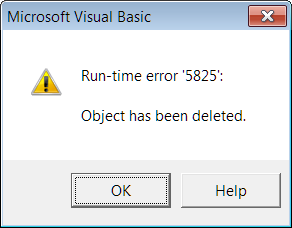
Whenever you know, expect, or even suspect that a procedure will produce a run-time error, and in this case it is obvious, then one or more error handling statements can be used to complete execution and achieve the desired result.
In example 2 (Sub BasicB), an "On Error Resume Next" statement:
Step through this procedure to observe that the expected errors (attempts to delete Varialbles1 and Variables3) are handled by simply continuing through the procedure until completion.
In the previous example, the On Error Resume Next statement worked as intended without complications. However, as you have seen the On Error Resume Next enables an error handler and suspends the run-time error messaging and subsequent fatal stops. Therefore it is not a good practice to use On Error Resume Next by itself if additional errors could occur in the procedure.
The third example (Sub BasicC) will help you see why caution must be observed when using the On Error Resume Next statement.
By adding simple statement to your procedure, you can clear the err object and thereby reset the error handler that had been so recklessly left to go on unabated.
When you step through example 4 (Sub BasicD) you will experience a run-time error and fatal stop when the procedure tries to display the message about your windfall. The added On Error GoTo 0 statement cleared the err object and reset the error handler so the default run-time error messaging and fatal stop was restored.
You should make it a practice to use an On Error GoTo 0 in your procedures as soon as the expected error stage following the On Error Resume Next statement is completed. This will ensure other unrelated errors are not missed or improperly handled.
Of course you don't want to see that jarring new error message displayed in Sub BasicD(). You just want it properly handled behind the scene and you want to get your important message.
Step through example 5 (Sub BasicE). Here the On Error GoTo err_BasicE statement:
Note: The line label "err_BasicE:" is arbitrary. If can be called anything you like to make reading your code convenient. The important thing is that the label must be unique to the project and end with a colon(:). You must place an Exit Sub statement above the line label so that the error handling procedure is bypassed when an error does not occur.
In each of the preceding examples you established conditions that would repeatedly fail. You can never delete a variable or display the value of a variable that does not exist. You have seen how On Error and Resume statements can be used to complete the execution of your procedures seamlessly despite known errors.
Example 6 (Sub BasicF) demonstrates using error handling to identify and help "resolve" the problem that caused the run-time error in the first place. Once resolved, execution is returned to the line that caused the failure and run again. Here:
Err is an object, with properties and methods. Using the err object is often useful to simplify or speed up your code.
Consider the task of determining if a particular style exists in a document. Refer to examples 7 & 8 (ErrorFree) and (UsingErrorHandling).
In Sub ErrorFree() there is little chance of encountering an error in the "For Each" statement. The variable "oStyle" has been properly declared, ".Styles" is a valid property of the document object, and ".Name" is a valid property of the style object. The procedure will run to completion looping through each style until it encounters the named style or until it has looped through every style in the collection.
The time taken to loop through a dozen or so styles is probably inconsequential. However, if the collection were very large (i.e., a thousand styles) then consider the approach used in(Sub UsingErrrorHandling(). Here:
Using error handling in this manner you can eliminate loops and quickly determine if a named object exists in a collection regardless if it is the first or last in a billion!!
Remember - "Err" is an object with methods and properties.
All "On Error" and "Resume" statements clear the Err object. Observe this yourself by stepping through the code in example 9 (Sub BasicG).
The error handler doesn't have to be in the procedure that throws the error. This is demonstrated with the three procedures contained in example 10. Step through the code starting with Sub A() and observe that the error raise in Sub C() is handled by the error handler in Sub A()
You can use the err object to raise your own errors with all the object properties. Step through example 11 starting in Sub Main(). Here the procedure asks the user to open a Word file. Notice how the error handler raises custom errors to deal with uncooperative user actions.
I hope that you have found these examples informative and useful. There is plenty of additional information available in the VBA Help menu that you can review to expand on the basics presented here. You can download a document with all the above macros here: Error Handling 101
The information, illustrations and code contained in my "Microsoft Word Tips" are provided free and without risk or obligation.
However, the work is mine. If you use it for commercial purposes or benefit from my efforts through income earned or time saved then a donation, however small, will help to ensure the continued availability of this resource.
If you would like to donate, please use the appropriate donate button to access PayPal. Thank you!
This page was last updated on
March 09, 2021
Website
Privacy Statement
Back to top  Back to
Word Tips
Back to
Word Tips