
The Anchorage
Personal website of Gregory K. Maxey, Commander USN (Retired)
The Anchorage
Personal website of Gregory K. Maxey, Commander USN (Retired)
The information, illustrations and code contained in my "Microsoft Word Tips" are provided free and without risk or obligation.

However, the work is mine. If you use it for commercial purposes or benefit from my efforts through income earned or time saved then a donation, however small, will help to ensure the continued availability of this resource.
If you would like to donate, please use the appropriate donate button to access PayPal. Thank you!



The purpose of this Microsoft Word Tips & Microsoft Word Help page is to offer an alternative method for easily insert date or time stamps in your document.
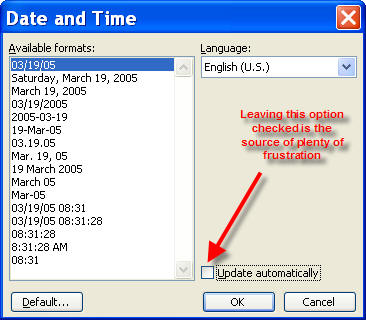
There are several ways to enter the current date or time in a Word document. Many users find the date autocomplete (where available) feature both frustrating and unreliable. The Word menu/ribbon sequence "Insert>Date & Time" provides a simple user interface dialog, but the available formats are fixed and unless the user is careful to disable automatic updating the results can be maddening.
In the code pane below, I've provided three simple VBA procedures that you can assign to a keyboard shortcut that will enable you to quickly and accurately enter the current date, current time, or both as fixed text at the insertion point.
Sub DateStamp()
  'Inserts current date
  Selection.InsertDateTime DateTimeFormat:="MMMM dd, yyyy", InsertAsField:=False
lbl_Exit:
  Exit SUb
End Sub

Sub TimeStamp()
  'Inserts current time
  Selection.InsertDateTime DateTimeFormat:="HH:mm:ss", InsertAsField:=False
lbl_Exit:
  Exit Sub
End Sub

Sub DateTimeStamp()
  'Inserts current date
  Selection.InsertDateTime DateTimeFormat:="MMMM dd, yyyy hh:mm AM/PM", InsertAsField:=False
lbl_Exit:
  Exit Sub
End Sub
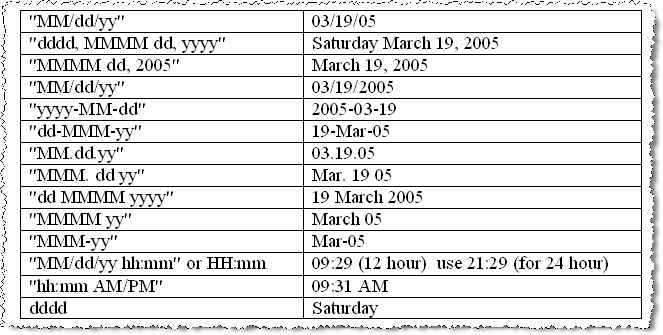
The macros in the above examples insert the date and time in a format I use most. The format can be defined as any standard date and time format. The following table list many available formats:
Here is a neat trick VBA trick where we shanghai Word's AutoFormat utility and add ordinals to the numerical date:
Sub OrdinalDateStamp()
Dim lngUS As Long
Dim oRng As Word.Range
  'Get user option
  lngUS = Options.AutoFormatReplaceOrdinals
  'Set a range
  Set oRng = Selection.Range
  'Insert a date stamp
  oRng.InsertDateTime "dddd, d MMMM yyyy", False
  'Manipulate the range to bound the numerical date
  oRng.Move wdWord, 2
  oRng.MoveEndUntil Chr(32), wdForward
  'Evaluate that number and redefine the range text
  Select Case oRng.Text
    Case 1, 21, 31
      oRng.Text = oRng.Text & "st"
    Case 2, 22
      oRng.Text = oRng.Text & "nd"
    Case 3, 23
      oRng.Text = oRng.Text & "rd"
    Case Else
      oRng.Text = oRng.Text & "th"
    End Select
  oRng.Text = "the " & oRng.Text & " of"
  'Shainghai Word's AutoFormat utility
  oRng.AutoFormat
  'Reset original option setting
  Options.AutoFormatReplaceOrdinals = lngUS
  Set oRng = Nothing
lbl_Exit:
  Exit Sub
End Sub
 See: Installing Macros for instructions on how to set up and use the macros provided in this Microsoft Word Help & Microsoft Word Tips page. For handy advanced add-in for inserting formatted dates in Word documents see my: Date Sequencer
That's it! I hope you have found this tips page useful and informative.
The information, illustrations and code contained in my "Microsoft Word Tips" are provided free and without risk or obligation.
However, the work is mine. If you use it for commercial purposes or benefit from my efforts through income earned or time saved then a donation, however small, will help to ensure the continued availability of this resource.
If you would like to donate, please use the appropriate donate button to access PayPal. Thank you!
This page was last updated on
March 09, 2021
Website
Privacy Statement
Back to top  Back to
Word Tips
Back to
Word Tips