
The Anchorage
Personal website of Gregory K. Maxey, Commander USN (Retired)
The Anchorage
Personal website of Gregory K. Maxey, Commander USN (Retired)
The information, illustrations and code contained in my "Microsoft Word Tips" are provided free and without risk or obligation.

However, the work is mine. If you use it for commercial purposes or benefit from my efforts through income earned or time saved then a donation, however small, will help to ensure the continued availability of this resource.
If you would like to donate, please use the appropriate donate button to access PayPal. Thank you!



Entering a long list of AutoCorrect entries manually in Word can be a tedious task. This Microsoft Word Tips & Microsoft Word Help page provides a method using an AutoCorrect list in the form of a two column table and a simple macro.
First create a two column table with as many rows as you want available to create AutoCorrect entries. Label the left column Wrong and the right column Right. Enter your wrong entries or short cut text in the Wrong column and the correct or expanded text in the Right column. Here is a small sample to illustrate how your file should be laid out:
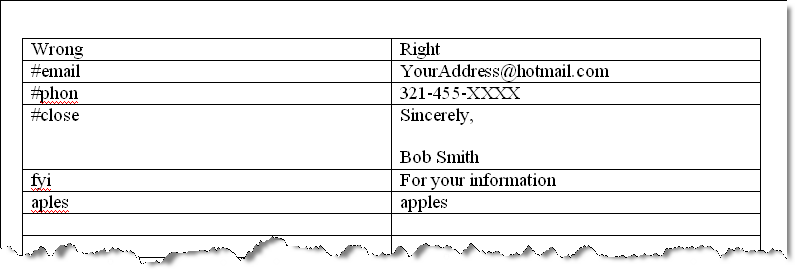
Copy the following macro and paste it in the VBA project module of your document. It is a good idea to save the document first:
Sub MultiAutoCorrectGenerator()
Dim oDoc As Document
Dim i As Integer
Dim Wrong As Range
Dim Right As Range
  Set oDoc = ActiveDocument
  Selection.Tables(1).Cell(1, 1).Range.Select
  Selection.Collapse
  For i = 2 To oDoc.Tables(1).Rows.Count
    If oDoc.Tables(1).Rows(i).Cells(1).Range.Characters.Count > 1 Then
      Set Wrong = oDoc.Tables(1).Cell(i, 1).Range
      Wrong.End = Wrong.End - 1
      Set Right = oDoc.Tables(1).Cell(i, 2).Range
      Right.End = Right.End - 1
      AutoCorrect.Entries.Add Name:=Wrong, Value:=Right
    End If
  Next i
lbl_Exit:
Exit Sub
End Sub
 Bonus Tip:
For code to do something similar with Word 2003 AutoText see Word MVP Jay
Freedman's AutoText Loader macro at: http://jay-freedman.info/autotextloader2.zip
Bonus Tip:
For code to do something similar with Word 2003 AutoText see Word MVP Jay
Freedman's AutoText Loader macro at: http://jay-freedman.info/autotextloader2.zip
 See: Installing Macros for instructions on how to set up and use the macros provided in this Microsoft Word Help & Tips page.
That's it! I hope you have found this tips page useful and informative.
The information, illustrations and code contained in my "Microsoft Word Tips" are provided free and without risk or obligation.
However, the work is mine. If you use it for commercial purposes or benefit from my efforts through income earned or time saved then a donation, however small, will help to ensure the continued availability of this resource.
If you would like to donate, please use the appropriate donate button to access PayPal. Thank you!
This page was last updated on
March 09, 2021
Website
Privacy Statement
Back to top  Back to
Word Tips
Back to
Word Tips