
The Anchorage
Personal website of Gregory K. Maxey, Commander USN (Retired)
The Anchorage
Personal website of Gregory K. Maxey, Commander USN (Retired)
The information, illustrations and code contained in my "Microsoft Word Tips" are provided free and without risk or obligation.

However, the work is mine. If you use it for commercial purposes or benefit from my efforts through income earned or time saved then a donation, however small, will help to ensure the continued availability of this resource.
If you would like to donate, please use the appropriate donate button to access PayPal. Thank you!



The purpose of this Microsoft Word Tips & Microsoft Word Help page is to provide an intermediate level demonstration of employing a Userform to address a basic letter. You can use this information to create your own personal letter template and simplify preparing your PC generated correspondence to your friends, clients, or customers. The Userform described here will automatically date the correspondence, it contains a method for building the composite address block from individual Userform address lines, and it will assist with preparing the salutation line. You will also learn a few basic techniques for validating the Userform entries and populating a simple combo box. There's lots of neat stuff to learn about, so lets get started!!
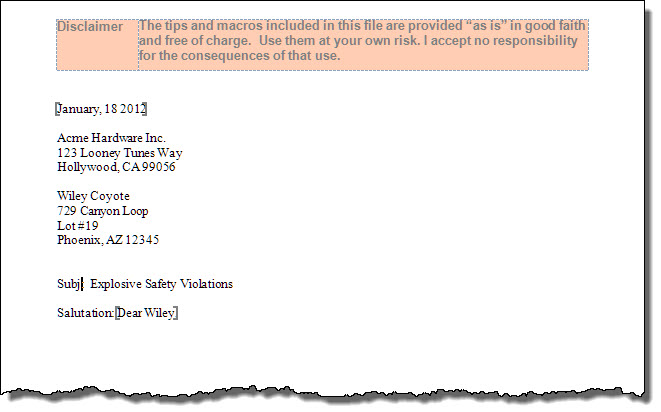
First let's review the template. The template contains the boiler-plate text of your basic letter and defines the "placeholders" (or containers for receiving/display data inputted in the Userform). The template also contains the VBA project for the Userform object and related code. For this project, I've employed a variety of range anchors in order to demonstrate methods for displaying data in the various containers. The basic template is shown below:
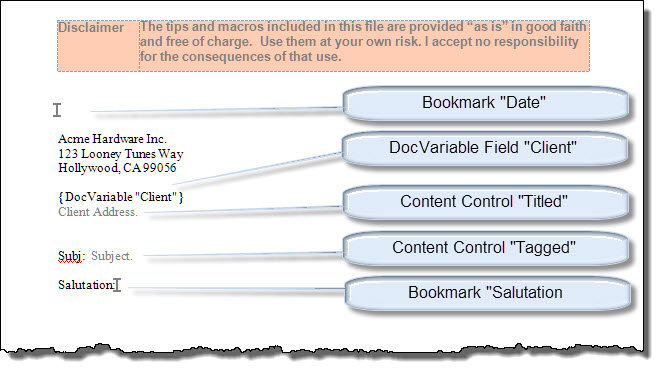
As you can see, the template defines the layout of the letter, information about the sender, and placeholders to receive and display data from the Userform. I've left the field code for the DocVariable field displayed for illustration.
The Userform is shown below. It contains identification labels, text fields, a combobox, and a command button.
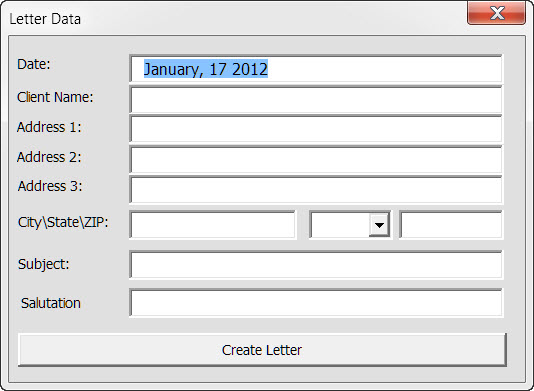
 For more information on userforms see Validate Userform Text Entry and Create and Employ a Userform.
An AutoNew procedure store in a standard module of the template VBA project is used to initiate and display the Userform each time a new document is created using the template.
Sub AutoNew()
Dim oFrm As myFrm
Set oFrm = New myFrm
oFrm.Show
Set myFrm = Nothing
End Sub
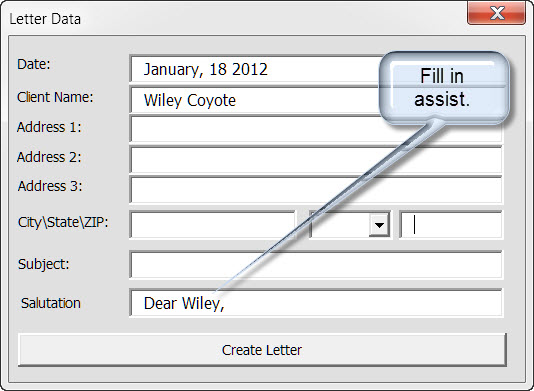
The Userform assists in completing the salutation by suggesting "Dear" and the first word entered in the Client name field. This is accomplished automatically when the user exits the Client Name field.
The Userform contains a combobox that lists the USPS abbreviation for each of the fifty states.
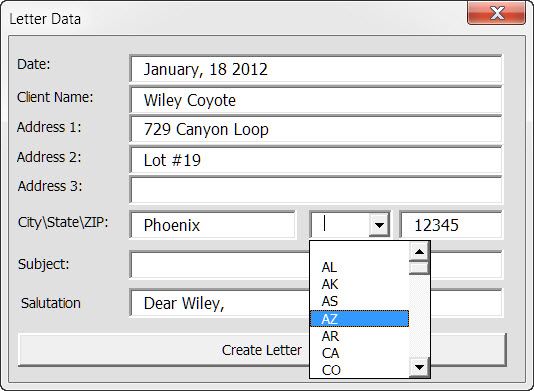
Selecting the "Create Letter" command button transfers the Userform data to the placeholders in the document. The Userform automatically builds the letter address field from the multiple optional address fields in the form.
The code used to analyze the data entry and populate the document placeholders is contained in a form module of the template VBA project. By studying  and adapting the code to meet your specific need, you should be able to create and customize your own basic letter forms. Good luck!!
Option Explicit
Private Sub cmdCreate_Click()
'Declare variables
Dim oBMs As Bookmarks
Dim oVar As Variable
Dim oCC As ContentControl
Dim oRng As Word.Range
Dim strAddress As String
Set oBMs = ActiveDocument.Bookmarks
  'Validate key entries
  If Me.cbStates.ListIndex = -1 Then
    MsgBox "You must scroll to and " & Chr(34) & "select" & Chr(34) & " the appropriate state"
    Exit Sub
  End If
  With Me.txtDate
    If Not IsDate(.Text) Then
      MsgBox "Invalid date entry. Enter the letter date in a valid date format."
      .SetFocus
      .SelStart = 0
      .SelLength = Len(.Text)
      Exit Sub
    Else
      'Write the date to the document bookmark range.
      Set oRng = oBMs("Date").Range
      'This destroys the bookmark.
      oRng.Text = .Text
      'This recreates the bookmark.
      oBMs.Add "Date", oRng
    End If
  End With
  'Create the "Client" variable
  ActiveDocument.Variables("Client").Value = Me.txtName.Text
  'Build the multi-line address string
  If Len(Me.txtAddr1.Text) > 0 Then
    strAddress = Me.txtAddr1.Text & vbCr
  End If
  If Len(Me.txtAddr2.Text) > 0 Then
    strAddress = strAddress & Me.txtAddr2.Text & vbCr
  End If
  If Len(Me.txtAddr3.Text) > 0 Then
    strAddress = strAddress & Me.txtAddr3.Text & vbCr
  End If
  If Len(Me.txtCity.Text) > 0 Then
    Me.txtCity.Text = Me.txtCity.Text & ","
  End If
  strAddress = strAddress & Me.txtCity.Text & " " & Me.cbStates.Value & " " & Me.txtZip.Text
  'Write the address to the CC titled "Client Address"
  ActiveDocument.SelectContentControlsByTitle("Client Address").Item(1).Range.Text = strAddress
  'Write the subject to the CC tagged "Subject'
  ActiveDocument.SelectContentControlsByTag("Subject").Item(1).Range.Text = Me.txtSubj.Text
  'Write the salutation to the document bookmark range.
  Set oRng = oBMs("Salutation").Range
  oRng.Text = txtSalutation.Text
  oBMs.Add "Salutation", oRng
  'Update fields and toggle codes.
  With ActiveDocument.Fields
    .ToggleShowCodes
    .Update
  End With
Unload Me
lbl_Exit:
Exit Sub
End Sub
Private Sub txtName_Exit(ByVal Cancel As MSForms.ReturnBoolean)
Dim i As Long
  i = InStr(Me.txtName, " ")
  On Error Resume Next
  Me.txtSalutation = "Dear " & Left(txtName, i - 1) & ","
  On Error GoTo 0
lbl_Exit:
Exit Sub
End Sub
Private Sub Userform_Initialize()
Dim arrStateList() As String
  'Set current date
  Me.txtDate = Format(Now, "MMMM, dd yyyy")
  With Me.txtDate
    .SetFocus
    .SelStart = 0
    .SelLength = Len(.Text)
  End With
  'Define combobox list members in an array.
  arrStateList = Split(" AL AK AS AZ AR CA CO CT DE DC FM FL GA GU " _
                 & "HI ID IL IN IA KS KY LA ME MH MD MA MI MN MS " _
                 & "MO MT NE NV NH NJ NM NY NC ND MP OH OK OR PW " _
                 & "PA PR RI SC SD TN TX UT VT VI VA WA WV WI WY")
  'Populate combobox list.
  Me.cbStates.List = arrStateList
lbl_Exit:
Exit Sub
End Sub
That's it! I hope you have found this tips page useful and informative. You can download the template used in this tips page discussion here: Basic Letter Userform
The information, illustrations and code contained in my "Microsoft Word Tips" are provided free and without risk or obligation.
However, the work is mine. If you use it for commercial purposes or benefit from my efforts through income earned or time saved then a donation, however small, will help to ensure the continued availability of this resource.
If you would like to donate, please use the appropriate donate button to access PayPal. Thank you!
This page was last updated on
March 09, 2021
Website
Privacy Statement
Back to top  Back to
Word Tips
Back to
Word Tips