
The Anchorage
Personal website of Gregory K. Maxey, Commander USN (Retired)
The Anchorage
Personal website of Gregory K. Maxey, Commander USN (Retired)
The information, illustrations and code contained in my "Microsoft Word Tips" are provided free and without risk or obligation.

However, the work is mine. If you use it for commercial purposes or benefit from my efforts through income earned or time saved then a donation, however small, will help to ensure the continued availability of this resource.
If you would like to donate, please use the appropriate donate button to access PayPal. Thank you!



There is an annoying, persistent "Bug" in the Word2007 ContentControlOnExit event that is manifest when the Home tab is the active ribbon tab and you attempt to navigate between content controls (CCs).
 Note: The bug is actually associated with the the "Cut" command in the "Clipboard" control group on the Home tab. If your ThisDocument object module contains a ContentControlOnExit event, it will be repeatedly executed when you hover the mouse over the "Cut" command.
This Microsoft Word Help & Microsoft Word Tips page illustrates the bug and shows you how to work around it. When you've killed the bug then you can effectively use the Document_ContentControlOnExit to validate Content Control entries
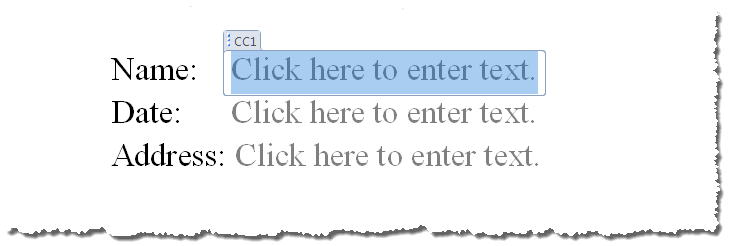
To illustrate this "Bug" you can create a new document, add some introductory text and then add several CCs. For example let's add three CCs and title them CC1, CC2 and CC3 respectively.
Open the VB Editor (ALT+F11).
Option Explicit
Private Sub Document_ContentControlOnExit(ByVal ContentControl _
                                          As ContentControl, _
                                          Cancel As Boolean)
MsgBox ContentControl.Title & " " & " exit event fired"
End Sub
Your document VB project should appear as shown below.
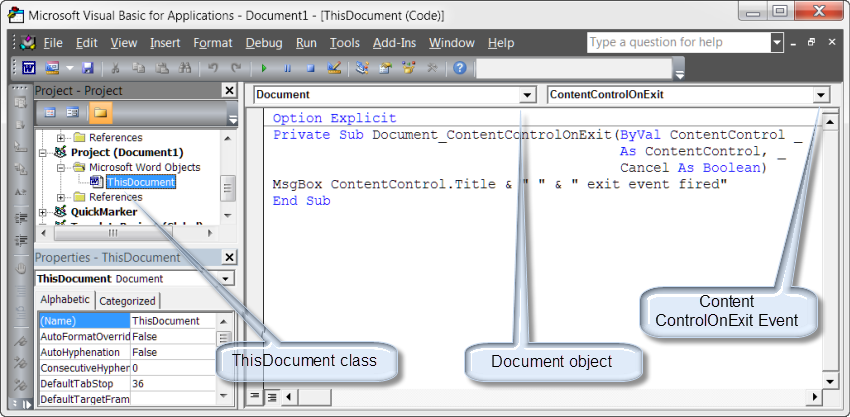
Click CC1 and then TAB from CC1 to CC2. You will see the appropriate message box display as expected.
Now save, close and reopen the document. Click CC1. What's going on?!! You simply entered CC1 but the Exit event appeared to fire. There's the Bug!
When you reopened the document the "Home" tab is active ("Developer" tab is no long the active tab). The bug is associated with the active state of the Home tab and the presence of the "Cut" command in the Clipboard group of that tab.
Close and reopen the document again. This time before you click CC1, click the "Developer" tab. Now things are working again. Things will continue to work as long as the Home tab is not the active tab. This requirement makes serious validation of content controls entries using the OnExit event practically impossible!! This has been an issue since the application was released nearly 10 years ago. Microsoft has failed miserably in resolving this issue and support Word 2007 users. Fortunately it has been resolved in Word 2010.
If you don't have Word 2010/2013, you simply have to kill the bug.
One way to kill the bug is to import two standard code modules "Main" and "Accessibility" in each project that contains content controls and a call in the Document_ContentControlOnEntry and Document_ ContentControlOnExit event procedures as shown below:
The "Main" and "Accessibility" modules contain code developed by Word MVP Tony Jollans. Thanks Tony
 !! They are available in the demonstration and examples document that you can download using the link at the bottom of this tips page. Using the Project Explorer pane you can right click and export each module to a folder on your PC. You can then import these modules from your storage folder into your projects as required.
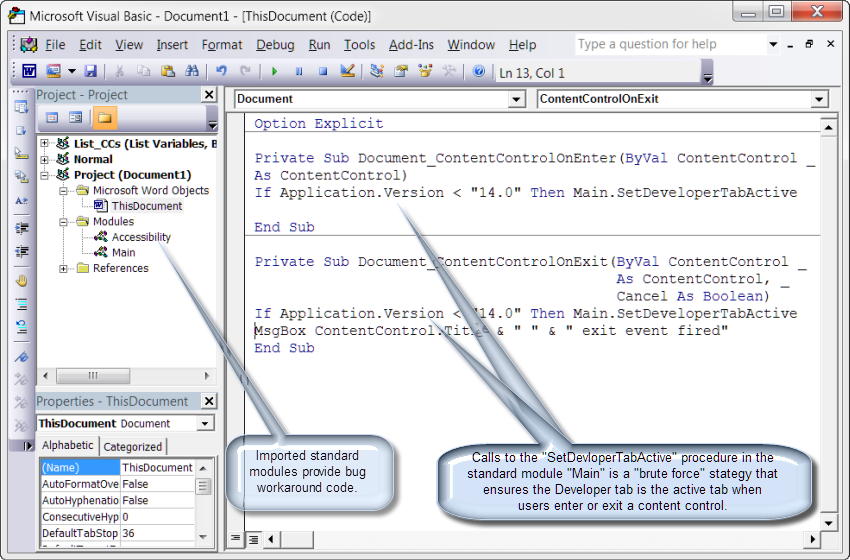
You can delete the former code and copy and paste this code in your project:
Option Exlicit

Private Sub Document_ContentControlOnEnter(ByVal ContentControl _
                                           As ContentControl)
  If Application.Version < "14.0" Then Main.SetDeveloperTabActive
End Sub
Private Sub Document_ContentControlOnExit(ByVal ContentControl _
                                          As ContentControl, _
                                          Cancel As Boolean)
  If Application.Version < "14.0" Then Main.SetDeveloperTabActive
  MsgBox ContentControl.Title & " " & " exit event fired"
End Sub
If you have imported the "Main" and "Accessibility" modules into your document you can now save, close and reopen the document again. This time when you click CC1, the "Developer" tab is activated by the OnEntry event. The Home tab with its troublesome "Cut" command is not the active tab and the OnExit event does not erratically fire.
An alternative solution is to remove the built-in Cut command from the Home tab and replace it with a custom Cut command control.
An alternative solution is modify your Ribbon UI to permanently remove the built-in Cut command from the Home tab and replace it with a custom Cut command. You can do this using your Normal.dotm template or any template that you load automatically when Word starts.
This solution requires custom RibbonXML and a VBA callback located in a standard code module.
The following RibbonXML can be used or incorporated into other RibbonXLM you may be using:
<?xml version="1.0" encoding="UTF-8" standalone="yes"?>
<customUI xmlns="http://schemas.microsoft.com/office/2006/01/customui">
<ribbon>
<tabs>
<tab idMso="TabHome">
<group idMso="GroupClipboard" visible="false" />
<group id="CustomGroup" label="Clipboard" insertBeforeMso="GroupFont">
<splitButton idMso="PasteMenu" size="large" />
<button id="btnCustomCut" label="Cut" imageMso="Cut"
onAction="modRibCon2007BugKiller.CustomCut" />
<button idMso="Copy" />
<control idMso="FormatPainter" />
<dialogBoxLauncher >
<button idMso="ShowClipboard" />
</dialogBoxLauncher>
</group>
</tab>
</tabs>
</ribbon>
</customUI>
Note: You can't delete built-in groups from a ribbon tab or delete/hide individual commands in built-in groups. If you notice in the XML, I actually hid the built-in group Clipboard then built a custom Clipboard group that contains a custom Cut command and the remaining built-in commands.
Next add a standard code module to the template VBA Project and rename the module modRibCon2007BugKiller.
In the standard module modRibCon2007BugKiller add the following VBA procedure:
Sub CustomCut(Control As IRibbonControl)
  On Error Resume Next
  Selection.Cut
lbl_Exit:
  Exit Sub
End Sub
Now that we have gained control of the OnExit event there are lots of neat things that you can do with your CCs.
For example, you can use the OnExit event is to perform data validation. You may need mandatory information (i.e., a CC that can't be left blank), or a phone number/SSN in a proper format, or some other rigid data format.
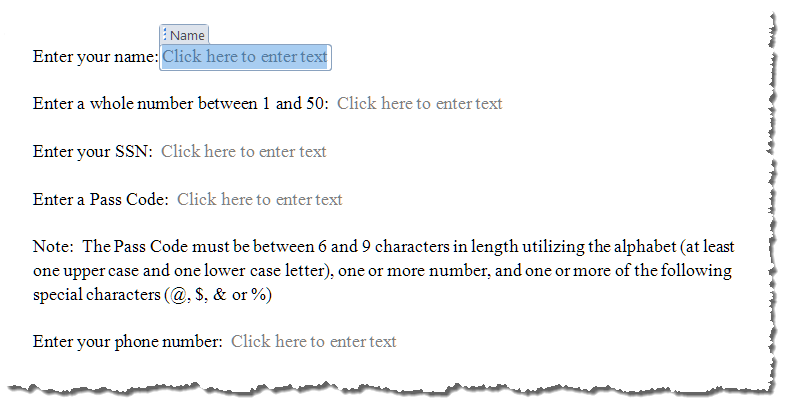
Let's add five more CCs to our document and title them "Name," "Whole Number," "SSN," "Pass Code," and "Phone Number." With the exception of "Name," which we will make a mandatory field, the other titles illustrate that a specific data format is required.
Option Explicit
Private Sub Document_ContentControlOnEnter(ByVal CC As ContentControl)
  If Application.Version < "14.0" Then Main.SetDeveloperTabActive
lbl_Exit:
  Exit Sub
End Sub
Private Sub Document_ContentControlOnExit(ByVal CC As ContentControl, _
           Cancel As Boolean)
Dim strTemp As String
Dim bGate1 As Boolean, bGate2 As Boolean, bGate3 As Boolean
Dim bGate4 As Boolean, bGate5 As Boolean, bValid As Boolean
Dim i As Long
Dim oRng As Word.Range
  strTemp = CC.Range.Text
  bValid = False
  If Application.Version < "14.0" Then Main.SetDeveloperTabActive
  Select Case CC.Title
    Case "Name"
      If CC.ShowingPlaceholderText = True Or strTemp = "" Then
        MsgBox "This field cannot be left blank."
        'Makes CC mandatory.  User can' exit until data is entered.
        Cancel = True
      End If
    Case "Whole Number"
      If CC.ShowingPlaceholderText = True Or Not IsNumeric(strTemp) Then
        MsgBox "" & strTemp & "" & " is not a valid number. Try again."
        Cancel = True
        CC.Range.Text = ""
      ElseIf Val(strTemp) > 50 Or Val(strTemp) < 1 Then
        MsgBox "" & strTemp & "" & " is not between 1 and 50. Try again."
        Cancel = True
        CC.Range.Text = ""
      ElseIf Val(strTemp) <> Int(Val(strTemp)) Then
        MsgBox "" & strTemp & "" & " is not a whole number. Try again."
        Cancel = True
        CC.Range.Text = ""
      End If
    Case Is = "SSN"
      If Not strTemp Like "#########" And Not strTemp Like "###-##-####" Then
          Cancel = True
          MsgBox "Please enter the SSN in ""###-##-####"" format."
          CC.Range.Text = ""
        ElseIf strTemp Like "#########" Then
          strTemp = Left(strTemp, 3) & "-" & Mid(strTemp, 4, 2) & "-" & Right(strTemp, 4)
          CC.Range.Text = strTemp
        End If
    Case Is = "Pass Code"
      bGate1 = False
      bGate2 = False
      bGate3 = False
      bGate4 = False
      bGate5 = False
      If Len(strTemp) > 5 And Len(strTemp) < 10 Then
        bGate1 = True
        For i = 1 To Len(strTemp)
          If Mid(strTemp, i, 1) Like "#" Then bGate2 = True
          If Mid(strTemp, i, 1) Like "[A-Z]" Then bGate3 = True
          If Mid(strTemp, i, 1) Like "[a-z]" Then bGate4 = True
          If Mid(strTemp, i, 1) Like "[@$%&]" Then bGate5 = True
        Next i
      End If
      bValid = bGate1 And bGate2 And bGate3 And bGate4 And bGate5
      If Not bValid Then
        Cancel = True
        MsgBox "You did not enter a valid passcode. Try Again."
        CC.Range.Text = ""
      End If
    Case Is = "Phone Number"
      If (strTemp Like "(###) ###-####") Then Exit Sub
      If (strTemp Like "##########") Then
        strTemp = "(" & Left(strTemp, 3) & ") " & Mid(strTemp, 4, 3) & "-" & Right(strTemp, 4)
        CC.Range.Text = strTemp
      ElseIf (strTemp Like "###-###-####") Then
        strTemp = "(" & Left(strTemp, 3) & ") " & Right(strTemp, 8)
        CC.Range.Text = strTemp
        Exit Sub
      ElseIf (strTemp Like "### ### ####") Then
        strTemp = Replace(strTemp, " ", "-")
        strTemp = "(" & Left(strTemp, 3) & ") " & Right(strTemp, 8)
        CC.Range.Text = strTemp
      ElseIf (strTemp Like "(###)###-####") Then
        strTemp = Left(strTemp, 5) & " " & Right(strTemp, 8)
        CC.Range.Text = strTemp
      Else
        Cancel = True
        MsgBox "Invalid entry. Try again."
        CC.Range.Text = ""
      End If
   Case Else
     MsgBox CC.Title & " Exit event fired."
  End Select
lbl_Exit:
  Exit Sub
End Sub
That's it! With a functional OnExit event your ability to validate CC data is practically limitless. You can create your own validation module as shown above or download and use a copy of the document I used to create this tips page. CC Validation Files. I hope you have found this Microsoft Word Tips page informative and helpful. For more topics on contents controls see my: Content Controls.
The information, illustrations and code contained in my "Microsoft Word Tips" are provided free and without risk or obligation.
However, the work is mine. If you use it for commercial purposes or benefit from my efforts through income earned or time saved then a donation, however small, will help to ensure the continued availability of this resource.
If you would like to donate, please use the appropriate donate button to access PayPal. Thank you!
This page was last updated on
March 09, 2021
Website
Privacy Statement
Back to top  Back to
Word Tips
Back to
Word Tips