
The Anchorage
Personal website of Gregory K. Maxey, Commander USN (Retired)
The Anchorage
Personal website of Gregory K. Maxey, Commander USN (Retired)
The information, illustrations and code contained in my "Microsoft Word Tips" are provided free and without risk or obligation.

However, the work is mine. If you use it for commercial purposes or benefit from my efforts through income earned or time saved then a donation, however small, will help to ensure the continued availability of this resource.
If you would like to donate, please use the appropriate donate button to access PayPal. Thank you!



This Microsoft Word Tips & Microsoft Word Help page simply adds to the field of tips and techniques for entering formatted fraction symbols in a Word document or applying formatting to pre-existing plain text fractions in your documents.
Word MVP Suzanne Barnhill has addressed most of the methods in detail in her Word FAQ article at: Create Fraction
Word MVP Graham Mayor has posted a very effective macro for converting plain text fractions like "1/5" into a formatted fraction like 1/5 in his article: Create a Fraction
This Tips page refines the macro referenced in Suzanne's article. It expands the scope to include fractions involving variables (e.g., x/y) and variable expressions (e.g., 12a/4b). The following illustrates how some example Word text will be processed using the macro:
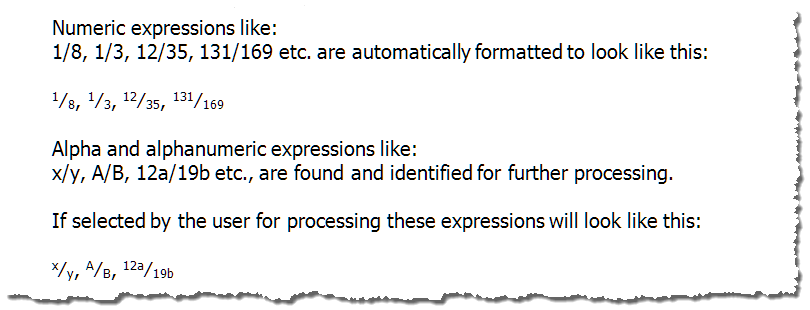
 Note1:
1. Expressions with a super\sub scripted numerator\denominator can be processed however the existing super\sub scripts are not processed further. For example a2/b2 processed appears as a2⁄b2.
2. Be careful with dates formatted mm/yy or mm/dd as the procedure will treat dates in this format as common fractions.
Public Sub FractionFormatter()
Dim lngProcessed As Long
  System.Cursor = wdCursorWait
  lngProcessed = FormatFractions
  If lngProcessed = 0 Then
    MsgBox "No fractions where processed"
  Else
    MsgBox lngProcessed & " fractions were processed."
  End If
  System.Cursor = wdCursorNormal
lbl_exit:
Exit Sub
End Sub


Public Function FormatFractions(Optional Scope As Range) As Long
Dim strSlashChr As String
Dim oRng As Word.Range
Dim oRngDivisor As Word.Range
Dim oRngDividend As Word.Range
Dim lngPosition As Long
Dim oRngSymbol As Word.Range
Dim bIsFraction As Boolean
Dim strPrecede As String
Dim strTrail As String
Dim oFldRng As Word.Range
Const strUrlText As String = "%#_|$/"

If Scope Is Nothing Then Set Scope = ActiveDocument.StoryRanges(wdMainTextStory)
strSlashChr = ChrW$(8260)
Set oRng = Scope
With oRng.Find
  .Text = "[A-Za-z0-9]{1,}^47[A-Za-z0-9]{1,}"
  .Forward = True
  .Wrap = wdFindStop
  .MatchWildcards = True
  While .Execute
    'ID the location of the division symbol "/"
    lngPosition = InStr(oRng, "/")
    'Define the range of the oRngDividend text
    Set oRngDividend = oRng.Duplicate
    oRngDividend.End = oRngDividend.Start + lngPosition - 1
    'Difine the range of the oRngDivisor text
    Set oRngDivisor = oRng.Duplicate
    oRngDivisor.Start = oRngDivisor.Start + lngPosition
    'Define the range of the division symbol
    Set oRngSymbol = oRng.Duplicate
    oRngSymbol.Start = oRngSymbol.Start + lngPosition - 1
    oRngSymbol.End = oRngSymbol.Start + 1
    'Found text is considered a fraction unless determined otherwise.
    bIsFraction = True
    'Weed out false positives
    Set oFldRng = oRng.Duplicate
    oFldRng.Start = oFldRng.Start - 1
    oFldRng.End = oFldRng.End + 1
    'If found range is a part of a field it is probably a hyperlink or similar. _
    Don't process it
    If oFldRng.Fields.Count > 0 Then
      bIsFraction = False
    End If
    'ID the preceding and trailing chacter of the found text
    On Error GoTo Err_Handler
    strPrecede = oRngDividend.Characters.First.Previous.Text
    On Error GoTo 0
    strTrail = oRngDivisor.Characters.Last.Next.Text
    'Prevents processing dd/mm/yyyy formatted dates and other typical URL text
    If bIsFraction And InStr(1, strUrlText & ".?", strPrecede) > 0 Or _
      InStr(1, strUrlText, strTrail) > 0 Then
      bIsFraction = False
    End If
    'Explicitly process alpha and alphanumeric expressions.
    If bIsFraction And Not IsNumeric(oRngDividend.Text) Or _
       bIsFraction And Not IsNumeric(oRngDivisor.Text) Then
      oRng.Select
      If MsgBox("Do you want to process this text as a fraction?", _
        vbYesNo, oRng.Text) = vbNo Then
        bIsFraction = False
      End If
    End If
    'Format the fraction
    If bIsFraction Then
      oRngDividend.Font.Superscript = True
      oRngDivisor.Font.Subscript = True
      oRngSymbol.Text = strSlashChr
      FormatFractions = FormatFractions + 1
    End If
    oRng.Collapse wdCollapseEnd
  Wend
End With
  Exit Function
Err_Handler:
  'There is no preceding character so create a dummy.
  strPrecede = " "
  Resume Next
End Function
 See: Installing Macros for instructions on how to set up and use the macros provided in this Microsoft Word Help & Microsoft Word Tips page.
That's it! I hope you have found this tips page useful and informative.
The information, illustrations and code contained in my "Microsoft Word Tips" are provided free and without risk or obligation.
However, the work is mine. If you use it for commercial purposes or benefit from my efforts through income earned or time saved then a donation, however small, will help to ensure the continued availability of this resource.
If you would like to donate, please use the appropriate donate button to access PayPal. Thank you!
This page was last updated on
March 09, 2021
Website
Privacy Statement
Back to top  Back to
Word Tips
Back to
Word Tips