
The Anchorage
Personal website of Gregory K. Maxey, Commander USN (Retired)
The Anchorage
Personal website of Gregory K. Maxey, Commander USN (Retired)
The information, illustrations and code contained in my "Microsoft Word Tips" are provided free and without risk or obligation.

However, the work is mine. If you use it for commercial purposes or benefit from my efforts through income earned or time saved then a donation, however small, will help to ensure the continued availability of this resource.
If you would like to donate, please use the appropriate donate button to access PayPal. Thank you!



The purpose of this Microsoft Word Tips & Microsoft Word Help page is to show you several techniques that you can use to provide instructions (or other information) to you document users that won't appear in the printed text.
The methods I'll describe here run the gambit from basic to relatively complex. Included in the mix are VBA solutions which will require macro enabled templates (or documents) if you are using Word 2007-2010. Some are limited to Word 2003 (or earlier) and some are limited to Word 2007 or later.
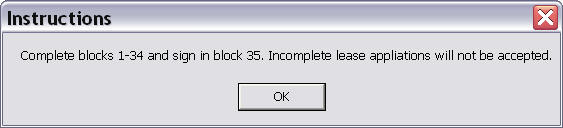
The most basic VBA method is a VBA Msgbox. Let's say that you have created a template for completing a lease agreement and you want to provide users with a few instructions for completing the agreement. Aan AutoNew procedure in the template is all you need:
Sub AutoNew()
  MsgBox("Complete blocks 1-34 and sign in block 35. Incomplete lease" & _
  " applications will not be accepted.", vbOKOnly, "Instructions")
lbl_Exit:
  Exit Sub
End Sub
When a new lease document is created using the template the message box is presented until dismissed by the user
 See: Installing Macros for instructions on how to set up and use the macros provided in this Microsoft Word Help & Microsoft Word Tips page.
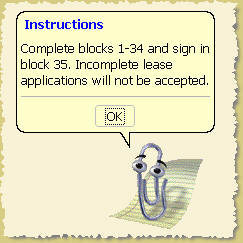
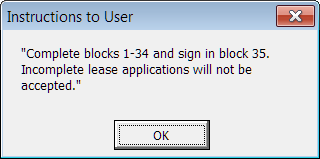
You could get a little fancier by using the Office Assistant (Word 2003) or a Userform.
Note: I don't have the Office Assistant installed anymore so I was unable to update the illustrations when this page was revised.
Sub AutoNew()
Dim Balloon As Balloon
  Set Balloon = Assistant.NewBalloon
  With Balloon
    .Heading = "{cf 252} Instructions"
    .Text = "Complete blocks 1-34 and sign in block 35. Incomplete lease applications will not be accepted."
    .Button = msoButtonSetOK
    .Animation = msoAnimationGetAttentionMajor
    .Show
  End With
lbl_Exit:
  Exit Sub
End Sub
Note: See my: Custom VBA\Userform Message Box for tips on setting up and calling a basic Userform.
You can use either of the VBA methods to recall the instructions or display amplifying instructions after the document is opened. For example, you might assign a macro to display instructions to formfield or content control OnEntry events, or simply to a control added to the UI (document menu, toolbar, ribbon or QAT).
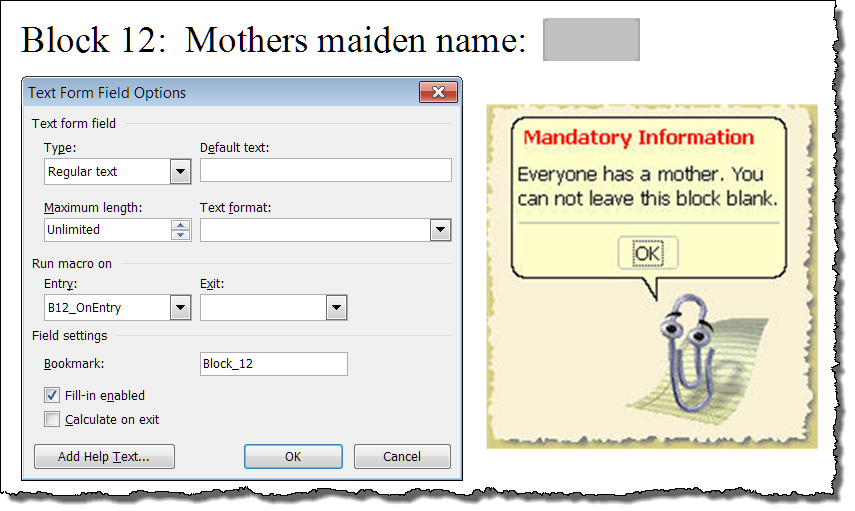
This is the code used to create the example above:
Sub B12_OnEntry()
Dim Balloon As Balloon
  Set Balloon = Assistant.NewBalloon
  With Balloon
    .Heading = "{cf 249} Mandatory Information"
    .Text = "Everyone has a mother. You can not leave this block blank."
    .Button = msoButtonSetOK
    .Animation = msoAnimationGetAttentionMajor
    .Show
  End With
lbl_Exit:
  Exit Sub
End Sub
Similarly, macros can be assigned to formfield or content control OnExit events and used for user notification. The following example employs a Userform notification presented OnExit from a document content control.
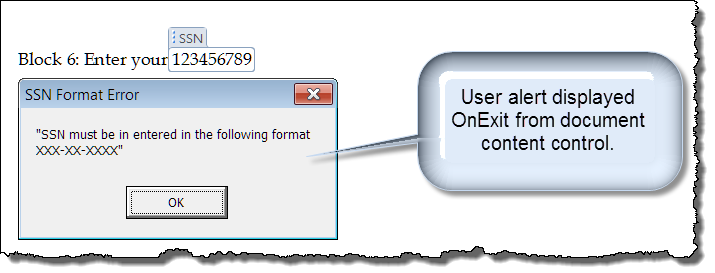
Code used to evaluate the OnExit event is show below. For more on content control text entry validation, see my: Validate Content Control Text Entries
Private Sub Document_ContentControlOnExit(ByVal ContentControl As ContentControl, Cancel As Boolean)
Select Case ContentControl.Title
  Case "SSN"
    If Not ActiveDocument.SelectContentControlsByTitle("SSN").Item(1).Range.Text Like "###-##-####" Then
      Cancel = True
      frmAlert6.Show
      ActiveDocument.SelectContentControlsByTitle("SSN").Item(1).Range.Select
    End If
End Select
lbl_Exit:
  Exit Sub
End Sub
Both the classic formfields and new content controls provide basic built-in methods to provide limited information to your document users without required the VBA methods illustrated above.
Using classic formfields, you can add "Help Text" to the formfield which is displayed in the application status bar.
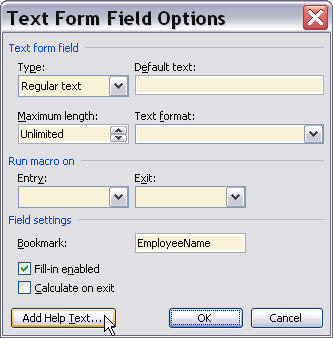
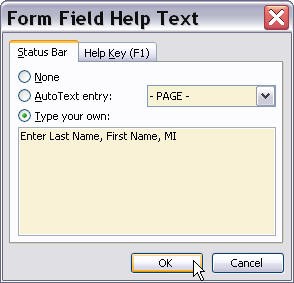
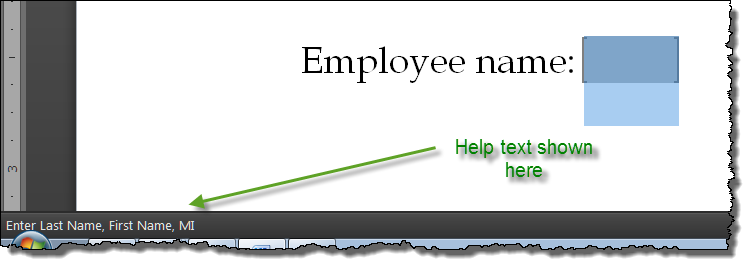
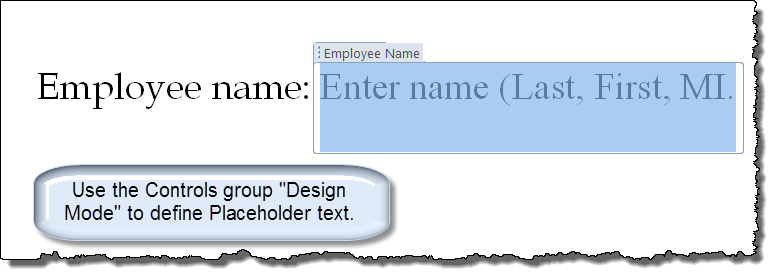
Using content controls you can use the placeholder text value.
That's it! I hope you have found this tips page useful and informative.
The information, illustrations and code contained in my "Microsoft Word Tips" are provided free and without risk or obligation.
However, the work is mine. If you use it for commercial purposes or benefit from my efforts through income earned or time saved then a donation, however small, will help to ensure the continued availability of this resource.
If you would like to donate, please use the appropriate donate button to access PayPal. Thank you!
This page was last updated on
March 09, 2021
Website
Privacy Statement
Back to top  Back to
Word Tips
Back to
Word Tips