
The Anchorage
Personal website of Gregory K. Maxey, Commander USN (Retired)
The Anchorage
Personal website of Gregory K. Maxey, Commander USN (Retired)
The information, illustrations and code contained in my "Microsoft Word Tips" are provided free and without risk or obligation.

However, the work is mine. If you use it for commercial purposes or benefit from my efforts through income earned or time saved then a donation, however small, will help to ensure the continued availability of this resource.
If you would like to donate, please use the appropriate donate button to access PayPal. Thank you!



This this Microsoft Word Tips & Microsoft Word Help page illustrates several basic methods that you can use to spell out a numerical currency value as text and provides a comprehensive Word template add-in for this purpose co-developed with Word MVP Graham Mayor.
The simplest method is using a field. The currency value that is spelled out in this fanciful check draft was created with a REF field and two formatting switches "DollarText" and "FirstCap."
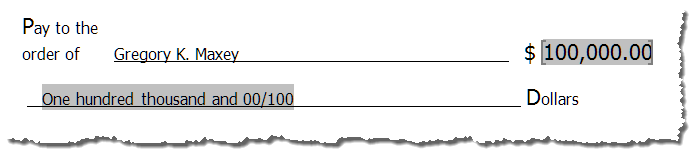

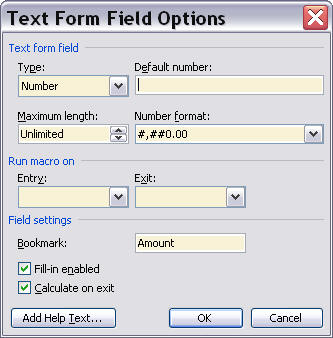
To employ this method, I used an online (protected) text formfield for the numerical input. I named this formfield "Amount" to match the REF field used.
Unfortunately there is a limit to the size numeral that \* DollarText will format. The limit is $100,000.00.
What if some munificent Word user wished to contribute $1,000,000.00 or more to support my budding website??!
I am prepared to oblige. Word MVP Doug Robbins and I have collaborated and put together some VBA code to spell out currency values as large $9,999,999,999.00.
At one time that was enough to cover the burgeoning U.S. National Debt with plenty left over for me and Doug. Now we will have to do
without.

The code for this process is lengthy and involves several called functions. To use this method:
 See: Installing Macros for instructions on how to set up and use the macros and template add-in provided in this Microsoft Word Help & Microsoft Word Tips page.
Option Explicit
Sub NumToText()
Dim sngNumber As Single
  On Error Goto Err_Handler
  sngNumber = ActiveDocument.FormFields("NumberAmount").Result
  If IsNumeric(sngNumber) And Val(sngNumber) < "10000000000000" Then
    ActiveDocument.FormFields("TextAmount").Result = _
    ConvertCurrencyToEnglish(ByVal sngNumber)
  Else
    ActiveDocument.FormFields("TextAmount").Result = "Exceeds value limit"
  End If
  Exit Sub
Err_Handler:
  ActiveDocument.FormFields("NumberAmount").Result = "0.00"
  ActiveDocument.FormFields("TextAmount").Result = ""
End Sub

Function ConvertCurrencyToEnglish(ByVal sngNumber)
Dim strTemp As String, strDollars As String, strCents As String
Dim lngDecimal As Long, lngCount As Long
  ReDim Place(9) As String
  Place(2) = "thousand "
  Place(3) = "million "
  Place(4) = "billion "
  Place(5) = "trillion "

  sngNumber = Trim(Str(sngNumber))
  lngDecimal = InStr(sngNumber, ".")
  If lngDecimal > 0 Then
    strTemp = Left(Mid(sngNumber, lngDecimal + 1) & "00", 2)
    strCents = ConvertTens(sngNumber, strTemp)
    sngNumber = Trim(Left(sngNumber, lngDecimal - 1))
  End If
  lngCount = 1
  Do While sngNumber <> ""
    'convert last 3 digits to strDollars
    strTemp = ConvertHundreds(Right(sngNumber, 3))
    If strTemp <> "" Then strDollars = strTemp & Place(lngCount) & strDollars
      If Len(sngNumber) > 3 Then
        'remove last 3 converted digits
        sngNumber = Left(sngNumber, Len(sngNumber) - 3)
      Else
        sngNumber = ""
      End If
    lngCount = lngCount + 1
  Loop
  'clean up strDollars
  Select Case strDollars
    Case ""
      strDollars = ""
    Case "One "
      strDollars = "One Dollar"
    Case Else
      strDollars = strDollars & "dollars"
    End Select
  'clean up strCents
  If strDollars = "" Then
    Select Case strCents
      Case ""
        strCents = ""
      Case "One "
        strCents = "One Cent"
      Case Else
        strCents = strCents & "Cents"
    End Select
  Else
    Select Case strCents
      Case ""
        strCents = ""
      Case "One"
        strCents = " And One Cent"
      Case "One "
        strCents = " And One Cent"
      Case Else
        strCents = " And " & strCents & "cents"
    End Select
  End If
  If strDollars = "" And strCents = "" Then
    ConvertCurrencyToEnglish = "Zero"
  Else
    strTemp = strDollars & strCents
    strTemp = UCase(Left(strTemp, 1)) & _
    LCase(Mid(strTemp, 2, Len(strTemp) - 1))
    ConvertCurrencyToEnglish = strTemp
  End If
lbl_Exit:
  Exit Function
End Function

Private Function ConvertHundreds(ByVal sngNumber)
Dim Result As String
  If Val(sngNumber) = 0 Then Exit Function
  'append leading zeros to number
  sngNumber = Right("000" & sngNumber, 3)
  'do we have hundreds place digit to convert?
  If Left(sngNumber, 1) <> "0" Then
    Result = ConvertDigit(Left(sngNumber, 1)) & "hundred "
  End If
  'do we have tens place digit to convert?
  If Mid(sngNumber, 2, 1) <> "0" Then
    Result = Result & ConvertTens(sngNumber, Mid(sngNumber, 2))
  Else
    'if not, then convert the ones place digit
    Result = Result & ConvertDigit(Mid(sngNumber, 3))
  End If
  ConvertHundreds = Trim(Result) & " "
lbl_Exit:
 Exit Function
End Function

Private Function ConvertTens(ByVal sngNumber, ByVal MyTens)
Dim Result As String
  'is value between 10 and 19?
  If Val(Left(MyTens, 1)) = 1 Then
    Select Case Val(MyTens)
      Case 10: Result = "Ten "
      Case 11: Result = "Eleven "
      Case 12: Result = "Twelve "
      Case 13: Result = "Thirteen "
      Case 14: Result = "Fourteen "
      Case 15: Result = "Fifteen "
      Case 16: Result = "Sixteen "
      Case 17: Result = "Seventeen "
      Case 18: Result = "Eighteen "
      Case 19: Result = "Nineteen "
      Case Else
   End Select
  Else
    Select Case Val(Left(MyTens, 1))
      Case 2: Result = "Twenty "
      Case 3: Result = "Thirty "
      Case 4: Result = "Forty "
      Case 5: Result = "Fifty "
      Case 6: Result = "Sixty "
      Case 7: Result = "Seventy "
      Case 8: Result = "Eighty "
      Case 9: Result = "Ninety "
      Case Else
    End Select
    'convert ones place digit
     If Result <> "" Then
       If Mid(sngNumber, 3, 1) <> "0" Or Right(MyTens, 1) <> "0" Then
         Result = Left(Result, Len(Result) - 1) & "-" _
           & ConvertDigit(Right(MyTens, 1))
       End If
     Else
       Result = Result & ConvertDigit(Right(MyTens, 1))
     End If
  End If
  ConvertTens = Result
lbl_Exit:
  Exit Function
End Function

Private Function ConvertDigit(ByVal MyDigit)
  Select Case Val(MyDigit)
    Case 1: ConvertDigit = "One "
    Case 2: ConvertDigit = "Two "
    Case 3: ConvertDigit = "Three "
    Case 4: ConvertDigit = "Four "
    Case 5: ConvertDigit = "Five "
    Case 6: ConvertDigit = "Six "
    Case 7: ConvertDigit = "Seven "
    Case 8: ConvertDigit = "Eight "
    Case 9: ConvertDigit = "Nine "
    Case Else: ConvertDigit = ""
  End Select
lbl_Exit:
  Exit Function
End Function
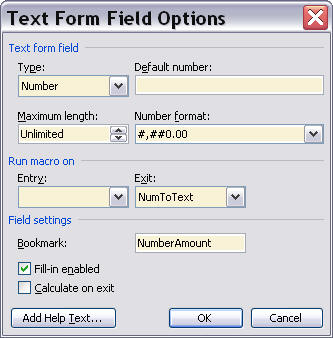
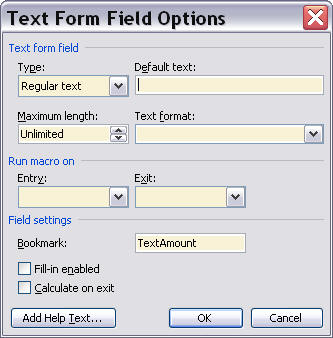
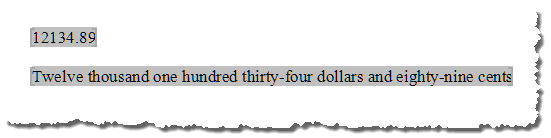
Results of numerical currency values entered in the first formfield are spelled out in the second formfield as shown.
Note: If you prefer the cents to be shown fractional rather than spelled out then you can use an alternate procedure located in the standard module modAlt in the demonstration document: Spell Out Currency
Leveraging the code illustrated above, long time friend and collaborator Graham Mayor and I have developed a Word template add-in that you can use to insert fully spelled out currency values in your Word documents.
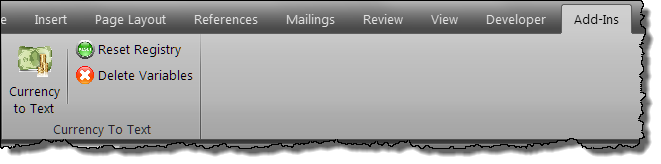
The add-in user interface consists of a group with three controls displayed on the Add-Ins tab and a userform consisting of a multipage control with three tabs shown below.]
Notes:
1. For the Word 2003 (.dot version) of the add-in the user interface consists of similar controls on the Word menu bar.
2. As Microsoft has discontinued support for Office 2003 products, version 4.1 represents the last update to the .dot version of the add-in.
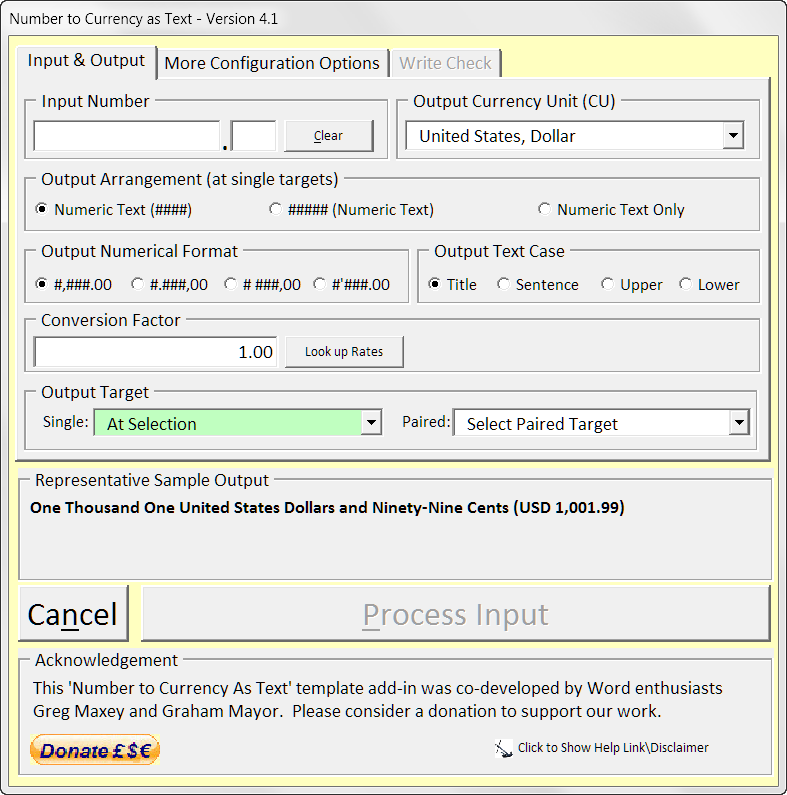
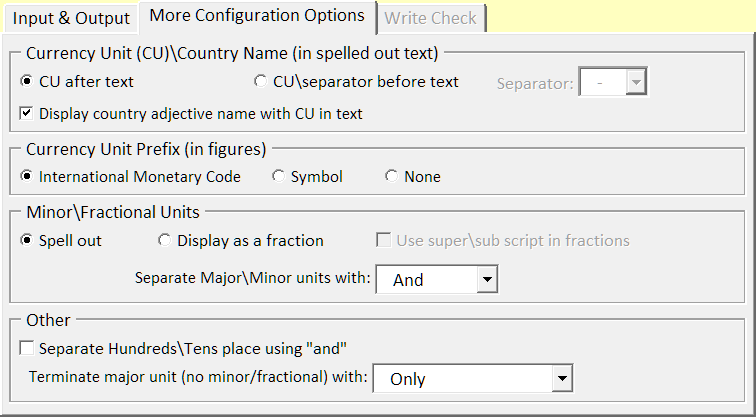
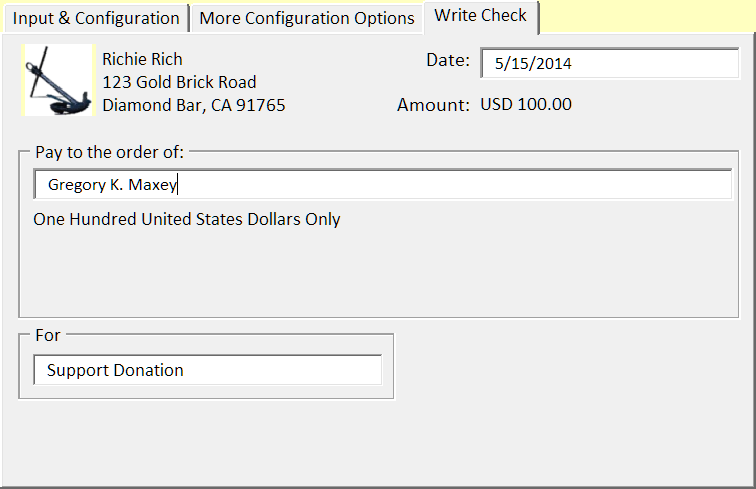
With the user configurable settings, you can insert currency figures as text in a full range of currencies and formats. The add-in default configuration settings are displayed when the add-in is first used. These settings are are shown in Figures 2 and 3 above.
Figure 4 illustrates the check template feature introduced with version 2.1.
The Currency Information table below is physically part of the template add-in and lists data used by the add-in to process and provide formatted spelled out numerical text associated with several world currencies.
You may add or delete individual rows of currency data or edit the data in the existing rows to suit your particular needs. For additional information on currency codes and symbols see: http://www.xe.com/symbols.php
Note: To edit the Currency Information table, open the add-in file as you would any other template file.
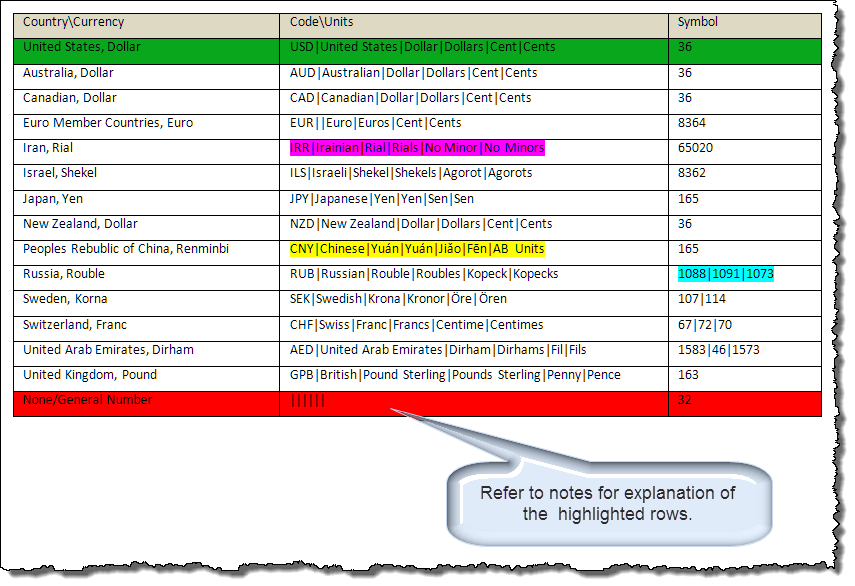
Note: Do not delete the heading row, the green (home row) or the last row, the red (final row).
The green “home” row is intended to define your native or most frequently used currency. For example, if you live in Japan or use the Japanese Yen most frequently then edit this row to contain data for Japan and the Japanese Yen.
The red “final” row is required for processing general numbers. Ensure the red row is always the last row in the table.
Column one defines the country and currency name. This data is used to populate the output currency list in the add-in interface. The list is populated in the order that currency data is entered in the table.
Column two defines the international currency code, adjective country name, and the singular and plural names of the major/minor units of currency. Each data element in column two must be separated using the pipe “|” character.
Notes:
1. The Chinese Yuán is divided in to ten major units, the Jiǎo, which is divided into ten minor units, the Fēn. Both are used as singular/plural nouns. To process this currency, and others like it, add the additional data element “AB Units” to the end of the data string as shown in the yellow highlighted example.
2. The Iranian Rial has no minor units. After all, nothing divided is still nothing! To process this currency, and others like it, use “No Minor” and “No Minors” as shown in the violet highlighted example.
Column three defines the decimal Unicode character value(s) for the currency symbol. Since some currency symbols are a composite of two or more characters, the decimal Unicode value defined in column three for each individual character must be separated using the pipe “|” character as shown in the blue highlighted example.
After editing the Currency Information table, save the template file, close Word, restart Word and reload the add-in.
The Add-In is designed to detect and process single instances of isolated numbers in several formats used throughout the world. For example, each of the following numbers illustrates various group digit and decimal separators and will all process as the same USD currency value of $4,123.00:
The add-in incorporates a limited deducing process to detect suitable numbers such as those illustrated above. These numbers are deduced and processed if you type them out and initiate the add-in or place the cursor anywhere in a number and initiate the add-in.
You can insert numbers as text using one of three different methods:
Note: Existing numbers can be auto processed without using the dialog by pressing the keyboard shortcut CTRL+SHIFT+C and T.
When the Add-In dialog is presented:
The user configurable settings in the add-in dialog are saved and “sticky.” This means that values you enter/select will be pre-selected the next time the dialog appears.
You can leverage the “sticky” settings of the add-in by typing or selecting a valid number and auto-processing using the keyboard shortcut CTRL+SHIFT+C and T. This will auto-process your number with the saved configuration settings without displaying the dialog. This method is only available after you have defined your configuration settings and used the add-in the first time.
Note: Except for “At Selection” a single target selected in output target “Single” is not sticky. If a single target is selected and processed. Pressing the auto process shortcut will process the selected/deduced number and output to the current selection.
Using the output target "Single" list, you can select as single target output for the spelled out text and optional figures. The single target may be the current selection or any qualified bookmark, document variable, or content control (Word 2007 and above only).
Note: Only rich text or plain text content controls with a unique title are qualified as single targets. All bookmarks, variables, and content controls that are name or tagged as part of a special paired target are disqualified and single targets and will not appear in the list.
When using a template (e.g., a check, bill of sale, receipt, etc.), you may want your currency text and figures (optional) to appear at defined document targets instead of the selection.
The add-in can target your currency text and optional figures to specially named/tagged bookmarks, variables or content controls.
To target bookmarks, your document must contain one or more bookmarks named “bmNumText_#” located where you want the spelled out currency to appear.
For each defined bookmark, you can create an optional paired bookmark named “bmFigures_#” located where your want the figures to appear.
When defining target bookmarks, replace the “#” with a numerical index number (e.g., 1, 2, 3 etc.).
Notes: A functional pair of bookmark targets are provided in the template add-in file.
To target document variables (and associated DocVariable fields in the document), your document must contain one or more variables named “varNumText_#.” For each defined variable, you can create an optional paired variable named “varFigures_#.”
When defining target variables (and associated DocVariable fields), replace the “#” with a numerical index number (e.g., 1, 2, 3 etc.).
Notes:
1.
A functional pair of document variables and associated DocVariable field targets are provided in the template add-in file.
2.
When initiated, the add-in will automatically create a variable pair “varNumToText_1” and “vaFigures_1” in the active document. It is up to the document user to define the associated DocVariable field(s) at the location(s) in the document where the currency text or optional figures will appear.
3.
You can create additional variable/variable pairs using our: cc_var_bm_doc_prop_tools_addin.html
To target content controls, your document must contain one or more plain or rich text content controls tagged “ccNumText_#.”
For each defined content control, you can create an optional paired plain or rich text content control tagged “ccFigures_#.” When defining target content controls, replace the “#” with a numerical index number (e.g., 1, 2, 3 etc.).
Note: A functional pair of content control targets are provided in the template add-in file.
You can use the optional “Write Check” add-in tab with a check template you prepare to easily produce finished check documents.
To target check template bookmarks, variables or content controls, your template must contain additional defined targets.
To use bookmarks, ensure the following bookmarks are defined in the template:
To use variables, ensure DocVariable fields returning the following variables are defined in the template. The add-in will automatically create the requrired variables:
To use content controls, ensure the following content controls are defined and tagged in the template:
Note: A functional set of content control targets required for a check template are provided in the template add-in file.
To use this Template Add-In, save it in the Word startup folder and restart Word, or save it to any location and load it manually after restarting Word. See: Organizing your Macros\Templates
Dialog Notes:
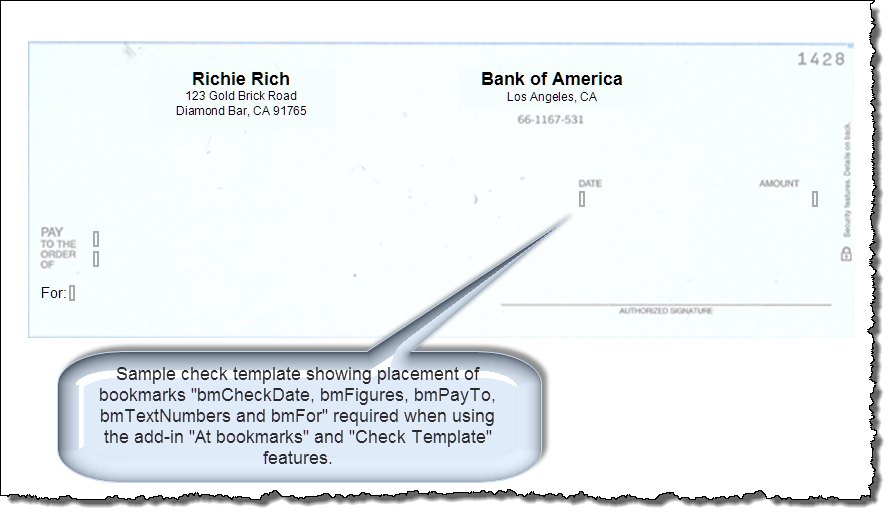
The image below illustrates a sample check template for use with the add-in. The template defines five (5) required bookmarks placed in frames and must be precisely positioned to print in the proper location on pre-printed check stock. The template is included in the add-in download package. You can easily open the sample template in Word and then copy and paste the frames and bookmarks to your own custom template.
Most users are expected to consistently use the same configuration settings. So remember, after applying your settings and processing your first number, you can process any additional numbers that you type or select automatically, without displaying the dialog, by simply applying the add-in auto process shortcut CTRL+SHIFT+C then T.
You can download my template zip package containing both .dot and .dotm versions of the add-in here: Number to Currency as Text
Notes:
1. See Installing Macros for instructions on how to set up and use the macros and template add-in provided in this Microsoft Word Help & Microsoft Word Tips page.
2. After 1/1/2017, I am no longer providing free updates to .dot versions of my add-ins. If you require .dot version updates, contact me via my website feedback link.
That's it! I hope you have found this tips page useful and informative.
The information, illustrations and code contained in my "Microsoft Word Tips" are provided free and without risk or obligation.
However, the work is mine. If you use it for commercial purposes or benefit from my efforts through income earned or time saved then a donation, however small, will help to ensure the continued availability of this resource.
If you would like to donate, please use the appropriate donate button to access PayPal. Thank you!
This page was last updated on
March 09, 2021
Website
Privacy Statement
Back to top  Back to
Word Tips
Back to
Word Tips