
The Anchorage
Personal website of Gregory K. Maxey, Commander USN (Retired)
The Anchorage
Personal website of Gregory K. Maxey, Commander USN (Retired)
The information, illustrations and code contained in my "Microsoft Word Tips" are provided free and without risk or obligation.

However, the work is mine. If you use it for commercial purposes or benefit from my efforts through income earned or time saved then a donation, however small, will help to ensure the continued availability of this resource.
If you would like to donate, please use the appropriate donate button to access PayPal. Thank you!



This Microsoft Word Tips & Microsoft Word Help page will show you how to use a Userform to overcome the 25 item limit in legacy online (protected) form field dropdown list fields. The limitation in Word forms caused by this constraint is fully illustrated in my Linked Dropdown Fields. The method shown here is an adaptation of the basic method shown in Microsoft KB Article 19856.
As an example, let's assume we have a simple online protected form and the user is asked to pick a color, a letter from the alphabet, a number, a name, and their U.S. state of residence. Each of these selections will come from a list of 26 or more items. A form field dropdown field won't work because of the 25 item limit.

Each of the form fields are standard text fields. The fields are bookmarked "Color," "Letter," etc. and each of the fields are configured to run a macro on entry and on exit to the field. The options for the "Color" field are shown below:
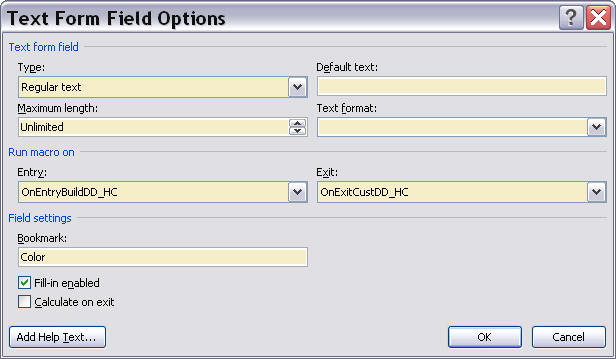
The "Entry" macro, which executes when the user enters the form field, will create a Userform combobox or listbox (your choice) populated with a list of colors for the user to choose when the user tabs into or selects the field.
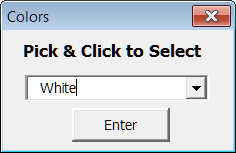
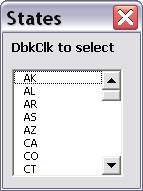
The following illustrations show a combobox used for the "Color" field and a listbox used for the "State" field. I suppose that both have their advantages so the choice of which to use is really up to you.
 |
 |
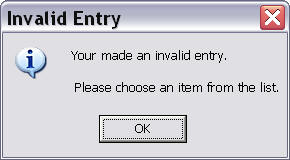
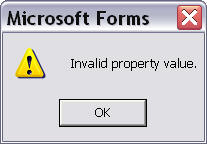
Since the text field is "Fill-in enabled" (it must enabled or the user could not enter the field and fire the Entry macro) it is possible that the user could dismiss the Userform and put their own text in the field.
 |
 |
In the following code panes, I've provided representative code to create Userform listboxes. This method uses a single Userform and VBA code to determine the current Formfield and populate the Userform listbox (using list members hard coded in the VBA) accordingly.
Public oFldName As String 'Public declaration makes this data available to the Userform
Public listArray() As String
Private mstrFF As String
Private i As Long

Sub OnEntryBuildDD_HC()
Dim myFrm As Userform1
  'This is part of the validation process. "mstrFF" stores the name of the formfield with an invalid entry
  If LenB(mstrFF) > 0 Then
    ActiveDocument.FormFields(mstrFF).Select
    mstrFF = vbNullString
  End If
  On Error GoTo Err_Handler
  'Call a function to determine the name of the current formfield
  oFldName = GetCurrentFF.Name
  'Call a function to determine the list items for display
  listArray = GetArray(oFldName)
  'Display the Userform
  Set myFrm = New Userform1
  myFrm.Show
  Exit Sub
Err_Handler:
  MsgBox Err.Number & " " & Err.Decription
End Sub

Private Function GetCurrentFF() As Word.FormField
  With Selection
    If .FormFields.Count = 1 Then
      Set GetCurrentFF = .FormFields(1)
    ElseIf .FormFields.Count = 0 And .Bookmarks.Count > 0 Then
      Set GetCurrentFF = ActiveDocument.FormFields _
                         (.Bookmarks(.Bookmarks.Count).Name)
    End If
  End With
lbl_Exit:
  Exit Function
End Function

Function GetArray(ByRef pName As String) As Variant
  Select Case pName
    Case Is = "Color"
      GetArray = Split("Red,Blue,Green,White,Orange,Yellow,Teal,Lavender,Peach,Brown," _
                 & "Purple,Black,Light Blue,Light Yellow,Light Green,Silver," _
                 & "Gold,Grey, 10% Grey, 15% Grey, 20% Grey, 25% Grey", ",")
      Case Is = "Letter"
        GetArray = Split("A,B,C,D,E,F,G,H,I,J,K,L,M,N,O,P,Q,R,S,T,U,V,W,X,Y,Z", ",")
        Case Is = "Numbers"
       'Use additional Case Is and GetArray statements for the remaining formfields.
   End Select
lbl_Exit:
  Exit Function
End Function

Sub OnExitCustDD_HC()
Dim myFrm As Userform1
Dim bValidate As Boolean
bValidate = False
  With GetCurrentFF
    If .Result = "" Then Exit Sub
    'Call function to get the list items
    listArray = GetArray(.Name)
    'Compare user entry to list items. Exit when match is found
    For i = LBound(listArray) To UBound(listArray)
      If .Result = listArray(i) Then
        bValidate = True
        Exit For
      End If
    Next i
    'If not found (user typed invalid data in the field) then alert user, clear field data.
    If Not bValidate Then
      MsgBox "Your made an invalid entry." & vbCr & vbCr & " Please choose an item from the list.", _
             vbInformation + vbOKOnly, "Invalid Entry"
      mstrFF = .Name
     .Result = ""
    End If
  End With
lbl_Exit:
  Exit Sub
End Sub
 See: Installing Macros for instructions on how to set up and use the macros
Place the following code in a Userform module.
Sub Userform_Initialize()
Dim i As Long
Dim lngLeft As Long, lngTop As Long, lngWidth As Long, lngHeight As Long
  Select Case oFldName
    Case Is = "Color"
      Me.Caption = "Colors"
      'You can specify and custom label caption
      Me.Label1.Caption = "DblClk to select"
      'You can sort the list items
      WordBasic.SortArray listArray, 0
      ListBox1.List = listArray
    Case Is = "Letter"
      Me.Caption = "Letters"
      Me.Label1.Caption = "DblClk to select"
      WordBasic.SortArray listArray, 0
    Case "Number"
      'Use case statements as shown above for remain fields.
  End Select
  'Populate the listbox
  ListBox1.List = listArray
  'Display the Userform adjacent to the formfield.
  Me.StartupPosition = 0
  ActiveWindow.GetPoint lngLeft, lngTop, lngWidth, lngHeight, Selection.Range
  Me.Top = lngTop / 1.33 - 100
  Me.Left = lngLeft / 1.33
  'Set the value of the listbox list item to match previous user selection
  For i = 0 To ListBox1.ListCount - 1
    If ListBox1.List(i) = ActiveDocument.FormFields(oFldName).Result Then
      ListBox1.ListIndex = i
      Exit For
    End If
  Next i
lbl_Exit:
  Exit Sub
End Sub

Private Sub ListBox1_DblClick(ByVal Cancel As MSForms.ReturnBoolean)
  Select Case oFldName
    Case Is = "Color"
      ActiveDocument.Range.FormFields("Color").Result = Me.ListBox1.Text
    Case Is = "Letter"
      ActiveDocument.Range.FormFields("Letter").Result = Me.ListBox1.Text
    Case "Number"
     'Use case statements as shown above for remain fields.
  End Select
  'Kill the Userform
  Unload Me
lbl_Exit:
  Exit Sub
End Sub
All you need to do to add additional textbox fields that will function as dropdown fields is to create the fields with the appropriate bookmark name and add additional Case statements to the procedures shown above.
There is no need to hard code the list entries in the VBA procedure as illustrated here. The list items can be stored in external source for ease of maintenance. I've provided a demo package for this tips page that includes the examples demonstrated here and an Access database for storing the list members. Formfield Userform Listbox.
Note: The path for the database file "DDListItems.mdb" in the code is set using a CONST declaration statement to C:\Demo. You will need to create a folder and save the database file there or change the CONST statement path in the code.
That's it! I hope you have found this tips page useful and informative.
The information, illustrations and code contained in my "Microsoft Word Tips" are provided free and without risk or obligation.
However, the work is mine. If you use it for commercial purposes or benefit from my efforts through income earned or time saved then a donation, however small, will help to ensure the continued availability of this resource.
If you would like to donate, please use the appropriate donate button to access PayPal. Thank you!
This page was last updated on
March 09, 2021
Website
Privacy Statement
Back to top  Back to
Word Tips
Back to
Word Tips