
The Anchorage
Personal website of Gregory K. Maxey, Commander USN (Retired)
The Anchorage
Personal website of Gregory K. Maxey, Commander USN (Retired)
The information, illustrations and code contained in my "Microsoft Word Tips" are provided free and without risk or obligation.

However, the work is mine. If you use it for commercial purposes or benefit from my efforts through income earned or time saved then a donation, however small, will help to ensure the continued availability of this resource.
If you would like to donate, please use the appropriate donate button to access PayPal. Thank you!



This Microsoft Word Tips & Microsoft Word Help page shows you how you can process an entire folder (batch) of documents, extract data from the document form fields/or content controls and display the data collected in an Access database or Word document table.
 Note: Extract Data from Document contains information on extracting data from single source document file.
For example, you may need to survey and collect data from your friends, co-workers, or clients. You first prepare an online (protected) form containing form fields for each survey question.
You send out the forms via e-mail and ask the participants to complete and return the forms. The easy part is over. Now the forms start pouring in and you need to collect and analyze the results. Read on!
Notes:
1. To keep things simple, the questions for the example used here are 1) Participant Name, 2) Favorite Food, and 3) Favorite Color.
2. Documents containing the appropriate content controls can be used in lieu of form fields in a protected documents with Word version 2007 and later.
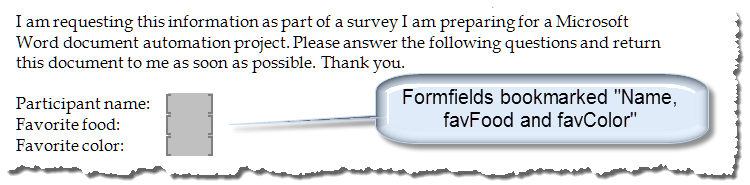
The following illustration depicts the example form. It contains three formfields bookmarked "Name" "FavFood" and "FavColor."
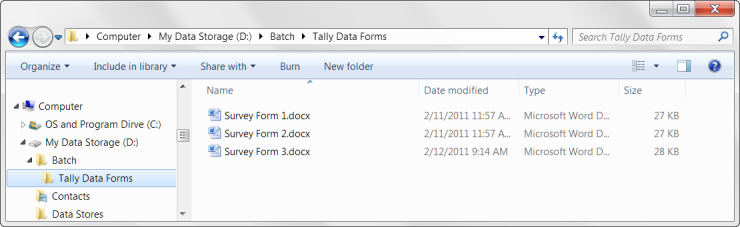
As you receive the returned files you should save them as numbered documents in a common folder on your hard drive. For this exercise, I have created a folder "D:\Batch\Tally Data Forms." Since only three form were returned my folder is pretty small.
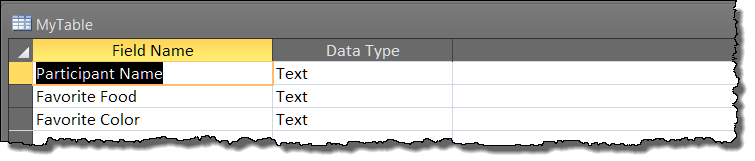
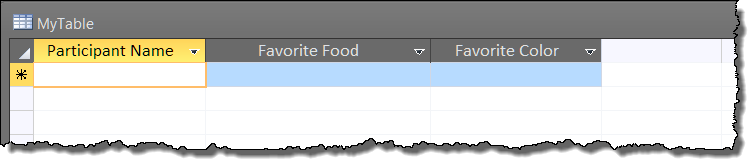
You will also need an Access database table with the appropriate fields to receive the data. I called my database Tally Data and for simplicity I saved it with my returned forms. The database in "design" and "data sheet" view is shown below:
The final step is to run a macro that opens each Word file in the batch directory and writes the formfield results into the appropriate database fields. Simply copy the macro and function shown below to a standard module in your VBA project.
Option Explicit
Sub TallyDataInDataBase()
'Extract data from document form fields and store in Access database
Dim oPath As String
Dim FileArray() As String
Dim oFileName As String
Dim i As Long
'Requires reference to MS ActiveX Data Objects 2.8 Library or later
Dim vConnection As New ADODB.Connection
Dim vRecordSet As New ADODB.Recordset
Dim myDoc As Word.Document
Dim FiletoKill As String
  'Call function to get path to saved forms
  oPath = GetPathToUse
  If oPath = "" Then
    MsgBox "A folder was not selected"
    Exit Sub
  End If
  'Call function to create a processed forms folder
  CreateProcessedDirectory oPath
  'Identify files names
  oFileName = Dir$(oPath & "*.doc")
  ReDim FileArray(1 To 10000) 'User a number larger the expected number of files to process
  'Add file name to the array
  Do While oFileName <> ""
    i = i + 1
    FileArray(i) = oFileName
    'Get the next file name
    oFileName = Dir$
  Loop
  If i = 0 Then
    MsgBox "The selected folder did not contain any forms to process."
    Exit Sub
  End If
  'Resize and preserve the array
  ReDim Preserve FileArray(1 To i)
  Application.ScreenUpdating = False
  'Provide connection string.
  vConnection.ConnectionString = "data source=D:\Batch\Tally Data Forms\Tally Data.mdb;" & _
  "Provider=Microsoft.Jet.OLEDB.4.0;"
  'NOTE if using an ".accdb" format data base use the following connection string:
  'vConnection.ConnectionString = "Provider=Microsoft.ACE.OLEDB.12.0;" _
  & "Data Source=D:\Batch\Tally Data Forms\Tally Data.accdb;"
  vConnection.Open
  vRecordSet.Open "MyTable", vConnection, adOpenKeyset, adLockOptimistic
  'Retrieve the data
  vConnection.Execute "DELETE * FROM MyTable"
  For i = 1 To UBound(FileArray)
    Set myDoc = Documents.Open(FileName:=oPath & FileArray(i), Visible:=False)
    FiletoKill = oPath & myDoc 'Identify the file to move after processing
    vRecordSet.AddNew
    With myDoc
      If .FormFields("Name").Result <> "" Then _
        vRecordSet("Participant Name") = .FormFields("Name").Result
      If .FormFields("FavFood").Result <> "" Then _
        vRecordSet("Favorite Food") = .FormFields("FavFood").Result
      If .FormFields("FavColor").Result <> "" Then _
        vRecordSet("Favorite Color") = .FormFields("FavColor").Result
      .SaveAs oPath & "Processed\" & .Name 'Save processed file in Processed folder
      .Close
      'File as been saved in the processed file folder. Delete it from the batch folder
      Kill FiletoKill
    End With
  Next i
  vRecordSet.Update
  vRecordSet.Close
  vConnection.Close
  Set vRecordSet = Nothing
  Set vConnection = Nothing
  Application.ScreenUpdating = True
lbl_Exit:
  Exit Sub
End Sub

Private Function GetPathToUse() As Variant
Dim fDialog As FileDialog
  Set fDialog = Application.FileDialog(msoFileDialogFolderPicker)
  With fDialog
    .Title = "Select Folder containing the completed form documents to and click OK"
    .AllowMultiSelect = False
    .InitialView = msoFileDialogViewList
    If .Show <> -1 Then
      GetPathToUse = ""
      Set fDialog = Nothing
      Exit Function
    End If
    GetPathToUse = fDialog.SelectedItems.Item(1)
    If Right(GetPathToUse, 1) <> "\" Then GetPathToUse = GetPathToUse + "\"
  End With
lbl_Exit:
  Exit Function
End Function

Sub CreateProcessedDirectory(oPath As String)
'Requires Reference to Microsoft Scripting Runtime
Dim Path As String
Dim FSO As FileSystemObject
Dim NewDir As String
  Path = oPath
  Set FSO = CreateObject("Scripting.FileSystemObject")
  NewDir = Path & "Processed"
  If Not FSO.FolderExists(NewDir) Then
    FSO.CreateFolder NewDir
  End If
lbl_Exit:
  Exit Sub
End Sub
See: Installing Macros for instructions on how to set up and use the macros provided in this Microsoft Word Help & Microsoft Word Tips page.
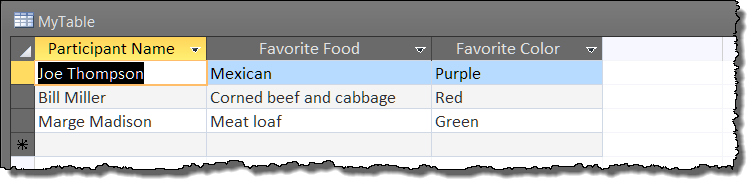
The results are now available in your Access database.
Content controls introduced with Word 2007 are extremely versatile. They can be used in place of form fields in the example above. Instead of creating the form fields and protecting the document you simply add the three necessary plain text content controls as shown:

The code necessary to process the content controls is similar to the code shown above. That code and other code samples (including code to extract data to a Word document table in lieu of a data base) is available in the demonstration and examples document you can download here: Tally Data
The demonstration document "Tally Data.dot" is a Word 2003 template document including a small custom toolbar. The toolbar propagate in the Word 2007/2010 Add-Ins tab, Custom Toolbars group.

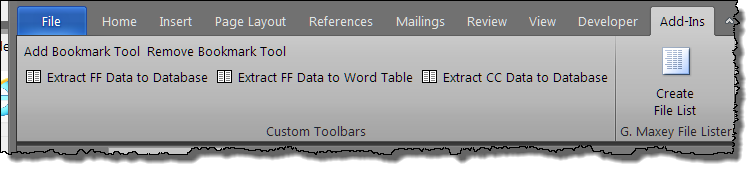
The first command "Extract to Database" executes a procedure containing the code shown above. The second command "Extract to Word Table" executes one of several included procedures to display the extracted data in a Word table. The third command "Extract CC Data to Database" executes codes similar to the code shown above but modified to process content controls vice form fields.
I am including several variations of methods I have used as a record of the effort to get my head around the processes illustrated.
Credit for parts of the code and much of what I have learned putting this page together is due to outstanding assistance of some of the Word MVPs and regular newsgroup contributors. Special thanks is due Doug Robbins for the Access piece, Jezebel for the Class piece, and Tony Jollans/Jonathan West for the array pieces. Thank you all!!
That's it! I hope you have found this tips page useful and informative.
The information, illustrations and code contained in my "Microsoft Word Tips" are provided free and without risk or obligation.
However, the work is mine. If you use it for commercial purposes or benefit from my efforts through income earned or time saved then a donation, however small, will help to ensure the continued availability of this resource.
If you would like to donate, please use the appropriate donate button to access PayPal. Thank you!
This page was last updated on
March 09, 2021
Website
Privacy Statement
Back to top  Back to
Word Tips
Back to
Word Tips