
The Anchorage
Personal website of Gregory K. Maxey, Commander USN (Retired)
The Anchorage
Personal website of Gregory K. Maxey, Commander USN (Retired)
The information, illustrations and code contained in my "Microsoft Word Tips" are provided free and without risk or obligation.

However, the work is mine. If you use it for commercial purposes or benefit from my efforts through income earned or time saved then a donation, however small, will help to ensure the continued availability of this resource.
If you would like to donate, please use the appropriate donate button to access PayPal. Thank you!



In this Microsoft Word Tips & Microsoft Word Help page I will show you how to create and employ a document template and Userform.
The first section of this tips page provides methods which are universal to all current Word versions (2003, 2007, 2010 and 2013). For a method using content controls with Word 2013, 2010 and a limited bases 2007, see Content Control Method.
 Note: Even if you are interested in the Content Control Method, be sure to review this section as well. It contains lots of information on userforms in general that you won't want to miss.
For this section I am going to create a demonstration template with a Userform for a "Student Survey" form. The template provides:
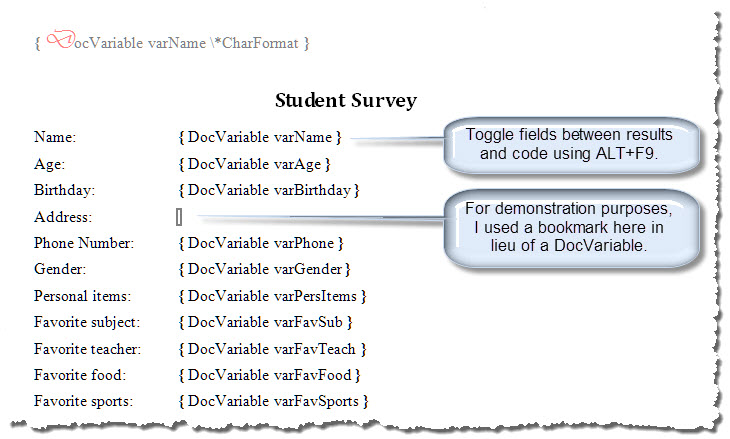
The template when a opened in Word 2010 with field codes displayed is shown in the illustration below.
If you don't know what a template is or if you need help creating one see Word MVP Suzanne Barnhill's: How to Create a Template
Note: If you are using Word 2003 you will use a .dot extension template file. As the template contains a VBA project you must use a macro enabled (.dotm extension) template with Word 2007/2010.
On Doug's suggestion, with one exception, I am departing from an often used practice of using bookmarks as place marker\data stores in the document and will use document variables and DocVariables fields instead.
The exception is that I will use a bookmark for the "Address" information.
Enter the boiler plate text (e.g., form labels, headings, etc.) and the DocVariable fields and/or bookmarks as required.
Note: While not demonstrated here, Content Controls introduced with Word 2007 are excellent place marker/data stores in document templates.
After you create your template and enter the DocVariable fields and bookmark it is time to open the Visual Basic Editor (VBE) to create a standard code module and Userform object.
The Userform for the Student Survey form is shown below:
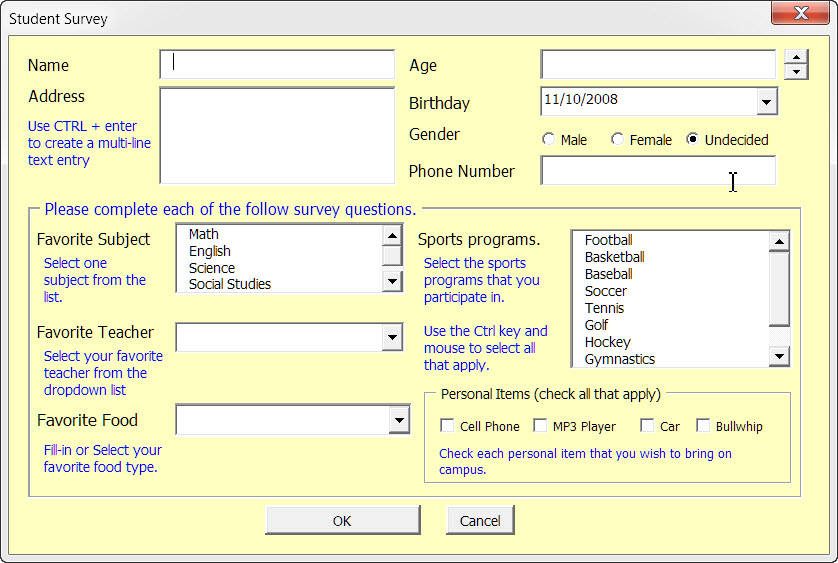
In this Userform I have included most of the common Userform controls.
I used one uncommon but very handy DateAndTimePicker control for entering the birthday.
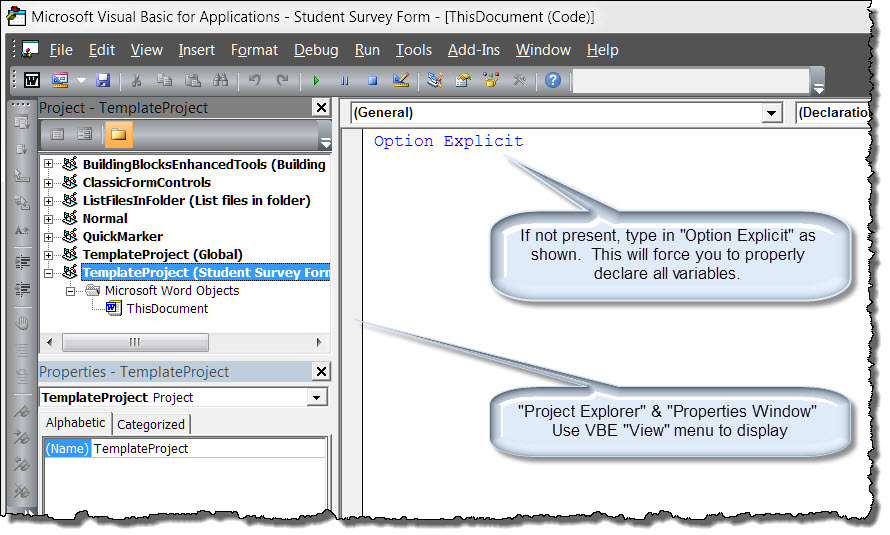
Press ALT+F11 to open the Visual Basic Editor (VB Editor or just VBE).
Using the VBE Tools>References menu verify or establish a reference to the Microsoft Forms 2.0 Object Library and Microsoft Windows Common Controls-2.6.0 (SP3) as shown below
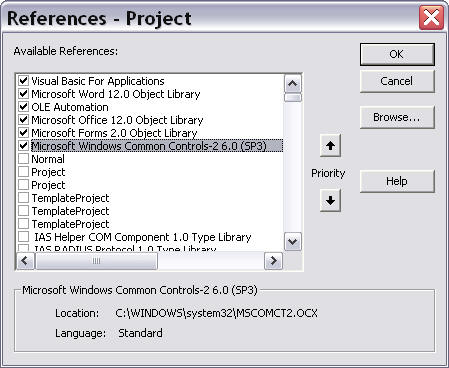
Note: Unfortunately Microsoft no longer includes the Microsoft Windows Common Control-2-6-0 (SP3) in the resource library. You need this reference for the DateAndTimePicker control to work. If you are unable to find it in the list of available resources then you will need to download MSCOMCT2.OCX (see Office Help & Support KB 297381). Once you save MSCOMCT2.OCX in your system directory (e.g., C:\Windows\System32 on 32-bit or C:\Windows\Syswow64 on 64-bit), you need to register it. Click "Start" then "Run," type in regsvr32 and then the path to the file e.g., c:\windows\syswow64\mscomct2.ocx, then click OK. If you don't want to go the trouble of doing this, I have included a second Userform in the .dot version of the Student Survey Form template that substitutes a Textbox control for birthday and omits the DateAndTimePicker control.
Use the VBE Insert menu to insert a "Module" and a "Userform."
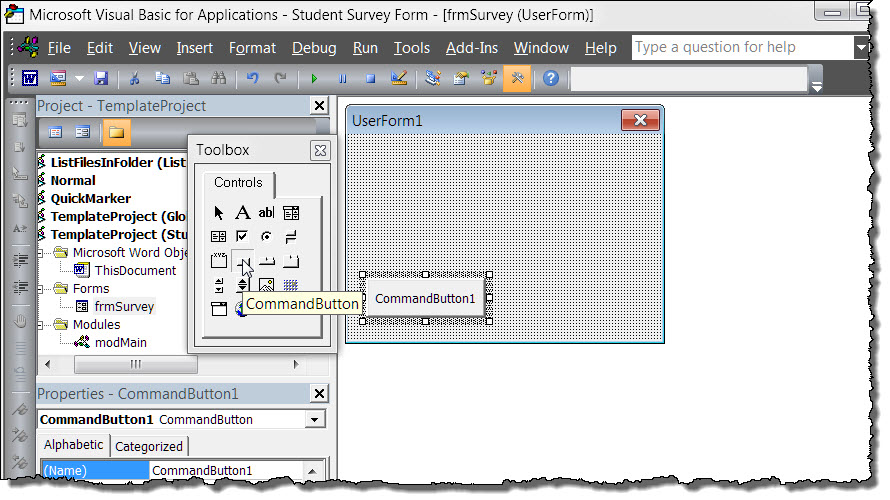
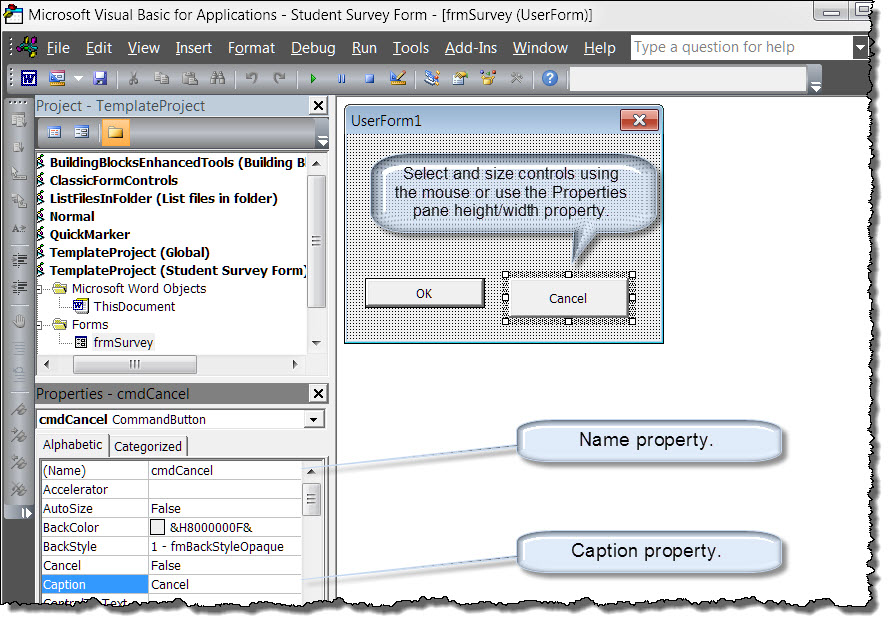
Right click the frmSurvey object in the Project Explorer and select "View code."
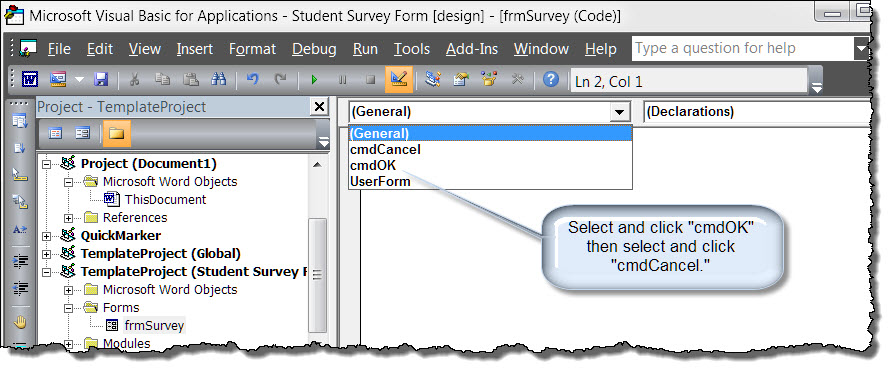
Your code pane should look like the illustration below:
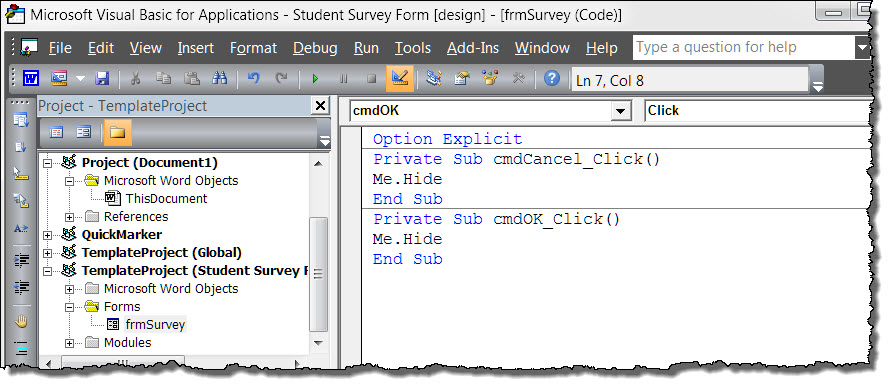
Now we will enter the basic code in the standard code module "modMain" you created that will create and display the Userform. Double click the project module "modMain" and type in or copy and paste the following code:
Sub CallUF()
Dim oFrm As frmSurvey
  Set oFrm = New frmSurvey
  oFrm.Show
  Unload oFrm
  Set oFrm = Nothing
lbl_Exit:
  Exit Sub
End Sub
Notes:
1. You can step through a VBA procedure from the VBE using the F8 key. Give it a try. As you step through the code you will see your Userform be created and displayed. Click either "OK" or "Cancel" and you will see it disappear.
2. If you want a little more schooling on building a basic Userform with a more detailed discussion of the code lines that call, initiate, show and ultimately kill the form see my: Custom VBA Message Box
You will now need to enter the remaining controls and set their respective properties (i.e., name, caption, background color, foreground color, font, MultiSelect, MatchEntry, etc.) using the Properties Window, create the event procedures, and expand the processing code to complete the form.
I am not going to step through the construction of each control or the event procedures.
Instead, you can download the complete template (Word 2003 and Word 2007/2010 versions) with all the code from the tips page demo pack link at the end of this tips page.
I will review some of the event procedures and the processing code in the discussion that follows.
You may have noticed that the ListBox and multi-select ListBox in the example form has items displayed and one of the "Gender" option buttons is selected. This is accomplished using the Userform "Initialize" event. This event establishes the conditions in the Userform when it is initially displayed to the user.
The code used to initialize the Student Survey Userform is shown in the pane below. It illustrates how to set the state of an OptionButton control plus several methods for populating o Listbox and Combobox list members.
Private Sub Userform_Initialize()
Dim arrString() As String
  With Me
    .obUndecided.Value = True
    With .LBFavSub
      .AddItem "Math"
      .AddItem "English"
      .AddItem "Science"
      .AddItem "Social Studies"
      .AddItem "Home Room"
    End With
   .CBFavTeach.List = Array("Mr. Hardnose", "Ms Toad", "Mrs. Shickleburger", "Mr. Badger")
   arrString = Split("Beans and Franks|Pizza|Grinders|Cold Gruel|Grubs", "|")
   .CBFavFood.List = arrString
   .LBmultisel.List = Split("Football,Basketball,Baseball,Soccer,Tennis,Golf," _
       & "Hockey,Gymnastics,Water Polo,Swimming", ",")
  End With
lbl_Exit:
  Exit Sub
End Sub
The spin buttons are used to increment the value in the age field by 1 each time the spin button control is pressed up or down. The code for this control is shown below. You should see that the upper limit is 120 and the lower limit is 0.
Private Sub SpinButton1_SpinUp()
Dim lngAge as Long 'See note
  On Error GoTo Err_Age
  lngAge = Me.txtAge
  If lngAge < 120 Then
    Me.txtAge = lngAge + 1
  End If
  Exit Sub
Err_Age:
  Me.txtAge = 0
  Resume
End Sub

Private Sub SpinButton1_SpinDown()
Dim lngAge as Long 'See note
  On Error GoTo Err_Age
  lngAge = Me.txtAge
  If lngAge > 1 Then
    Me.txtAge = lngAge - 1
  End If
  Exit Sub
Err_Age:
  Me.txtAge = 0
  Resume
End Sub
Bonus Tip: Variables with the same name and type used in multiple procedures can be declared once at the object level (i.e., right at the top under the Option Explicit statement)
Students being students, you might want to validate some of the Userform inputs.
Private Sub txtAge_Change()
Dim strSpan As string
  If Not IsNumeric(Me.txtAge) Then
    If Len(Me.txtAge) > 1 Then
      Me.txtAge.Text = Left(Me.txtAge.Text, Len(Me.txtAge.Text) - 1)
    Else
      Me.txtAge.Text = ""
    End If
    Exit Sub
  End If
  If Len(Me.txtAge) > 3 Then
    Me.txtAge.Text = Left(Me.txtAge.Text, 3)
  End If
  If Val(Me.txtAge) > 120 Then
    MsgBox "Contact Guinness World Records!!"
    Me.txtAge.Text = Left(Me.txtAge.Text, 2)
  End If
  strSpan = Format(DateAdd("yyyy", -(CDbl(Me.txtAge)), Now), "yyyy")
  Me.DTPicker1 = CDate("1/1/" & strSpan)
lbl_Exit:
  Exit Sub
End Sub
You might want to validate and format the data entered. The phone number field in the Student Data Form formats the number entered as: (###)-###-####. For more on validating text entries in Userforms, see my: Validate Userform Text Entries.
Private Sub txtPhone_Exit(ByVal Cancel As MSForms.ReturnBoolean)
Dim strTemp As String
  strTemp = Me.txtPhone.Value
  If (strTemp Like "(###) ###-####") Then Exit Sub
  If (strTemp Like "##########") Then
    strTemp = "(" & Left(strTemp, 3) & ") " & Mid(strTemp, 4, 3) & "-" & Right(strTemp, 4)
    Me.txtPhone.Value = strTemp
  ElseIf (strTemp Like "###-###-####") Then
    strTemp = "(" & Left(strTemp, 3) & ") " & Right(strTemp, 8)
    Me.txtPhone.Value = strTemp
  ElseIf (strTemp Like "### ### ####") Then
    strTemp = Replace(strTemp, " ", "-")
    strTemp = "(" & Left(strTemp, 3) & ") " & Right(strTemp, 8)
    Me.txtPhone.Value = strTemp
  ElseIf (strTemp Like "(###)###-####") Then
    strTemp = Left(strTemp, 5) & " " & Right(strTemp, 8)
    Me.txtPhone.Value = strTemp
  Else
    If MsgBox("Your entry does not convert to a standard U.S. phone number format. " _
      & "Do you want to try again?", vbQuestion + vbYesNo, "Invalid Format") _
      = vbYes Then
      With Me.txtPhone
        .SetFocus
        .SelStart = 0
        .SelLength = Len(.Text)
      End With
      Cancel = True
    Else
      Me.txtPhone.Value = strTemp
    End If
  End If
lbl_Exit:
  Exit Sub
End Sub
You might want to ensure that fields are not left blank or comment on a particular entry. You can do this with the "OK" click event procedure in the frmSurvey module as follows:
'The public variable boolProceed is shared with the CallUF procedure and is used to determine if the student processed or canceled the form.
'Place it at the top of the frmSurvey module immediately below the "Option Explicit" statement.
Public boolProceed As Boolean

Private Sub cmdBtnOK_Click()
  Select Case ""
    Case Me.txtName.Value
      MsgBox "Please fill-in your name."
      Me.txtName.SetFocus
      Exit Sub
    Case Me.txtAge.Value
      MsgBox "Please fill-in your age."
      Me.txtAge.SetFocus
      Exit Sub
    Case Me.txtAddress.Value
      MsgBox "Please fill-in your address."
      Me.txtAddress.SetFocus
      Exit Sub
    Case Me.txtPhone.Value
      MsgBox "Please fill-in your phone number."
      Me.txtPhone.SetFocus
      Exit Sub
  End Select
  If Me.obUndecided.Value = True Then
    MsgBox "You should schedule an appointment with the school counselor", _
      vbExclamation + vbOKOnly, "Don't know your gender?"
    Exit Sub
  End If
  'Set value of a public variable declared at the form level." This is used to determine if _
  form was processed or if the student canceled.
  Me.boolProceed = True
  Me.Hide
lbl_Exit:
  Exit Sub
End Sub
Now let's shift our attention to the code needed to process the information entered in the Userform and put it in the document. To do this we are going to need a "few" more variables and a "good bit" of additional processing code in the CallUF procedure created earlier. The additional variables and the processing code is shown below:
Sub CallUF()
Dim oFrm As frmSurvey
Dim oVars As Word.Variables
Dim strTemp As String
Dim oRng As Word.Range
Dim i As Long
Dim strMultiSel As String
  Set oVars = ActiveDocument.Variables
  Set oFrm = New frmSurvey
  With oFrm
    .Show
    If .boolProceed Then
      oVars("varName").Value = .txtName
      oVars("varAge").Value = .txtAge
"Replace the line breaks entered by the user with line breaks and tabs _
to ensure address entry is properly indented. See notes below.
      strTemp = Replace(.txtAddress.Value, Chr(10), Chr(10) + Chr(9))
      Set oRng = ActiveDocument.Bookmarks("bmAddress").Range
      oRng.Text = strTemp
      ActiveDocument.Bookmarks.Add "bmAddress", oRng
      oVars("varBirthDay").Value = .DTPicker1
'Define the Gender text
      Select Case True
        Case .obMale
          strTemp = "Male"
        Case .obFemale
          strTemp = "Female"
        Case .obUndecided
          strTemp = "Undecided"
      End Select
      oVars("varGender").Value = strTemp
      oVars("varPhone").Value = .txtPhone
'Process student responses (including no response)
      If Not IsNull(.LBFavSub.Value) And (.LBFavSub.Value) <> "" Then
        oVars("varFavSub").Value = .LBFavSub.Value
      Else
        oVars("varFavSub").Value = "Not provided."
      End If
      If .CBFavTeach.Value <> "" Then
        oVars("varFavTeach").Value = .CBFavTeach.Value
      Else: oVars("varFavTeach").Value = "No response"
      End If
      If .CBFavFood.Value <> "" Then
        oVars("varFavFood").Value = .CBFavFood.Value
      Else: oVars("varFavFood").Value = "No response"
      End If
'Define the PersItems text string
      If .CheckBox1.Value = True Then strTemp = "Cell phone, "
      If .CheckBox2.Value = True Then strTemp = strTemp & "Car, "
      If .CheckBox3.Value = True Then strTemp = strTemp & "MP3 Player, "
      If .CheckBox4.Value = True Then strTemp = strTemp & "Bullwhip."
'Clean up the string text
      If Right(strTemp, 2) = ", " Then strTemp = Left(strTemp, Len(strTemp) - 2) & "."
      On Error Resume Next
      strTemp = Left(strTemp, InStrRev(strTemp, ",") - 1) & " and" & Mid(strTemp, InStrRev(strTemp, ",") + 1)
      On Error GoTo 0
      If strTemp = "" Then strTemp = "No response"
        oVars("varPersItems").Value = strTemp
'Build the multi-select string
      strMultiSel = ""
      With .LBmultisel
        For i = 0 To .ListCount - 1
          If .Selected(i) Then
            strMultiSel = strMultiSel & .List(i) & ", "
          End If
        Next i
      End With
'Clean up the string text.
      If Right(strMultiSel, 2) = ", " Then strMultiSel = Left(strMultiSel, Len(strMultiSel) - 2) & "."
      On Error Resume Next
      strMultiSel = Left(strMultiSel, InStrRev(strMultiSel, ",") - 1) & " and" & Mid(strMultiSel, InStrRev(strMultiSel, ",") + 1)
      On Error GoTo 0
      If strMultiSel = "" Then strMultiSel = "No Response"
      oVars("varFavSports").Value = strMultiSel
      myUpdateFields
    Else
      MsgBox "Form cancelled by user"
    End If
  End With
  Unload oFrm
  Set oFrm = Nothing
  Set oVars = Nothing
  Set oRng = Nothing
lbl_Exit:
  Exit Sub
End Sub
Notes:
1. Notice that it takes two additional steps and lines of code to process the bookmark for the address data. Whenever you place data "in" a bookmark instead of "at" a bookmark you must redefine the bookmark range. This destroys the bookmark and another one with the same name must be added at the redefined range. This may seem like a lot of trouble but it is worth the extra effort.
2. If you elect to use a DocVariable for a multi-line textbox and want to indent the subsequent lines to tab stop you would use the following code: oVar("varAddress").Value = Replace(Me.TextBox1.Text, Chr(10), Chr(9))
In the procedure above we have set the value of several document variables to the value that the user enter entered in the Userform. The DocVariable fields associated with these variables were inserted previously in the template. Those fields now need to be updated to reflect the new variable values. We accomplished this by calling a separate procedure "myUpdateFields" that cycles through each storyrange in the document and updates the fields. This procedure is shown below:
Sub myUpdateFields()
Dim oStyRng As Word.Range
Dim iLink As Long
  iLink = ActiveDocument.Sections(1).Headers(1).Range.StoryType
  For Each oStyRng In ActiveDocument.StoryRanges
    Do
      oStyRng.Fields.Update
      Set oStyRng = oStyRng.NextStoryRange
    Loop Until oStyRng Is Nothing
  Next
End Sub
To polish the cannonball, DocVariable fields that point to a variable that doesn't exist can look pretty gnarly when the field result is displayed.
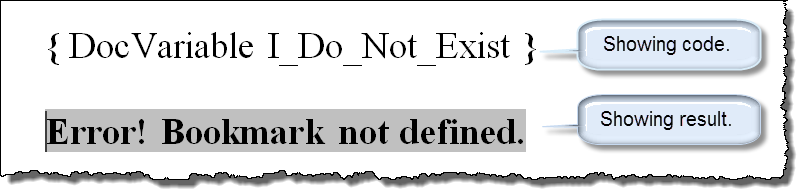
To keep our template looking nice we can create and set initial values in each variable with a simple procedure:
Sub Create_Reset_Variables()
  With ActiveDocument.Variables
    .Item("varName").Value = " "
    .Item("varAge").Value = " "
    .Item("varAddress").Value = " "
    .Item("varBirthday").Value = " "
    .Item("varGender").Value = " "
    .Item("varPhone").Value = " "
    .Item("varFavSub").Value = " "
    .Item("varFavTeach").Value = " "
    .Item("varFavFood").Value = " "
    .Item("varFavSports").Value = " "
    .Item("varPersItems").Value = " "
  End With
  myUpdateFields
lbl_Exit:
  Exit Sub
End Sub
Now all we need to do is deploy the Userform when a student creates a new Student Survey Form from the template. This easily accomplished by adding an AutoNew event procedure to the project module "modMain." With this procedure we will create the document variables and display the form each time a new document is created from the template.
Sub AutoNew()
  Create_Reset_Variables
  CallUF
lbl_Exit:
Exit Sub
End Sub
See: Installing Macros for instructions on how to set up and use the macros provided in this Microsoft Word Help & Microsoft Word Tips page.
In this section I will provide an example of a template and userform using content controls in the main document which serve as target ranges for the data entered by the user in the userform. These content controls replace the bookmarks/document variable fields demonstrated earlier.
This method has several advantages:
The example presented here was created using Word 2010. It is fully functional in Word 2013. Unfortunately content control checkboxes were not available in Word 2007. Accordingly the portions of the example template dealing with checkboxes will not function and is not available in Word 2007.
The document template and userform are illustrated below. The template consists of various types of content controls in a document restricted for editing. The shaded areas (light yellow) represent the content controls. Each content controls is defined as an editable region in the restricted document. For more on using content controls in forms, see: Create Forms with Content Controls
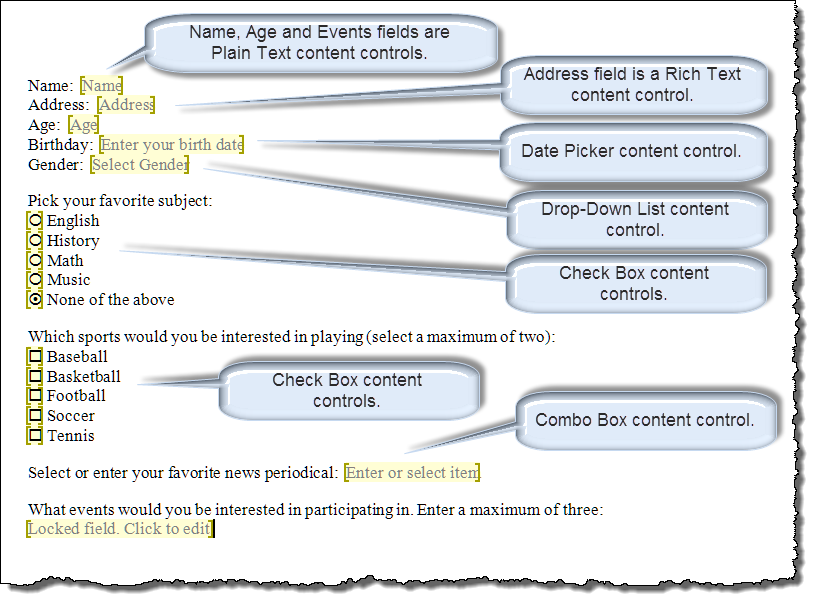
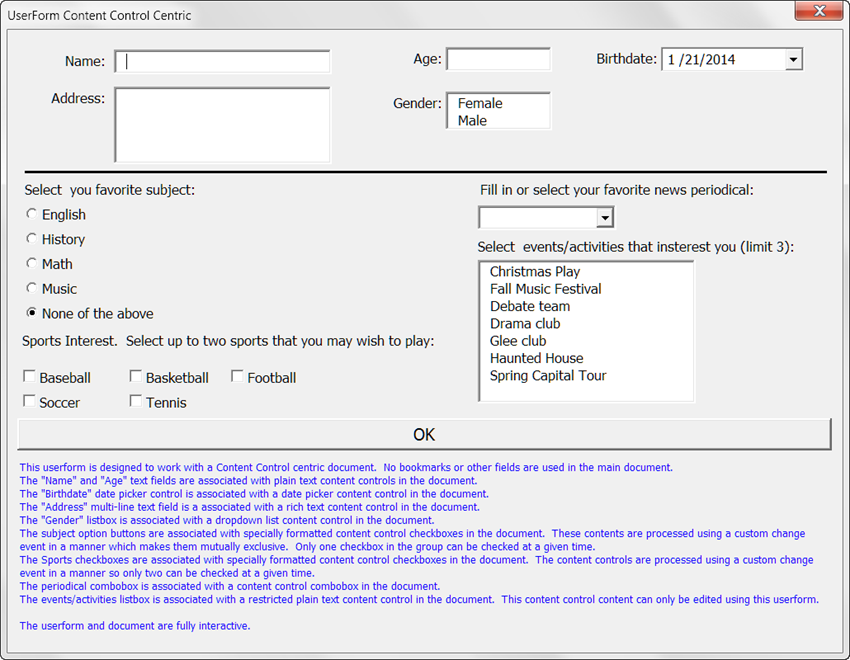
Each content control in the document is associated with a control in the Userform.
Logic in the Userform and in a custom Document_ContentControlOnChange event work together to ensure that the user is limited to selecting only one "subject" option and up to two "sports" activities.
Logic in the Userform ensures that the user is limited to selecting a maximum of three events in the Userform "Events" listbox and converts and inserts the selected items into a properly formatted text string in the document "Events" content control.
All of the associated code is available in the template you can download from the Userform Demo Pack link below. For more information on mutually exclusive option buttons, see: Mutually Exclusive "Content Control" Option Buttons.
That's it! This concludes this Tips Page. I hope that it gives you a better understanding and appreciation for Userforms. You can download all of the templates used to create this tips page here: Userform Demo Pack
There are several other helpful articles on Userforms in the Word MVP FAQ pages MVP FAQ Userforms or see my: Interactive Userforms and Interactive Userform Checkboxes.
The information, illustrations and code contained in my "Microsoft Word Tips" are provided free and without risk or obligation.
However, the work is mine. If you use it for commercial purposes or benefit from my efforts through income earned or time saved then a donation, however small, will help to ensure the continued availability of this resource.
If you would like to donate, please use the appropriate donate button to access PayPal. Thank you!
This page was last updated on
March 09, 2021
Website
Privacy Statement
Back to top  Back to
Word Tips
Back to
Word Tips