
The Anchorage
Personal website of Gregory K. Maxey, Commander USN (Retired)
The Anchorage
Personal website of Gregory K. Maxey, Commander USN (Retired)
The information, illustrations and code contained in my "Microsoft Word Tips" are provided free and without risk or obligation.

However, the work is mine. If you use it for commercial purposes or benefit from my efforts through income earned or time saved then a donation, however small, will help to ensure the continued availability of this resource.
If you would like to donate, please use the appropriate donate button to access PayPal. Thank you!



This Microsoft Word Tips & Microsoft Word Help page shows you how to apply a simple eye catching banner using the Word EQ field and switches. For example, let's use the text "FOR SALE."

If this method is utilized frequently, you might like to use the following simple macro:
Public Sub Banner()
Dim Expr As String
Expr = InputBox("Enter the text to banner:", "Apply Banner")
  If Expr <> "" Then
    ActiveDocument.Fields.Add Range:=Selection.Range, _
      Type:=wdFieldEmpty, _
      Text:="EQ \x\to\bo(" & Expr & ")", _
      PreserveFormatting:=False
  End If
End Sub
The field code or macro can easily be adapted to other nifty applications using the EQ field. For example, the following code can be used to create a single text over bar:
Public Sub Overbar()
Dim Expr As String
  Expr = InputBox("Enter the text to overbar:", "Apply overbar")
  If Expr <> "" Then
    ActiveDocument.Fields.Add Range:=Selection.Range, _
      Type:=wdFieldEmpty, _
      Text:="EQ \x\to(" & Expr & ")",  PreserveFormatting:=False
  End If
End Sub
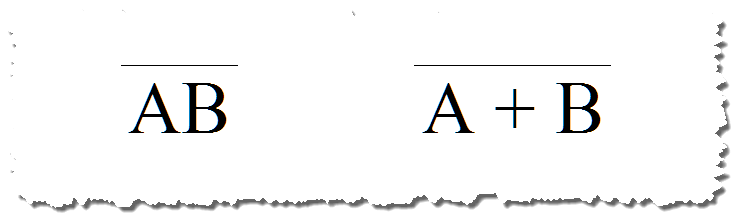
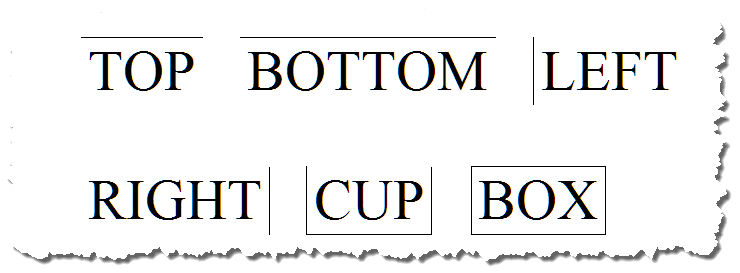
The field modifiers \to \bo \ri \le can be used singulary or in combination to apply top, bottom, right, and left borders or any combination around the text. Omit all modifiers, leaving only the box switch \x for a complete border.
Do you need to overstrike a letter or number? For the mathematical mean symbol you could use a \x box switch like in the previous example, but you have no control over the spacing of the over-score. As you can see in the example, it does not look as good.
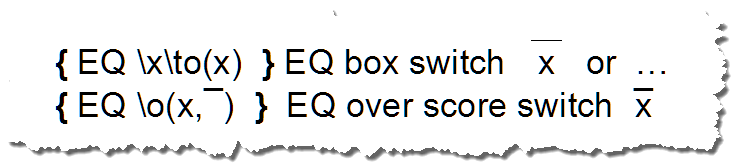
Create an overstrike EQ field as follows:
 Bonus Tip: Press CTRL+ALT+Keypad "-" minus sign to enter an em dash. Or you can use the ¯ (over-score symbol) by activating NumLock and press ALT+0175.
Would you use this frequently? It would be simple to edit the Banner or Overbar macros above, but if you used the same symbol frequently then a Building Block is a great alternative. To create a building block, perform the following:
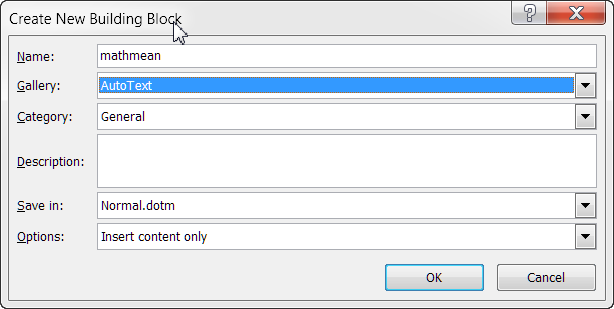
Note: With the introduction of Word 2007, AutoText was incorporated with Building Blocks. See my Building Blocks & AutoText for more information on these powerful tools.
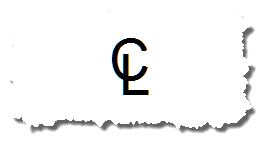
The over-score can also be used as follows to create the "centerline" symbol.
 See: Installing Macros for instructions on how to set up and use the macros provided in this tips page.
That's it! I hope you have found this tips page useful and informative.
The information, illustrations and code contained in my "Microsoft Word Tips" are provided free and without risk or obligation.
However, the work is mine. If you use it for commercial purposes or benefit from my efforts through income earned or time saved then a donation, however small, will help to ensure the continued availability of this resource.
If you would like to donate, please use the appropriate donate button to access PayPal. Thank you!
This page was last updated on
March 23, 2023
Website
Privacy Statement
Back to top  Back to
Word Tips
Back to
Word Tips